All guides
Municipal services · Angelcam MCP Connector

Is waste being left
beside the bins
?
Bring the right images to the reviewer sooner.

Flag bulky waste and other items beside containers, then send the images to an authorized employee for review.
Claude or ChatGPT or Grok Bot
Live or recording snapshots
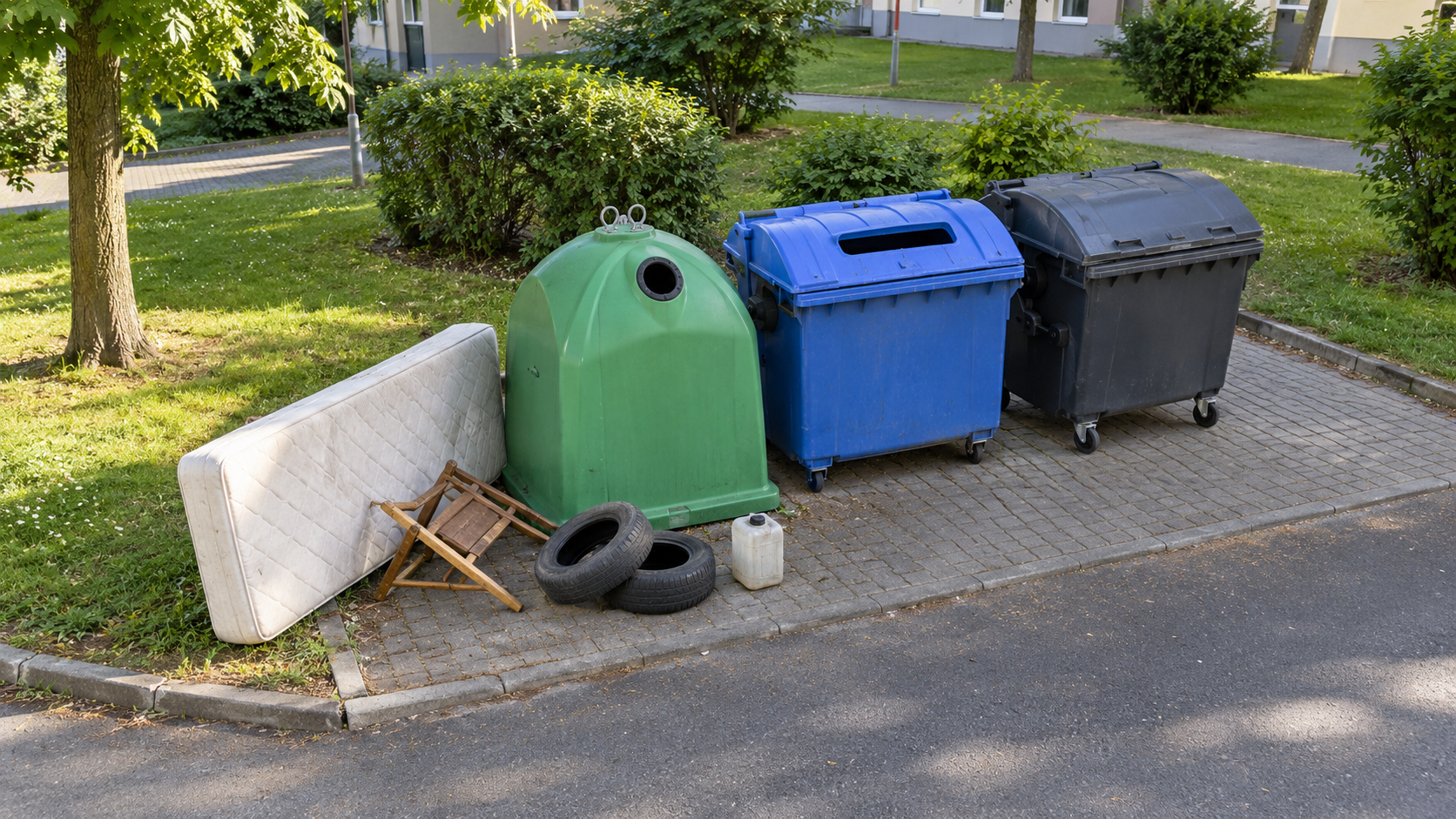
Illustrative waste collection point camera view
Waste collection point
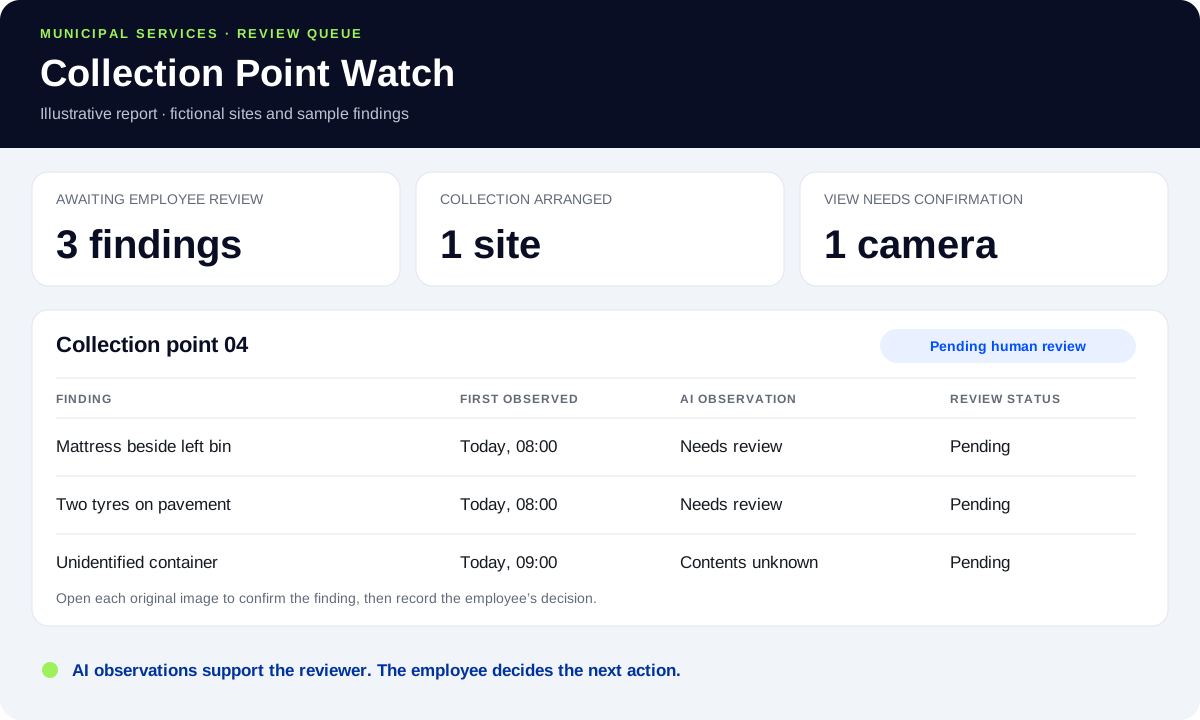
Illustrative example report with sample data
Example report
Camera scenes and report examples are illustrations.
How it works

From a camera picture to an answer you can act on.

Camera → Angelcam snapshots → AI scene check → human review. Flag items beside the containers, keep a history of findings and track the response at each collection point.
  1. Your camera

    Waste collection point

    Use a camera connected to your Angelcam account.
  2. Angelcam

    Live or recording snapshots

    Choose a current image or a snapshot from an earlier recording through the MCP Connector.
  3. Your assistant

    What has been left beside the bins?

    Use the guide’s prompts to inspect what is visible.
  4. You

    Findings for an authorized employee

    Review the original image, confirm what needs attention and record the next action. Keep the AI observation separate from the employee’s decision.
Choose your snapshot source

Check now. Or look back.

Every use case works with live snapshots and snapshots from recordings. Choose the source that fits the period you want to check.
Check from now on

Live snapshots

Check the site as scheduled runs happen. Flag newly visible items and update the review queue without alerting repeatedly about the same item.
No Cloud Recording required.
Use live snapshots with your assistant
Prompt
Use live snapshots to check Collection point 04. At every supported scheduled interval, fetch a fresh Angelcam snapshot and compare it with the reviewed reference and any open findings. Flag visible items left beside the bins: mattresses, furniture, tyres, bags or unidentified containers. Log site, camera, original timestamp, object description, approximate position, status and uncertainty in the configured log. Use needs review for a possible new item and unclear for missing or obstructed images. Do not send duplicate alerts for the same open finding. Send a short review notification only to our tested destination; otherwise keep it in this chat. Never identify people, infer who left an item, classify unknown contents as hazardous or take enforcement action. If the camera has moved, stop comparison and request a new site/reference confirmation.
Copy
Look back at earlier times

Recording snapshots

Review earlier snapshots, compare site condition over time and narrow the interval when an item first appeared.
Requires Cloud Recording and footage for the selected period.
Use recording snapshots with your assistant
Prompt
Use recording snapshots to review Collection point 04 over the period I specify. Compare samples at an interval we choose with the reviewed reference and open findings. For a new item beside the bins, inspect more recorded frames to narrow the interval between the last clear view and first view showing it. Save site, camera, original timestamps, object description, uncertainty and before/after evidence in the configured log. Mark missing footage explicitly. A recorded time window is a retrospective observation, not proof of who deposited the item or that it is still present. Do not send a current-state alert without a fresh check. Do not identify people, read plates, infer hazardous contents or take enforcement action.
Copy
Live checks build a log from the time they start. They cannot recover missed checks. Recording snapshots can review earlier footage within your retention period. Check the scheduling intervals and storage available in your assistant.
Before you start

Define the collection area. Confirm the camera position.

Mark the ground around the containers, review a clear reference image and test examples of bulky waste and normal collection activity. When a mobile camera moves, confirm the new site and reference before resuming.
Illustrative waste collection point view for checking the prompt
Pick your assistant

One use case. Choose your way to build it.

The steps and connected apps differ. Follow the edition for the assistant you use.
Anthropic

Claude

Use the Claude edition for its own connection steps, prompts and reporting workflow.
Before you start
  • An Angelcam account with the mobile camera connected and a clear view of the collection area. Live snapshots work without Cloud Recording; recording snapshots require Cloud Recording and retained footage.
  • Claude with custom connector access. Connect Google Sheets for a shared review log and Slack if the responsible employee wants channel alerts.
  • A named collection point, an authorized reviewer and a reviewed reference image. Confirm the site and reference again whenever a mobile camera is relocated.
Set it up in Claude
OpenAI

ChatGPT

Use the ChatGPT edition for its own connection steps, prompts and reporting workflow.
Before you start
  • An Angelcam account with the mobile camera connected and a clear view of the collection area. Live snapshots work without Cloud Recording; recording snapshots require Cloud Recording and retained footage.
  • A paid ChatGPT plan that can add custom MCP servers, on chatgpt.com. The server must be able to fetch Angelcam images. Use the task chat for the initial review log and test any scheduled access before relying on it.
  • A named collection point, an authorized reviewer and a reviewed reference image. Confirm the site and reference again whenever a mobile camera is relocated.
Set it up in ChatGPT
xAI

Grok Bot

Set up a Grok Bot routine, save a CSV log and build a report you can review.
Before you start
  • An Angelcam account with the mobile camera connected and a clear view of the collection area. Live snapshots work without Cloud Recording; recording snapshots require Cloud Recording and retained footage.
  • Grok Bot with custom MCP connections and routines. Use a CSV in the Bot’s workspace for the log; optionally connect Slack for review notifications.
  • A named collection point, an authorized reviewer and a reviewed reference image. Confirm the site and reference again whenever a mobile camera is relocated.
Set it up in Grok Bot
Step by step

From connection to a result you can review.

Both snapshot sources work. The walkthrough below uses live snapshots. Use the source prompts above for the other option.

The idea

A mattress beside the recycling bins. Furniture, tyres or an unidentified container left on the pavement. By the time someone reviews the camera footage, the collection point may already have become a larger cleanup job.
In the Náchod use case, municipal police use mobile cameras at selected problem locations, while an authorized employee reviews the footage. This guide adds an AI-assisted review queue: Angelcam supplies the images, Claude flags visible waste that may need attention, and the employee checks the finding and decides what happens next. This is a proposed workflow, not a report of a completed deployment.

Who does what

The mobile camera shows the collection point. Angelcam delivers live or recording snapshots. Claude compares the visible scene with a reviewed reference, prepares a short item list and keeps a log. The authorized employee reviews the images, coordinates collection or further assessment, and records the outcome.
1

Connect the camera to Claude

Add Angelcam in Claude’s connector settings using
https://mcp.angelcam.com/readonly
, complete the browser sign-in and allow camera pictures. Confirm that the connection can fetch a snapshot of the intended camera. Connect the log and notification apps you plan to use.
2

Inspect one collection point

Prompt
Find the Angelcam camera for “Collection point 04”. Take a fresh snapshot. Look only at the marked collection area and the ground beside the bins. List visible items outside the bins, such as mattresses, furniture, tyres, bags or canisters. For each item, give its approximate position and what you can actually see. Return clear, needs review or unclear. Do not identify people or read number plates. Do not call an item hazardous based on appearance alone. Show the original image and timestamp for an authorized employee to review.
Copy
Check the result yourself. A mattress, chair or tyre may be visually recognizable. The contents of an unlabelled canister may not be: log it as an unidentified container for review. If a bin is full, record that separately from waste outside the bins.
3

Define the area and reference view

Prompt
Use this reviewed image as the reference for Collection point 04. The collection area is the paved strip around the three bins; exclude the road, neighboring entrances and passing traffic. A finding is an item left outside the bins that appears absent from the reference. Do not flag an item being carried past, a collection vehicle, ordinary shadows or a person alone. If you cannot distinguish those cases, return unclear. Save the camera ID, site ID, reference timestamp and the area description with the reference. Ask for a new reference whenever the mobile camera moves or the view changes.
Copy
Use examples of a clear site, a bulky item beside a bin, normal waste collection and a poor or blocked view. Adjust the description until the reviewer agrees with the labels. For live comparisons, confirm that your assistant can retain and reopen the reference image.
4

Choose live checks or a recording review

Both snapshot options are described above. Live checks can flag a new visible item as checks happen. Recording snapshots let you review earlier periods and narrow down when an item first appeared. Sampling cannot establish the exact time between frames.
Prompt
Create the review log in a Google Sheet called Collection point review. Use these fields: Finding ID, Site ID, Camera ID, First observed time, Last checked time, Object description, Approximate position, AI observation, Uncertainty, Evidence frame time, Reviewer, Review status and Action note. Start review status as Pending. Keep the same Finding ID for the same item across checks. Preserve the original image timestamps and mark live versus recording observations.
Copy
Prompt
Create a scheduled task for the live workflow we tested, checking Collection point 04 hourly in Europe/Prague. Use the Collection point review sheet as the persistent log. If supported and explicitly approved for #municipal-review, post one short Slack review notification for each new finding; otherwise report in this chat that delivery needs approval. Keep unclear checks and gaps visible. Confirm the saved schedule and permissions before enabling it.
Copy
The scheduled example uses live snapshots. For a retrospective investigation, use the recording-snapshot prompt with an explicit date range. Always label historical findings as historical and make a fresh check before reporting that waste is still present.
5

Test the reviewer notification

Connect Slack and test a message in a channel accessible to the authorized employee. Review the permission and exact destination before allowing unattended notifications. The shared sheet holds the review status.
Prompt
Prepare one test notification for the agreed destination: “Collection point 04 — review requested. Possible mattress beside the left bin. Camera [camera], frame time [timestamp]. Status: Pending review.” Do not send until I confirm the test. Keep personal identifiers out of the notification.
Copy
Test a clear view, a new item, a repeat image of the same item, an unavailable camera and a moved camera. The repeat should update the existing finding; a moved camera should request a new site/reference confirmation. Snapshot links expire after about two minutes, so check that the employee can open the frame from the recording by camera and time. That needs Cloud Recording.
6

Review, coordinate collection and close the finding

The authorized employee checks the original image and any relevant recording, corrects the description if needed and assigns the next action. Use review statuses such as Pending, Acknowledged, Collection arranged and Closed. An AI observation that the area looks clear is separate from an employee closing the finding.
Prompt
Update finding [FINDING_ID] with the employee decision I provide: [DECISION]. Record reviewer [NAME], review time and action note. Do not infer a reviewer decision from an image. When asked for a fresh check, record whether the item is still visible; keep that observation separate from the review status. Do not issue fines, identify a person, contact police or publish evidence automatically.
Copy
Prompt
Build an artifact called Collection Point Watch from the Collection point review sheet. Show a card for each site, unresolved findings, first-seen times, evidence timestamps, acknowledgements and collection status. Separate AI observations from employee decisions. Include gaps and camera moves. Count unique findings, not repeated snapshots of the same item. Refresh from the sheet when I open the report.
Copy
For multiple mobile cameras, keep a stable site ID and log each camera assignment. When a camera moves, close its old assignment, identify the new site and approve a new reference before comparisons resume.

What to expect

  • A review queue.
    The useful result is a short list of images needing attention, with a site, timestamp and reason for the employee to check.
  • Appearance has limits.
    An image can show an unknown drum or container; it cannot confirm hazardous contents. Leave the material assessment to the responsible staff.
  • No identification.
    This workflow checks objects and site condition. It does not recognize faces, read number plates or decide who is responsible.
  • Snapshots have gaps.
    Poor lighting, obstruction, missing footage or a long sampling interval can hide a change. Log unclear results and gaps explicitly.
  • Moving cameras need a new reference.
    A changed viewpoint can look like a changed site. Confirm the new camera position before resuming comparisons.
  • Keep evidence and access reviewable.
    Store the camera and frame time of each finding where the authorized employee can see them, retain needed footage before it expires, and share findings only through the agreed internal workflow.

The idea

A mattress beside the recycling bins. Furniture, tyres or an unidentified container left on the pavement. By the time someone reviews the camera footage, the collection point may already have become a larger cleanup job.
In the Náchod use case, municipal police use mobile cameras at selected problem locations, while an authorized employee reviews the footage. This guide adds an AI-assisted review queue: Angelcam supplies the images, ChatGPT flags visible waste that may need attention, and the employee checks the finding and decides what happens next. This is a proposed workflow, not a report of a completed deployment.

Who does what

The mobile camera shows the collection point. Angelcam delivers live or recording snapshots. ChatGPT compares the visible scene with a reviewed reference, prepares a short item list and keeps a log. The authorized employee reviews the images, coordinates collection or further assessment, and records the outcome.
1

Connect the camera to ChatGPT

In ChatGPT on the web, open Plugins, click + and choose Add custom MCP server. Name it Angelcam and paste
https://mcp.angelcam.com/readonly
as the server URL with OAuth, then create it as a plugin and install it. ChatGPT calls this a plugin, but it’s a private connection in your own account; Angelcam doesn’t publish an official ChatGPT plugin. Complete its sign-in and allow pictures. Workspace accounts may need an administrator to add the server. Type @Angelcam in a chat and verify the intended camera before setting up a task.
2

Inspect one collection point

Prompt
Find the Angelcam camera for “Collection point 04”. Take a fresh snapshot. Look only at the marked collection area and the ground beside the bins. List visible items outside the bins, such as mattresses, furniture, tyres, bags or canisters. For each item, give its approximate position and what you can actually see. Return clear, needs review or unclear. Do not identify people or read number plates. Do not call an item hazardous based on appearance alone. Show the original image and timestamp for an authorized employee to review.
Copy
Check the result yourself. A mattress, chair or tyre may be visually recognizable. The contents of an unlabelled canister may not be: log it as an unidentified container for review. If a bin is full, record that separately from waste outside the bins.
3

Define the area and reference view

Prompt
Use this reviewed image as the reference for Collection point 04. The collection area is the paved strip around the three bins; exclude the road, neighboring entrances and passing traffic. A finding is an item left outside the bins that appears absent from the reference. Do not flag an item being carried past, a collection vehicle, ordinary shadows or a person alone. If you cannot distinguish those cases, return unclear. Save the camera ID, site ID, reference timestamp and the area description with the reference. Ask for a new reference whenever the mobile camera moves or the view changes.
Copy
Use examples of a clear site, a bulky item beside a bin, normal waste collection and a poor or blocked view. Adjust the description until the reviewer agrees with the labels. For live comparisons, confirm that your assistant can retain and reopen the reference image.
4

Choose live checks or a recording review

Both snapshot options are described above. Live checks can flag a new visible item as checks happen. Recording snapshots let you review earlier periods and narrow down when an item first appeared. Sampling cannot establish the exact time between frames.
Prompt
Create the review log in a timestamped table in this task’s chat. Use these fields: Finding ID, Site ID, Camera ID, First observed time, Last checked time, Object description, Approximate position, AI observation, Uncertainty, Evidence frame time, Reviewer, Review status and Action note. Start review status as Pending. Keep the same Finding ID for the same item across checks. Preserve the original image timestamps and mark live versus recording observations.
Copy
Prompt
Set up an hourly task in Europe/Prague for the live workflow we tested on Collection point 04. Keep the review log as a timestamped table in this task chat, including existing open findings so repeated images do not create duplicate alerts. Notify me through the task’s available notifications when a new finding needs review. Confirm that the task can call the Angelcam app during unattended runs. If it cannot, report that failure and do not invent a result. Do not contact other recipients.
Copy
The scheduled example uses live snapshots. For a retrospective investigation, use the recording-snapshot prompt with an explicit date range. Always label historical findings as historical and make a fresh check before reporting that waste is still present.
5

Test the reviewer notification

Test a notification to your own account first. Check that the scheduled run actually calls Angelcam and leaves the camera and frame time of each finding in the task chat. Share the resulting report with the authorized employee through your approved internal process.
Prompt
Prepare one test notification for the agreed destination: “Collection point 04 — review requested. Possible mattress beside the left bin. Camera [camera], frame time [timestamp]. Status: Pending review.” Do not send until I confirm the test. Keep personal identifiers out of the notification.
Copy
Test a clear view, a new item, a repeat image of the same item, an unavailable camera and a moved camera. The repeat should update the existing finding; a moved camera should request a new site/reference confirmation. Snapshot links expire after about two minutes, so check that the employee can open the frame from the recording by camera and time. That needs Cloud Recording.
6

Review, coordinate collection and close the finding

The authorized employee checks the original image and any relevant recording, corrects the description if needed and assigns the next action. Use review statuses such as Pending, Acknowledged, Collection arranged and Closed. An AI observation that the area looks clear is separate from an employee closing the finding.
Prompt
Update finding [FINDING_ID] with the employee decision I provide: [DECISION]. Record reviewer [NAME], review time and action note. Do not infer a reviewer decision from an image. When asked for a fresh check, record whether the item is still visible; keep that observation separate from the review status. Do not issue fines, identify a person, contact police or publish evidence automatically.
Copy
Prompt
From this task’s review log, make a Collection Point Watch report and an exportable table. For each site show unresolved findings, first-seen times, evidence timestamps, acknowledgements and collection status. Separate observations from employee decisions. Include missing checks and camera moves. Count unique findings, not repeated images of the same waste. Mark historical observations separately from the latest live check.
Copy
For multiple mobile cameras, keep a stable site ID and log each camera assignment. When a camera moves, close its old assignment, identify the new site and approve a new reference before comparisons resume.

What to expect

  • A review queue.
    The useful result is a short list of images needing attention, with a site, timestamp and reason for the employee to check.
  • Appearance has limits.
    An image can show an unknown drum or container; it cannot confirm hazardous contents. Leave the material assessment to the responsible staff.
  • No identification.
    This workflow checks objects and site condition. It does not recognize faces, read number plates or decide who is responsible.
  • Snapshots have gaps.
    Poor lighting, obstruction, missing footage or a long sampling interval can hide a change. Log unclear results and gaps explicitly.
  • Moving cameras need a new reference.
    A changed viewpoint can look like a changed site. Confirm the new camera position before resuming comparisons.
  • Keep evidence and access reviewable.
    Store the camera and frame time of each finding where the authorized employee can see them, retain needed footage before it expires, and share findings only through the agreed internal workflow.

The idea

A mattress beside the recycling bins. Furniture, tyres or an unidentified container left on the pavement. By the time someone reviews the camera footage, the collection point may already have become a larger cleanup job.
In the Náchod use case, municipal police use mobile cameras at selected problem locations, while an authorized employee reviews the footage. This guide adds an AI-assisted review queue: Angelcam supplies the images, Grok Bot flags visible waste that may need attention, and the employee checks the finding and decides what happens next. This is a proposed workflow, not a report of a completed deployment.

Who does what

The mobile camera shows the collection point. Angelcam delivers live or recording snapshots. Grok Bot compares the visible scene with a reviewed reference, prepares a short item list and keeps a log. The authorized employee reviews the images, coordinates collection or further assessment, and records the outcome.
1

Connect the camera to Grok Bot

In the Bot that will own the check, ask:
Prompt
Add a custom MCP server named Angelcam at https://mcp.angelcam.com/readonly using streamable HTTP. Start its OAuth sign-in and list the available tools. Keep camera and recording settings unchanged.
Copy
Complete the browser sign-in and allow camera pictures. Verify a snapshot from the correct camera, then test that later runs can read the CSV log.
2

Inspect one collection point

Prompt
Find the Angelcam camera for “Collection point 04”. Take a fresh snapshot. Look only at the marked collection area and the ground beside the bins. List visible items outside the bins, such as mattresses, furniture, tyres, bags or canisters. For each item, give its approximate position and what you can actually see. Return clear, needs review or unclear. Do not identify people or read number plates. Do not call an item hazardous based on appearance alone. Show the original image and timestamp for an authorized employee to review.
Copy
Check the result yourself. A mattress, chair or tyre may be visually recognizable. The contents of an unlabelled canister may not be: log it as an unidentified container for review. If a bin is full, record that separately from waste outside the bins.
3

Define the area and reference view

Prompt
Use this reviewed image as the reference for Collection point 04. The collection area is the paved strip around the three bins; exclude the road, neighboring entrances and passing traffic. A finding is an item left outside the bins that appears absent from the reference. Do not flag an item being carried past, a collection vehicle, ordinary shadows or a person alone. If you cannot distinguish those cases, return unclear. Save the camera ID, site ID, reference timestamp and the area description with the reference. Ask for a new reference whenever the mobile camera moves or the view changes.
Copy
Use examples of a clear site, a bulky item beside a bin, normal waste collection and a poor or blocked view. Adjust the description until the reviewer agrees with the labels. For live comparisons, confirm that your assistant can retain and reopen the reference image.
4

Choose live checks or a recording review

Both snapshot options are described above. Live checks can flag a new visible item as checks happen. Recording snapshots let you review earlier periods and narrow down when an item first appeared. Sampling cannot establish the exact time between frames.
Prompt
Create the review log in collection-point-review.csv in the Bot’s workspace. Use these fields: Finding ID, Site ID, Camera ID, First observed time, Last checked time, Object description, Approximate position, AI observation, Uncertainty, Evidence frame time, Reviewer, Review status and Action note. Start review status as Pending. Keep the same Finding ID for the same item across checks. Preserve the original image timestamps and mark live versus recording observations.
Copy
Prompt
Create a routine called Collection point review, hourly in Europe/Prague, using the live workflow we tested for Collection point 04. Keep collection-point-review.csv as the persistent log and read open findings before each check. Post one short review notification per new finding in #municipal-review. If a post fails, keep the result in this chat and say why. Confirm the next run, log persistence and permissions. If camera access or the reference fails, report the failure rather than reusing an old image.
Copy
The scheduled example uses live snapshots. For a retrospective investigation, use the recording-snapshot prompt with an explicit date range. Always label historical findings as historical and make a fresh check before reporting that waste is still present.
5

Test the reviewer notification

Connect Slack only if you want review notifications there. Test one post in the chosen channel and inspect the scope of any saved permission before enabling unattended delivery. Keep the CSV as the record of each finding and its review status. On the approval card, choose Always allow: an approval raised during a routine expires after about 10 minutes, so unattended posts need that rule.
Prompt
Prepare one test notification for the agreed destination: “Collection point 04 — review requested. Possible mattress beside the left bin. Camera [camera], frame time [timestamp]. Status: Pending review.” Do not send until I confirm the test. Keep personal identifiers out of the notification.
Copy
Test a clear view, a new item, a repeat image of the same item, an unavailable camera and a moved camera. The repeat should update the existing finding; a moved camera should request a new site/reference confirmation. Snapshot links expire after about two minutes, so check that the employee can open the frame from the recording by camera and time. That needs Cloud Recording.
6

Review, coordinate collection and close the finding

The authorized employee checks the original image and any relevant recording, corrects the description if needed and assigns the next action. Use review statuses such as Pending, Acknowledged, Collection arranged and Closed. An AI observation that the area looks clear is separate from an employee closing the finding.
Prompt
Update finding [FINDING_ID] with the employee decision I provide: [DECISION]. Record reviewer [NAME], review time and action note. Do not infer a reviewer decision from an image. When asked for a fresh check, record whether the item is still visible; keep that observation separate from the review status. Do not issue fines, identify a person, contact police or publish evidence automatically.
Copy
Prompt
Build a page called Collection Point Watch from collection-point-review.csv. Show a card for each site, unresolved findings, first-seen times, evidence timestamps, acknowledgements and collection status. Separate observations from employee decisions. Include gaps and camera moves. Count unique findings, not repeated images. Refresh after each completed routine. Keep the page accessible only to the intended review team.
Copy
For multiple mobile cameras, keep a stable site ID and log each camera assignment. When a camera moves, close its old assignment, identify the new site and approve a new reference before comparisons resume.

What to expect

  • A review queue.
    The useful result is a short list of images needing attention, with a site, timestamp and reason for the employee to check.
  • Appearance has limits.
    An image can show an unknown drum or container; it cannot confirm hazardous contents. Leave the material assessment to the responsible staff.
  • No identification.
    This workflow checks objects and site condition. It does not recognize faces, read number plates or decide who is responsible.
  • Snapshots have gaps.
    Poor lighting, obstruction, missing footage or a long sampling interval can hide a change. Log unclear results and gaps explicitly.
  • Moving cameras need a new reference.
    A changed viewpoint can look like a changed site. Confirm the new camera position before resuming comparisons.
  • Keep evidence and access reviewable.
    Store the camera and frame time of each finding where the authorized employee can see them, retain needed footage before it expires, and share findings only through the agreed internal workflow.
Keep exploring

What else could your cameras
tell you
?

Use another guide as a starting point for your site.
Camera scenes, screens and reports are illustrations or sample data.