All guides
Security & property · Angelcam MCP Connector

What
changed
at the shopfront?
Go from a new mark to the frames around it.

Compare views, investigate new damage and collect the frames around the change.
Claude or ChatGPT or Grok Bot
Live or recording snapshots
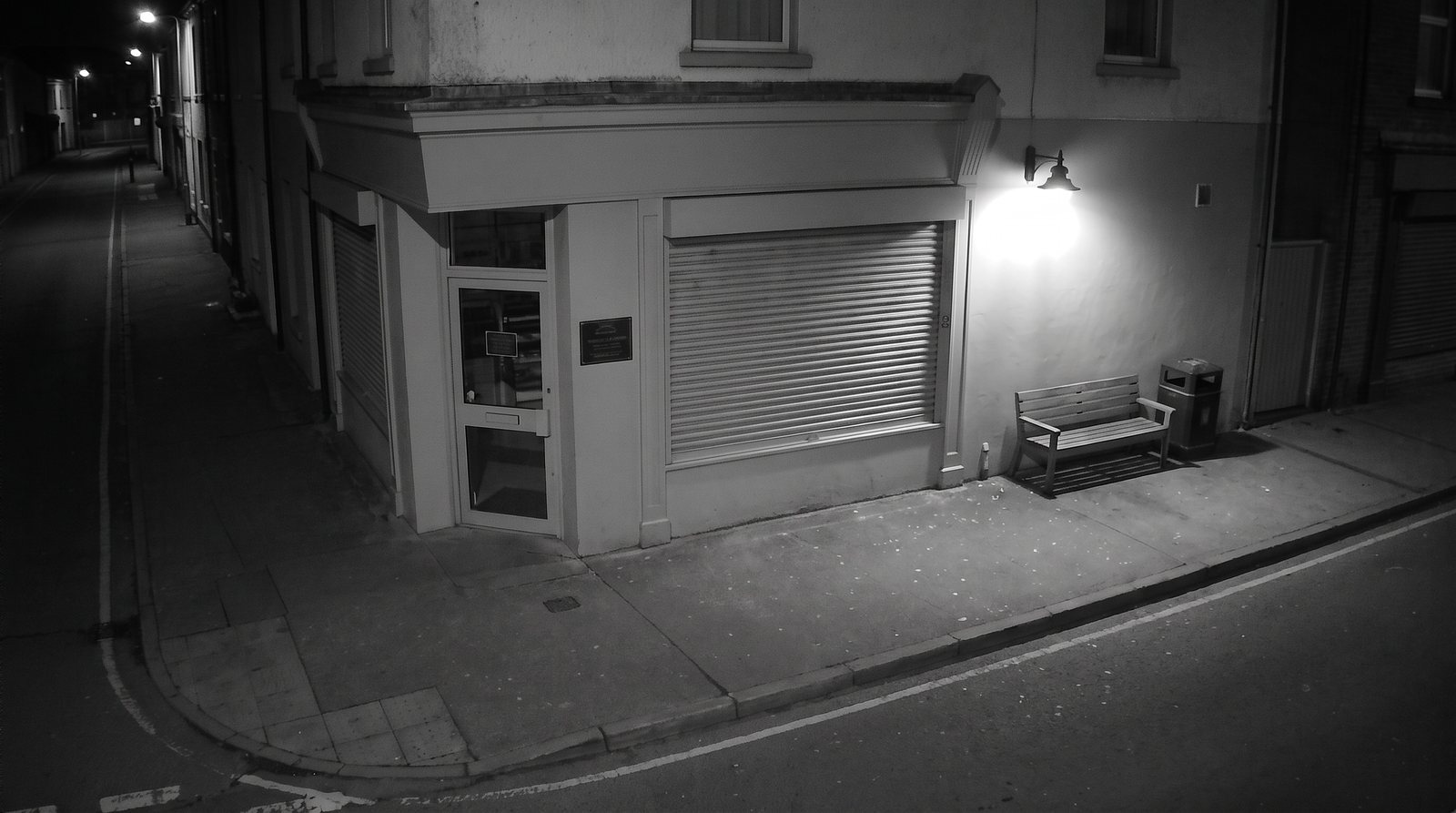
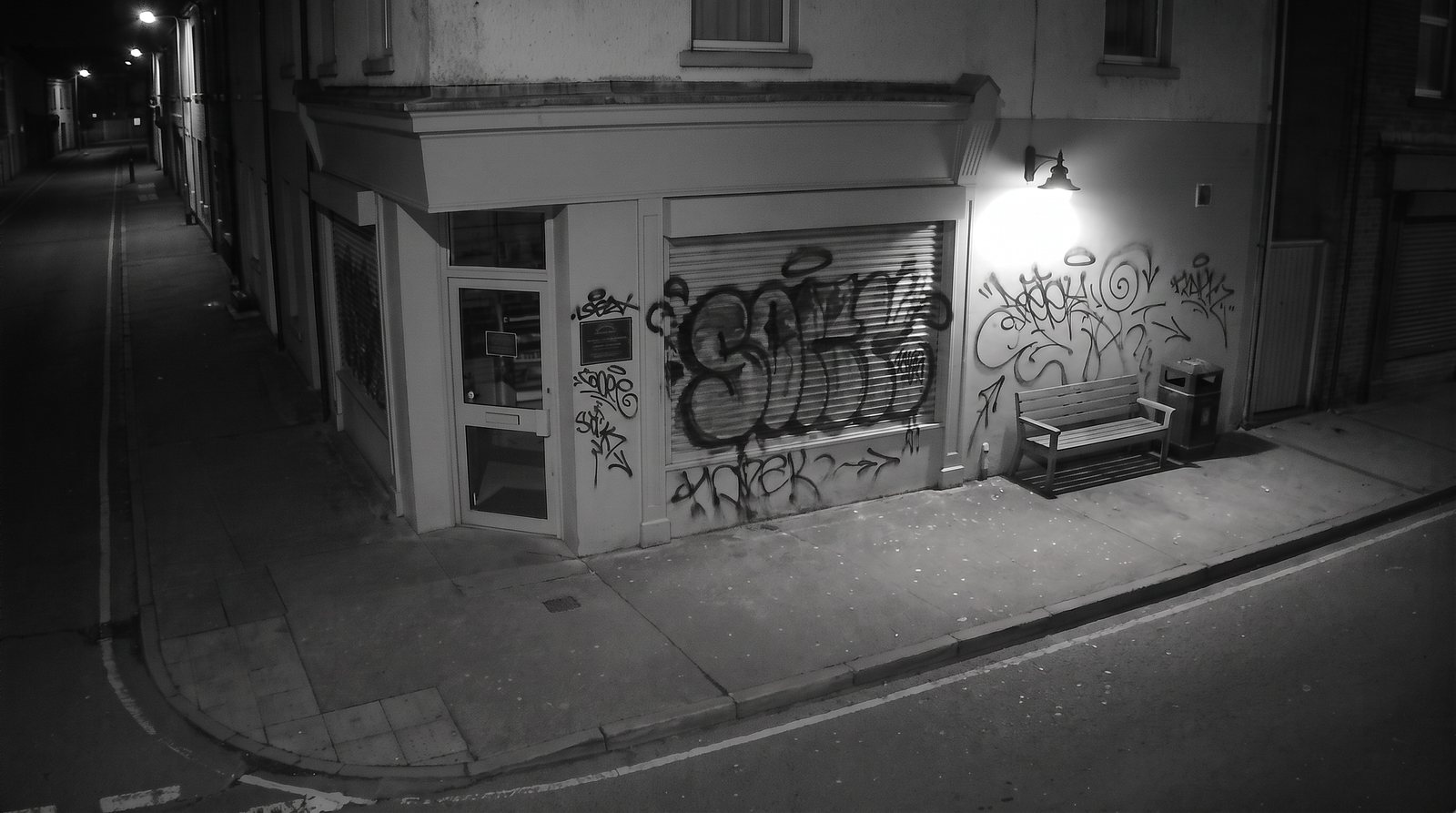
Illustrative shopfront camera view
Shopfront
Illustrative example report with sample data
Example report
Camera scenes and report examples are illustrations.
How it works

From a camera picture to an answer you can act on.

Camera → Angelcam images → AI comparison → evidence. You get a history of checks, alerts for possible new damage and before-and-after frames to review.
  1. Your camera

    Shopfront

    Use a camera connected to your Angelcam account.
  2. Angelcam

    Live or recording snapshots

    Choose a current image or a snapshot from an earlier recording through the MCP Connector.
  3. Your assistant

    What changed overnight?

    Use the guide’s prompts to inspect what is visible.
  4. You

    Evidence you can inspect

    Follow the guide to investigate a visible change, review surrounding frames and collect the available evidence.
Choose your snapshot source

Check now. Or look back.

Every use case works with live snapshots and snapshots from recordings. Choose the source that fits the period you want to check.
Check from now on

Live snapshots

Compare a fresh shopfront snapshot with a saved reference from an earlier live check and flag visible changes.
No Cloud Recording required.
Use live snapshots with your assistant
Prompt
Use live snapshots for the shopfront check. At each scheduled check, take a fresh Angelcam snapshot of “Shopfront” and compare it with the previous saved reference and its timestamp. Confirm where this assistant can retain the reference before enabling the routine. Ignore ordinary lighting, rain, deliveries and passing people. Log suspected new damage, uncertainty and the two timestamps; use only the notification destination we tested. If no usable reference exists, save a baseline and report that comparison is not yet available. Do not claim to have footage between live checks or identify a person.
Copy
Look back at earlier times

Recording snapshots

Compare snapshots from selected times, narrow down the change window and collect available before-and-after evidence.
Requires Cloud Recording and footage for the selected period.
Use recording snapshots with your assistant
Prompt
Use recording snapshots for the shopfront check. Compare images from the two times I specify, then inspect additional recorded frames between them to narrow the interval where a new mark or damage appeared. Keep the camera and original timestamps with before/after evidence; include a during frame or clip only if available. Mark gaps and uncertainty, avoid duplicate incidents, and prepare a report for review. Do not identify a person, infer an exact event time from missing frames or send a historical finding as a current emergency.
Copy
Live checks build a log from the time they start. They cannot recover missed checks. Recording snapshots can review earlier footage within your retention period. Check the scheduling intervals and storage available in your assistant.
Before you start

Test ordinary changes as well as damage.

Light, rain, deliveries and passing people can change a picture. Compare known frames and tune the instructions before relying on the workflow.
Illustrative shopfront view for checking the prompt
Pick your assistant

One use case. Choose your way to build it.

The steps and connected apps differ. Follow the edition for the assistant you use.
Anthropic

Claude

Use the Claude edition for its own connection steps, prompts and reporting workflow.
Before you start
  • An Angelcam account with a camera that clearly shows the scene. All use cases support live snapshots and recording snapshots. Cloud Recording is required only for snapshots from recordings; the live option does not need it.
  • A paid Claude plan (Pro, Max, Team or Enterprise).
  • Gmail for the email and Google Sheets for the incident log. Both are connected under Customize → Connectors.
Set it up in Claude
OpenAI

ChatGPT

Use the ChatGPT edition for its own connection steps, prompts and reporting workflow.
Before you start
  • An Angelcam account with a camera that clearly shows the scene. All use cases support live snapshots and recording snapshots. Cloud Recording is required only for snapshots from recordings; the live option does not need it.
  • A paid ChatGPT plan that can add custom MCP servers, plus ChatGPT on the web at chatgpt.com. For now, they can be added only on the web. On Business, Enterprise and Edu, an admin usually adds the server for the workspace, and you install it.
  • The ChatGPT app on your phone, if you want the alerts there and not only by email.
  • One free slot for a scheduled task. Plus has 5, Business 10, and Pro and Enterprise 15.
Set it up in ChatGPT
xAI

Grok Bot

Set up a Grok Bot routine, save a CSV log and build a report you can review.
Before you start
  • An Angelcam account with a camera that clearly shows the scene. All use cases support live snapshots and recording snapshots. Cloud Recording is required only for snapshots from recordings; the live option does not need it.
  • Grok Bot with access to custom MCP connections and routines. Choose one Bot to own this workflow.
  • A camera showing the shopfront, enough recording retention to inspect the night, and optional Slack for a review notification.
Set it up in Grok Bot
Step by step

From connection to a result you can review.

Both snapshot sources work. The walkthrough below uses recording snapshots. Use the source prompts above for the other option.

The idea

You find out about graffiti when you open up in the morning. By then you don’t know when it happened, the recording is hours long, and the insurer wants a time and a picture.
In this guide Angelcam delivers the picture from your shopfront camera and keeps the night’s recording. Every hour from 22:00 to 06:00, Claude compares the live picture with the one from an hour earlier. When something new appears (graffiti, broken glass, a damaged sign), Claude goes back through the recording, finds the minutes it happened, and emails you the before, during and after frames with a link to the clip. You set it all up in Claude, in about 20 minutes.

Who does what

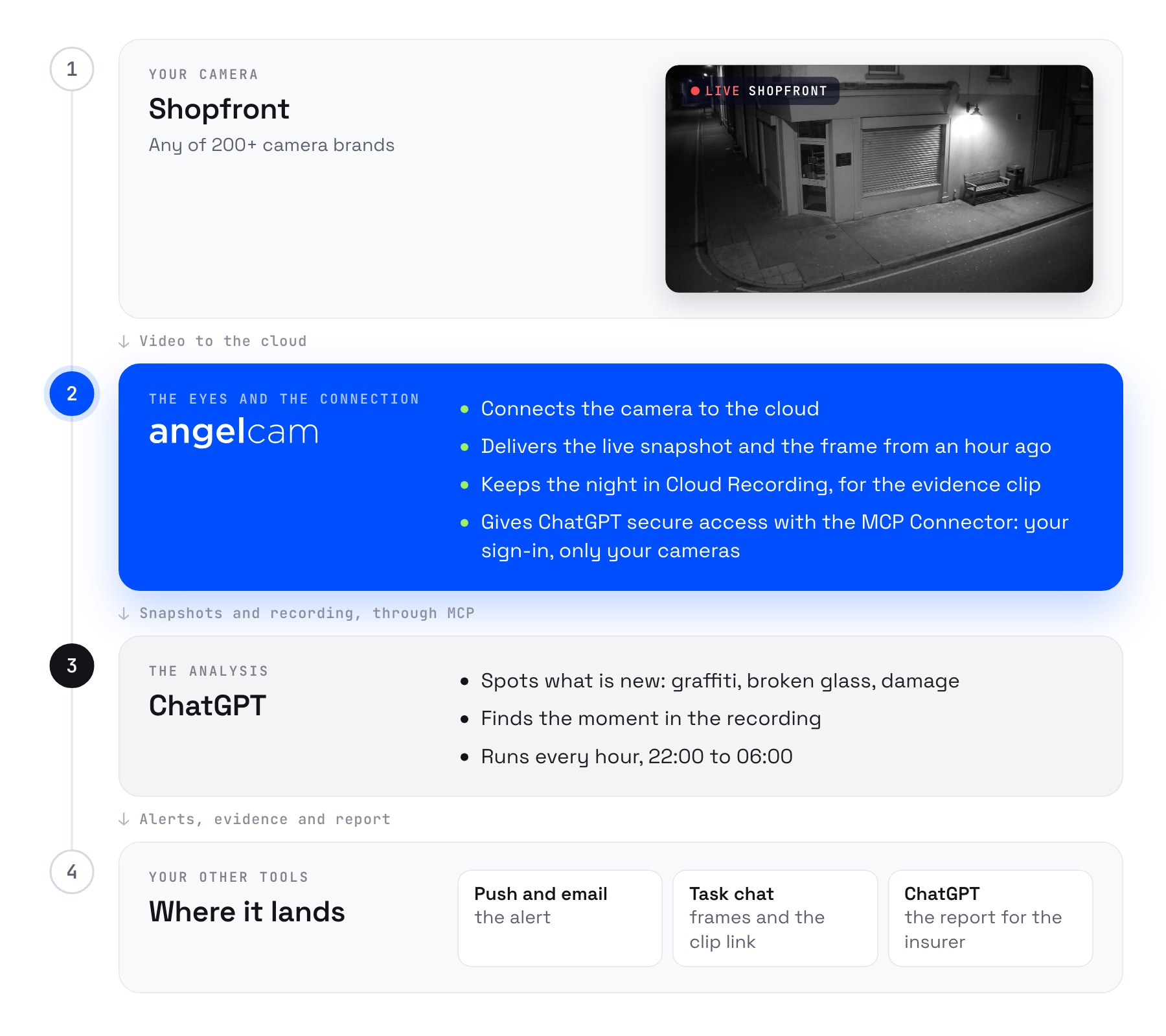
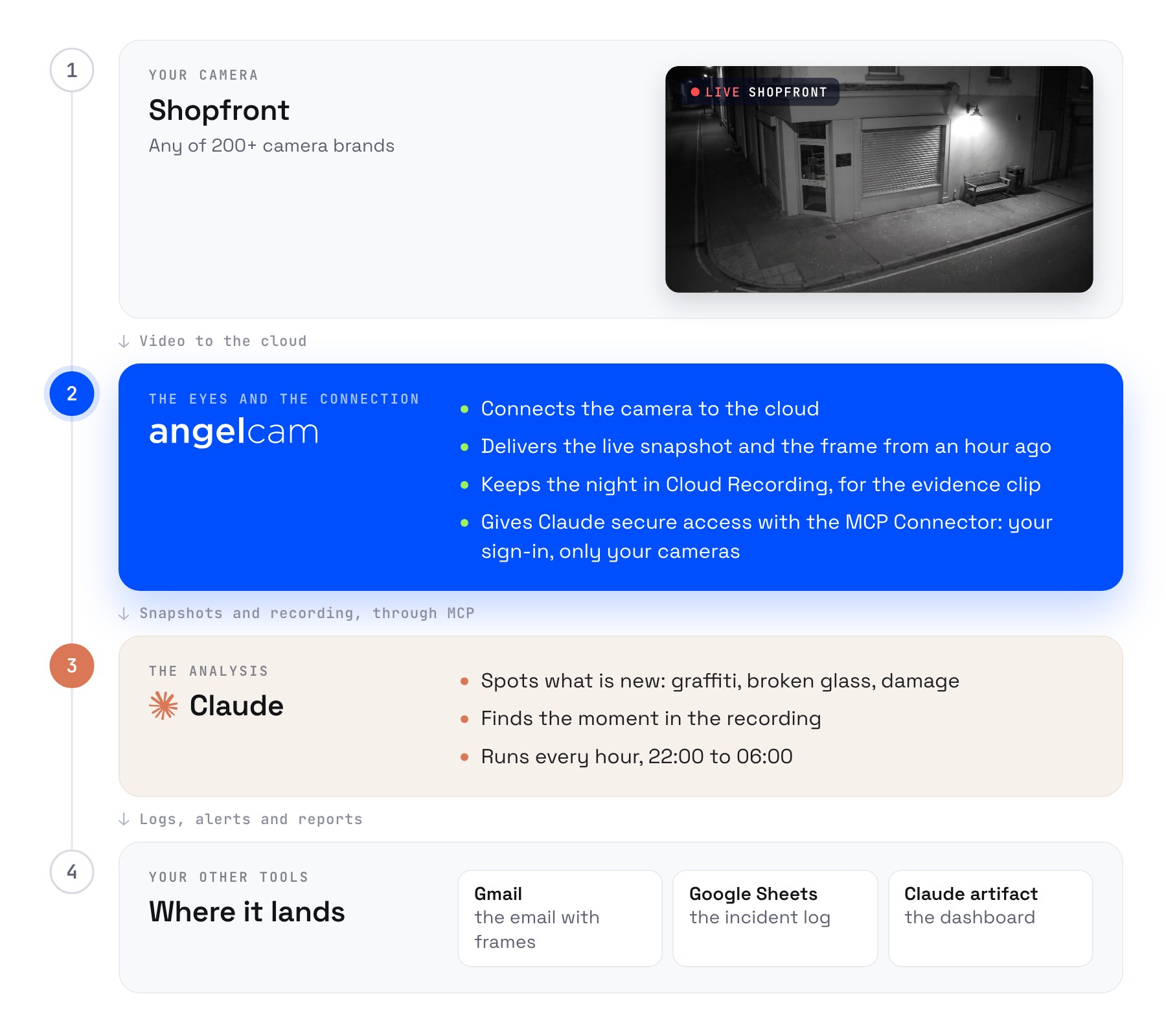
Who does what: the shopfront camera, any of 200+ brands, connects to Angelcam. Angelcam delivers the live snapshot and the frame from an hour ago, keeps the night in Cloud Recording for the evidence clip, and gives Claude secure access with the MCP Connector. Claude spots what is new, finds the moment in the recording and runs every hour from 22:00 to 06:00. Results go out by Gmail, a Google Sheets incident log and a Claude artifact dashboard.
Angelcam delivers the camera, the recording and the connection. Claude does the analysis.
1

Connect Angelcam to Claude

In Claude, open
Customize
→
Connectors
, choose
Add custom connector
, paste
https://mcp.angelcam.com/readonly
and click
Add
. Then click
Connect
, sign in with your Angelcam account and approve, with “Pictures from your cameras” ticked. Connect Gmail and Google Sheets from the same list.
2

Detect: compare with an hour ago

Prompt
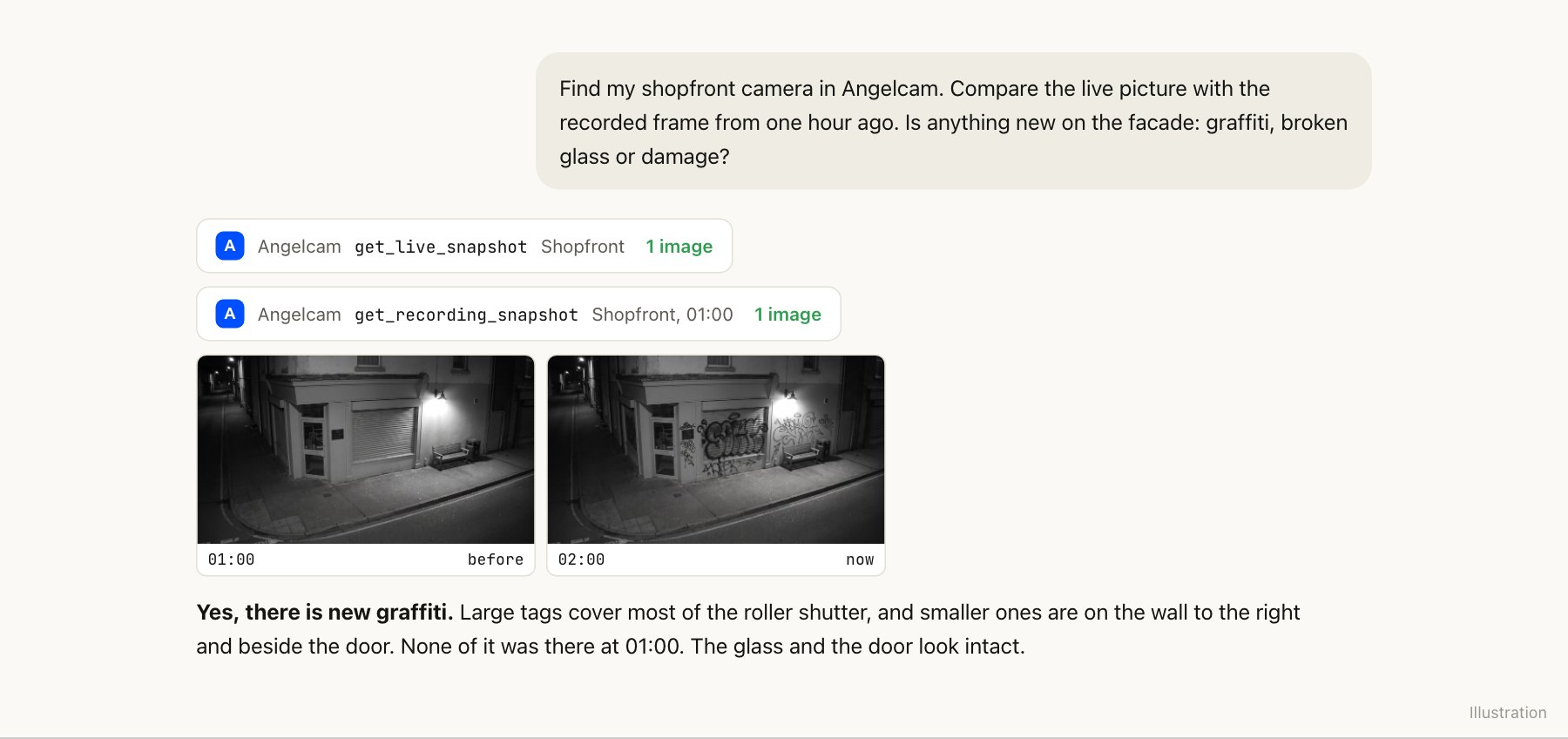
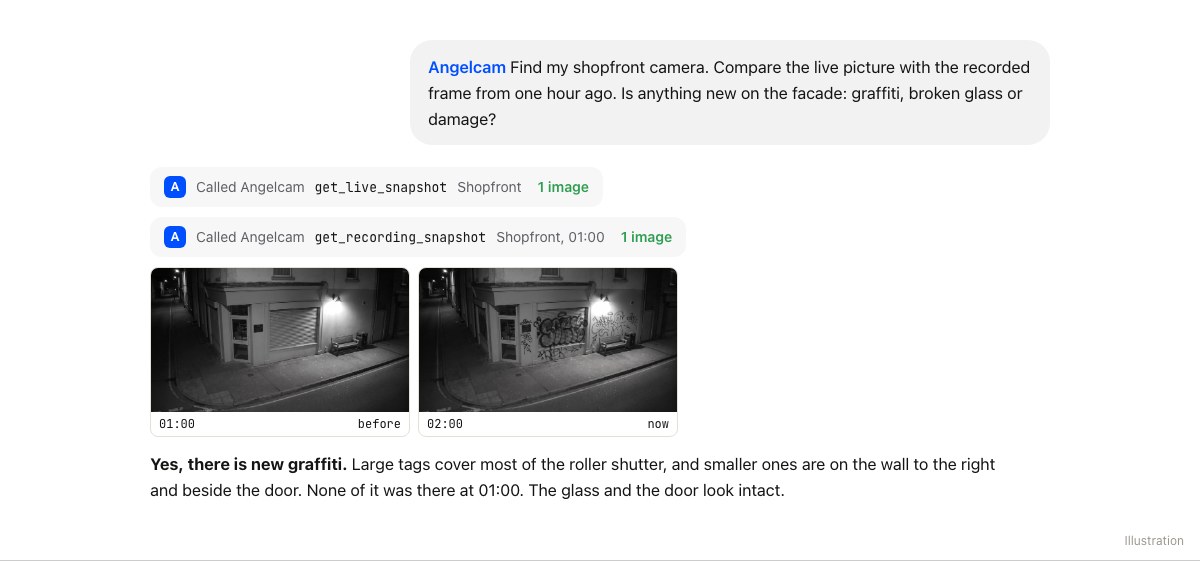
Find my shopfront camera in Angelcam. Compare the live picture with the recorded frame from one hour ago. Is anything new on the facade: graffiti, broken glass or damage?
Copy
Angelcam delivers both pictures: the live snapshot and the recorded frame. Claude compares them. Comparing with an hour earlier, not with a fixed photo, means posters, deliveries or a parked bike from the day don’t set it off.
A Claude chat: Angelcam delivers the live snapshot and the recorded frame from 01:00; Claude answers that there is new graffiti on the roller shutter and the walls that was not there at 01:00, and the glass looks intact.
Two Angelcam tools, one comparison by Claude. Illustration.
3

Analyse: find the moment

Prompt
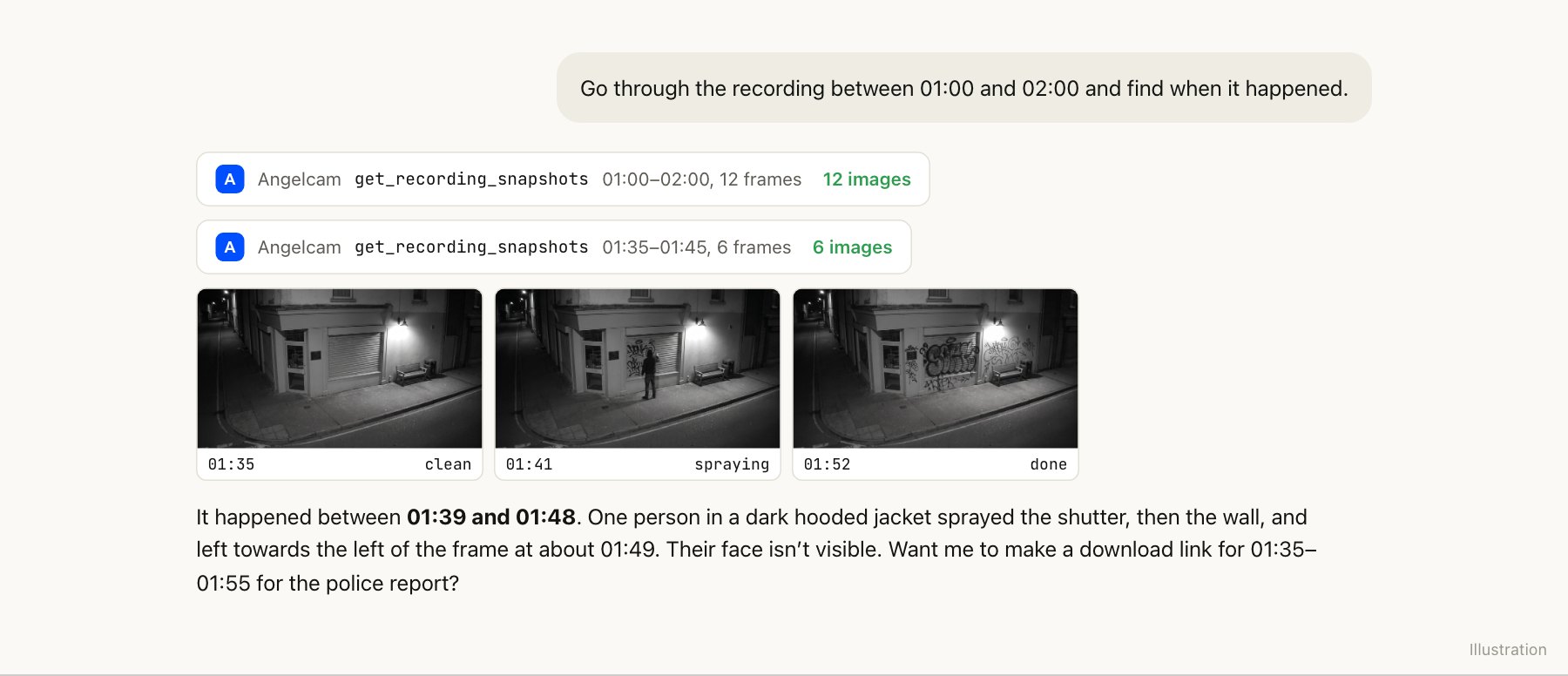
Go through the recording between 01:00 and 02:00 and find when it happened.
Copy
Angelcam hands out up to 12 recorded frames per request. Claude first looks across the hour, then asks for a closer set of frames around the change, so it can name the minutes and describe what happened.
A Claude chat: Angelcam delivers 12 frames for the hour, then 6 frames from 01:35 to 01:45; Claude says the graffiti was sprayed between 01:39 and 01:48 by one person in a dark hooded jacket whose face is not visible, and offers a download link for 01:35 to 01:55.
From “something changed” to “01:39 to 01:48”. Illustration.
For the police or your insurer, ask for the clip: “Make a download link for 01:35 to 01:55.” Angelcam creates it from the recording.
4

Schedule it for every night

Create a Google Sheet called
Shopfront log
(Time, Result, What, From–to, Alert sent), then:
Prompt
Every hour, compare the live picture of the Angelcam camera “Shopfront” with the recorded frame from one hour earlier, but only between 22:00 and 06:00 Prague time. Outside those hours, stop without doing anything. Ignore changes in light, rain, people walking past and parked vehicles. If there is new graffiti or damage, go through the recording of that hour, find when it happened, and keep a frame from before, during and after. Email Tomáš at tomas@yourbakery.example with what you found, the time window, the three frames and a download link for the 20 minutes around it. If glass is broken, start the subject line with “Broken glass”. Add a row to the Shopfront log at every check.
Copy
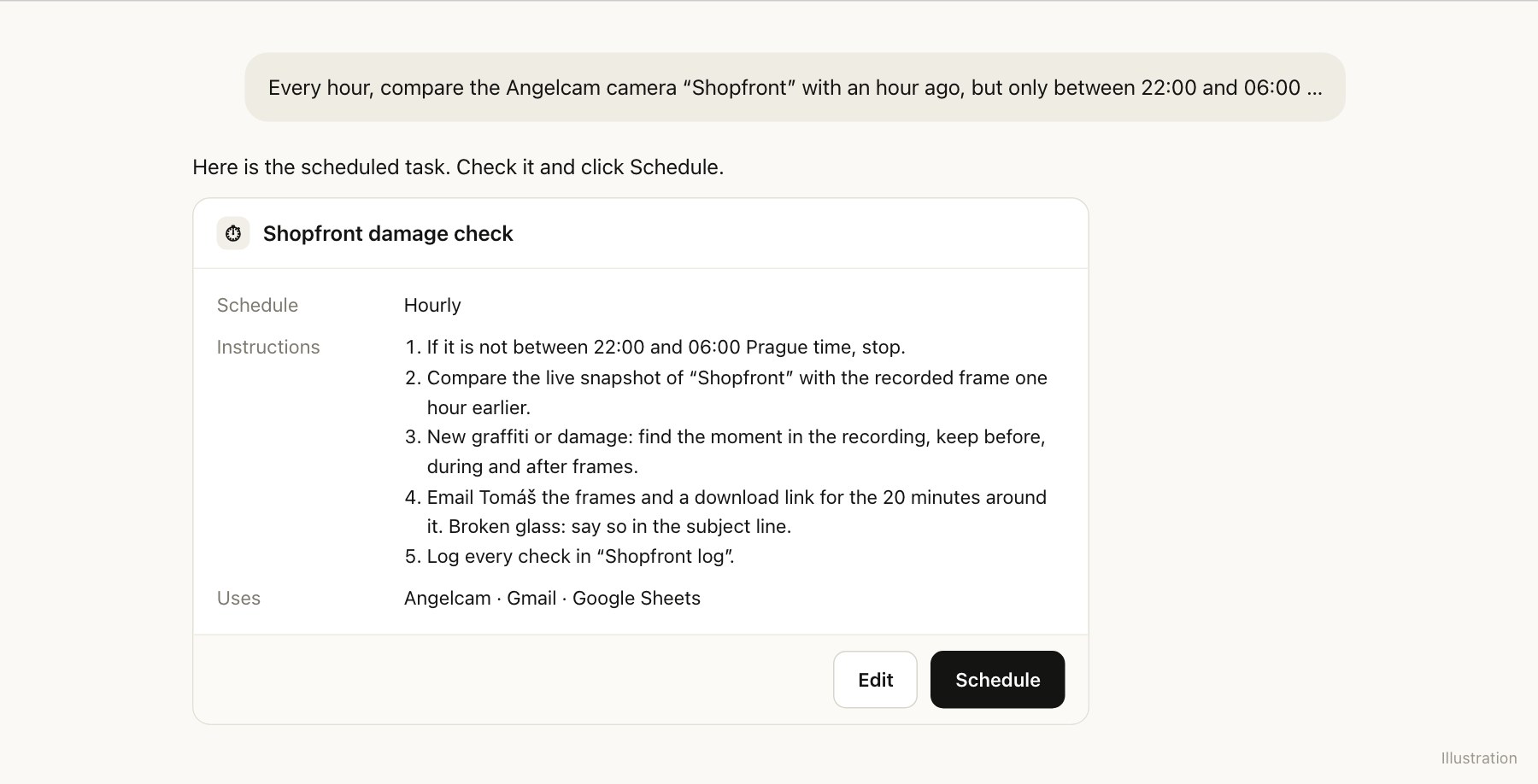
Claude proposes a scheduled task named Shopfront damage check: hourly, five steps starting with a 22:00 to 06:00 time check, using Angelcam, Gmail and Google Sheets, with a Schedule button.
Check it and click Schedule. It runs in the cloud every night. Illustration.
The alerts go out at night, so allow this task to send email without asking: open it under
Scheduled
and change its approval setting. On Team and Enterprise plans, the owner decides whether members may do this.
5

Get notified with the evidence

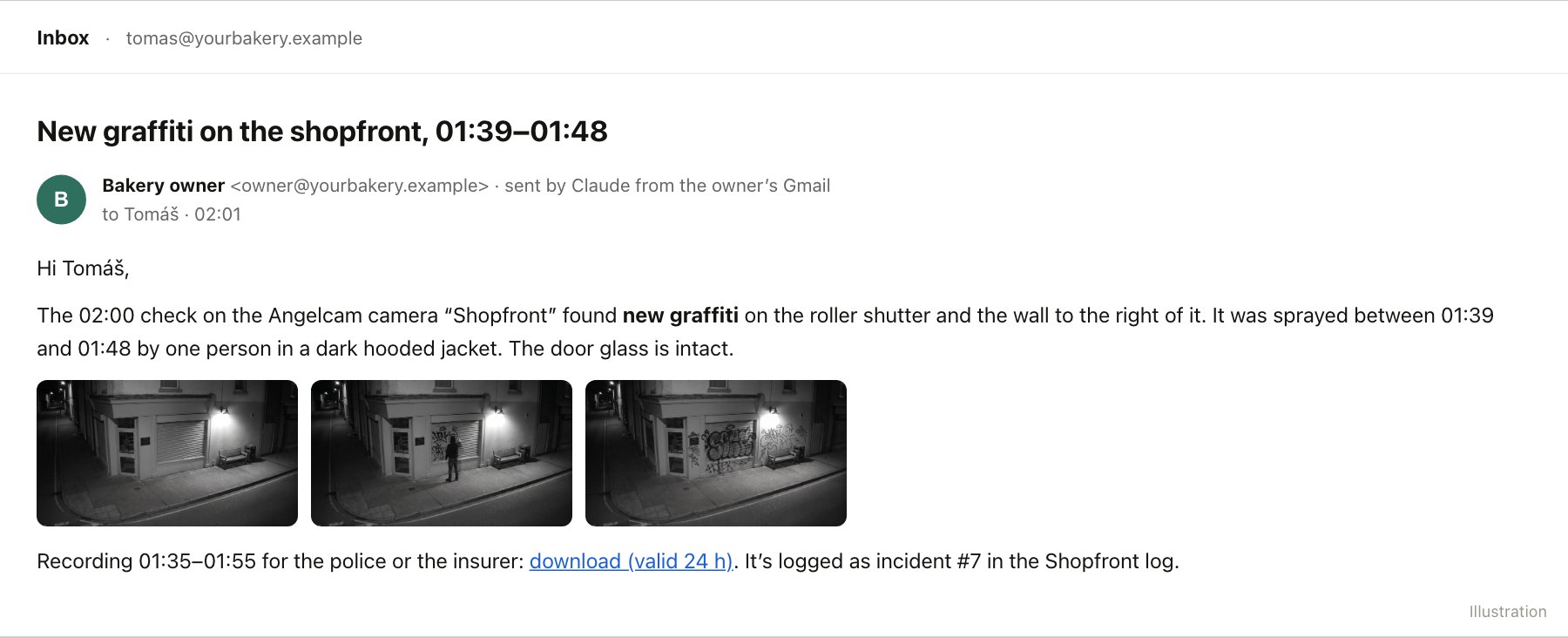
An email to Tomáš sent by Claude from the bakery owner's Gmail at 02:01: new graffiti on the roller shutter and the wall, sprayed between 01:39 and 01:48 by one person in a dark hooded jacket, door glass intact, with before, during and after frames, a download link for 01:35 to 01:55 and incident number 7 in the log.
The email Tomáš finds at 02:01, or first thing in the morning. Illustration.
6

Build the manager dashboard

Prompt
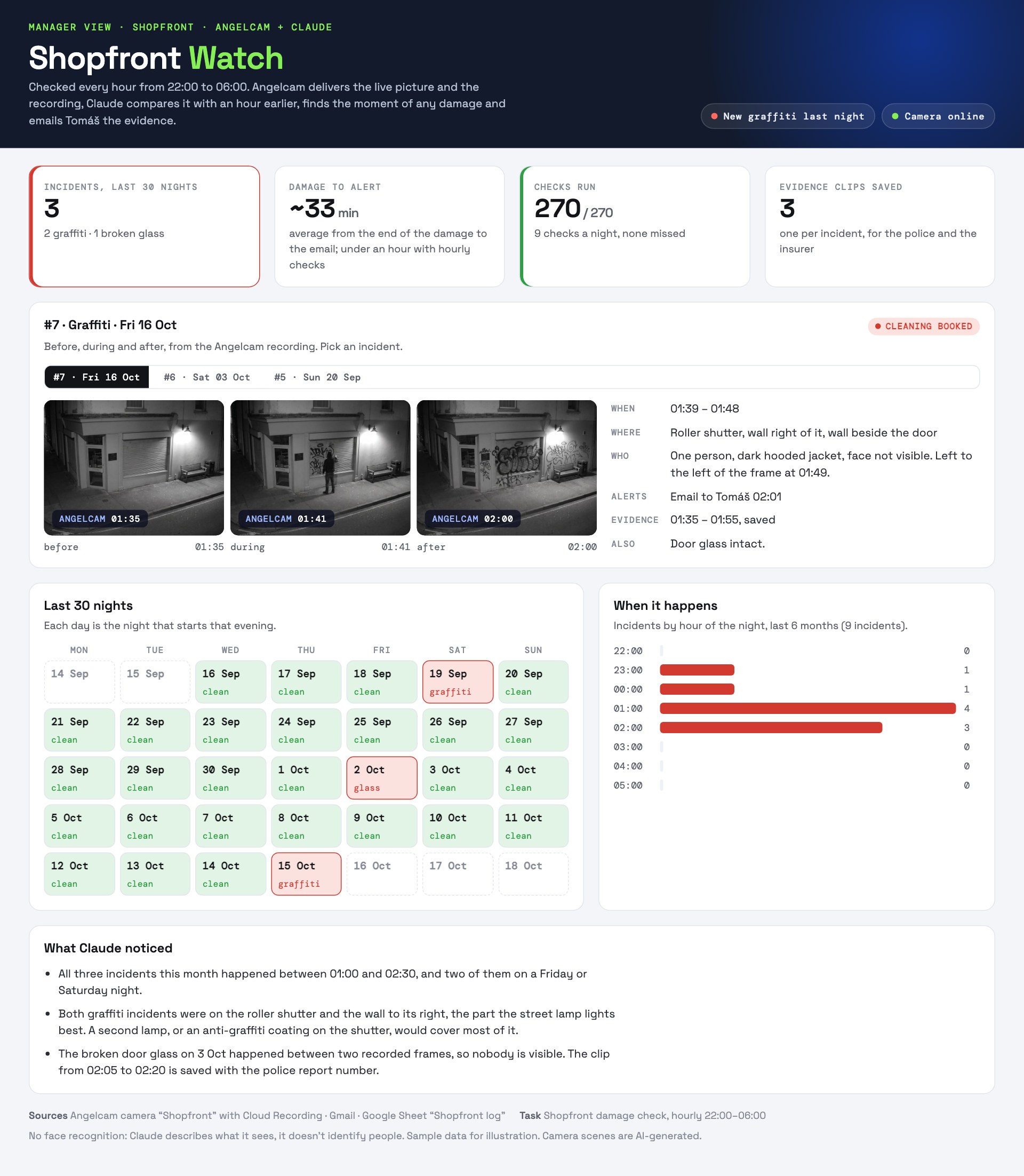
Build an artifact called Shopfront Watch. Each time I open it, read the Shopfront log sheet and show: cards for incidents in the last 30 nights, average time from damage to alert, checks run and evidence clips saved; each incident with its before, during and after frames fetched from Angelcam, the time window, what happened, the alerts sent and its status; a calendar of the last 30 nights; incidents by hour of the night; and what stands out.
Copy
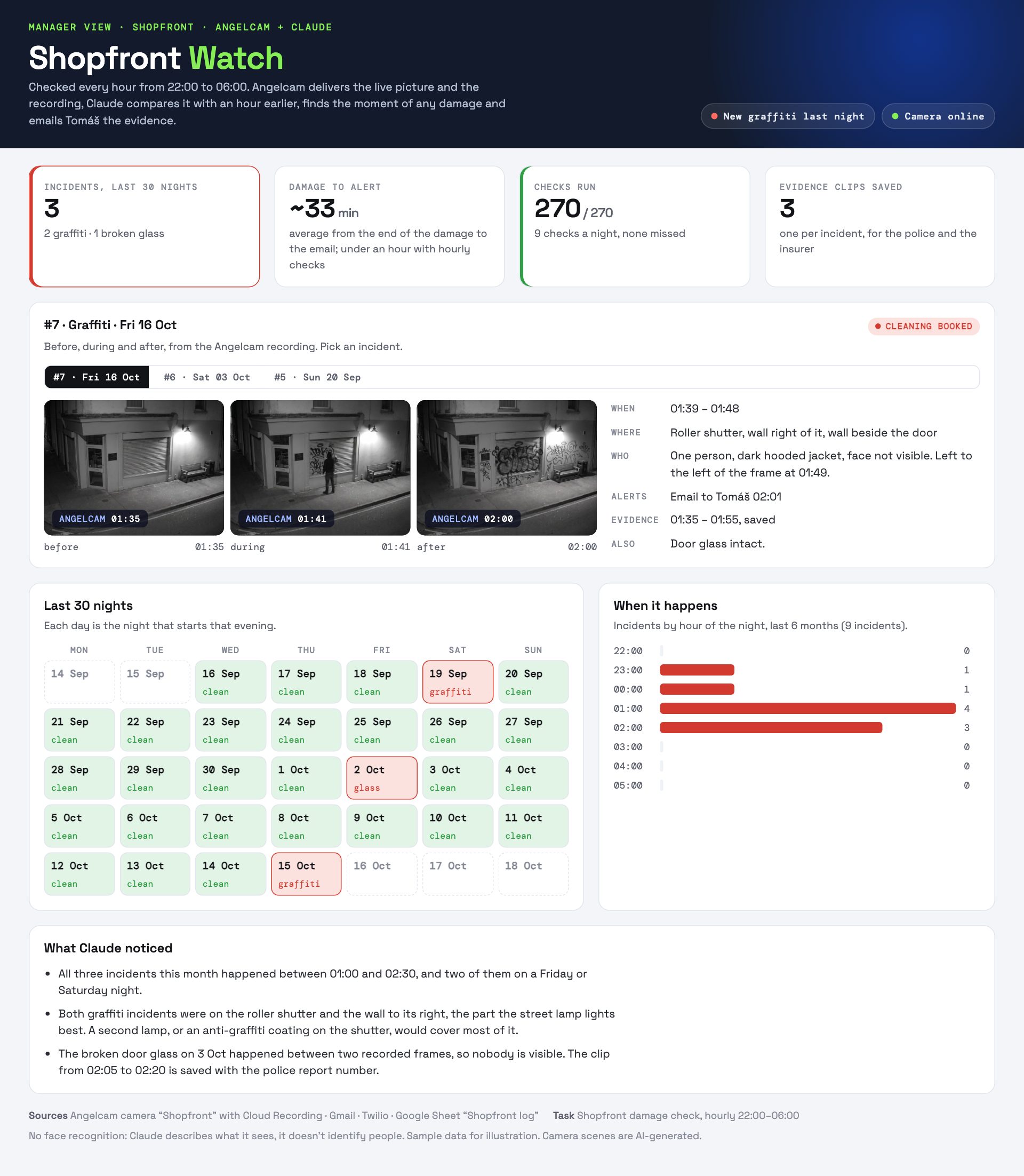
The Shopfront Watch dashboard: 3 incidents in the last 30 nights, about 33 minutes from damage to alert, 270 of 270 checks run, 3 evidence clips saved; incident 7 with before, during and after frames; a 30-night calendar; incidents by hour of the night peaking at 01:00; and Claude's notes.
The manager dashboard, with sample data. Ready for the insurer.

Good to know

  • Any camera you have.
    Angelcam works with 200+ camera brands, so the camera already on your facade is usually enough.
  • It’s an hourly check, not an alarm.
    You hear about it up to an hour later, with the evidence ready. To stop someone in the act you still need an alarm or a monitoring service.
  • Between two frames, things can be missed.
    A broken window can happen between two recorded frames; Claude still finds the minutes, but nobody may be visible.
  • No face recognition.
    Claude describes what it sees (“one person in a dark hooded jacket”). It doesn’t identify anyone. Keep the clip and let the police do that.
  • It can’t change anything.
    This guide uses the read-only address, so the connector only reads your cameras and recordings.
  • Pictures leave Angelcam.
    The frames Claude compares are sent to Anthropic as images. You can turn pictures off when you connect, but then Claude gets links only and can’t judge the scene itself. Check your local rules on cameras that see public space.
  • The Angelcam MCP Connector is free while in beta. Cloud Recording is paid.
  • It’s a beta.
    You may hit a rough edge. If something doesn’t work or you miss something, write to us in the chat in MyAngelcam.
More ideas: angelcam.com/builders. Setup for other assistants: mcp.angelcam.com.

The idea

You find out about graffiti when you open up in the morning. By then you don’t know when it happened, the recording is hours long, and the insurer wants a time and a picture.
In this guide Angelcam delivers the picture from your shopfront camera and keeps the night’s recording. Every hour from 22:00 to 06:00, ChatGPT compares the live picture with the one from an hour earlier. When something new appears (graffiti, broken glass, a damaged sign), ChatGPT goes back through the recording and finds the minutes it happened. It alerts you, and the before, during and after frames are waiting in the task with a link to the clip. You set it all up in ChatGPT on the web, in about 20 minutes. Use Claude instead? There is a Claude version of this guide, with email alerts.

Who does what

Who does what: the shopfront camera, any of 200+ brands, connects to Angelcam. Angelcam delivers the live snapshot and the frame from an hour ago, keeps the night in Cloud Recording for the evidence clip, and gives ChatGPT secure access with the MCP Connector. ChatGPT spots what is new, finds the moment in the recording and runs every hour from 22:00 to 06:00. Results arrive as push and email alerts, the frames and clip link in the task chat, and a report for the insurer.
Angelcam delivers the camera, the recording and the connection. ChatGPT does the analysis.
1

Connect Angelcam to ChatGPT

On chatgpt.com, open
Plugins
, click + and choose
Add custom MCP server
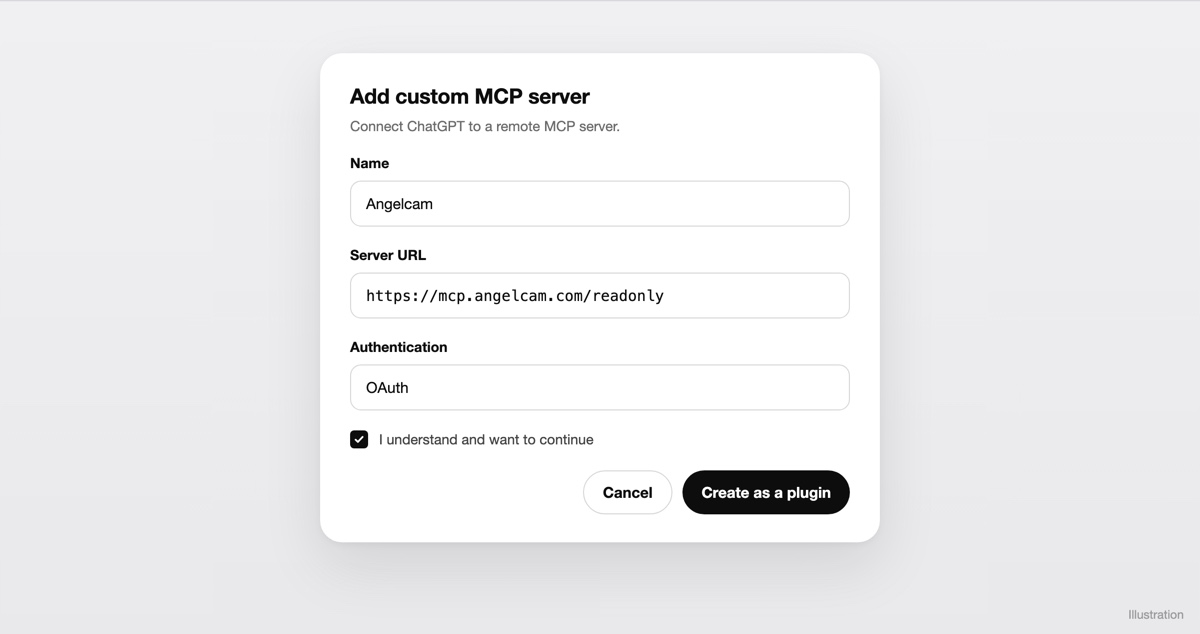
. Name it Angelcam, paste
https://mcp.angelcam.com/readonly
as the server URL and choose OAuth. Tick “I understand and want to continue”, click
Create as a plugin
and install it. Then sign in with your Angelcam account and approve, with “Pictures from your cameras” ticked. ChatGPT calls this a plugin, but it’s a private connection in your own account. Angelcam doesn’t publish an official ChatGPT plugin.
This guide only reads pictures and recordings, so it uses the read-only address. A connection made with Angelcam’s read-only address can never start or stop a recording.
An Add custom MCP server dialog in ChatGPT with the name Angelcam, the server URL https://mcp.angelcam.com/readonly, OAuth authentication and an “I understand and want to continue” checkbox.
Adding the Angelcam server in ChatGPT. Illustration: the labels in ChatGPT may differ slightly.
2

Detect: compare with an hour ago

Start a new chat. Type @Angelcam at the start of your message and ask:
Prompt
Use Angelcam to find my shopfront camera. Compare the live picture with the recorded frame from one hour ago. Is anything new on the facade: graffiti, broken glass or damage?
Copy
Angelcam delivers both pictures: the live snapshot and the recorded frame. ChatGPT compares them. Comparing with an hour earlier, not with a fixed photo, means posters, deliveries or a parked bike from the day don’t set it off.
A ChatGPT chat: Angelcam delivers the live snapshot and the recorded frame from 01:00; ChatGPT answers that there is new graffiti on the roller shutter and the walls that was not there at 01:00, and the glass looks intact.
Two Angelcam tools, one comparison by ChatGPT. Illustration.
3

Analyse: find the moment

Prompt
Go through the recording between 01:00 and 02:00 and find when it happened.
Copy
Angelcam hands out up to 12 recorded frames per request. ChatGPT first looks across the hour, then asks for a closer set of frames around the change, so it can name the minutes and describe what happened.
A ChatGPT chat: Angelcam delivers 12 frames for the hour, then 6 frames from 01:35 to 01:45; ChatGPT says the graffiti was sprayed between 01:39 and 01:48 by one person in a dark hooded jacket whose face is not visible, and offers a download link for 01:35 to 01:55.
From “something changed” to “01:39 to 01:48”. Illustration.
For the police or your insurer, ask for the clip: “Make a download link for 01:35 to 01:55.” Angelcam creates it from the recording.
4

Schedule it for every night

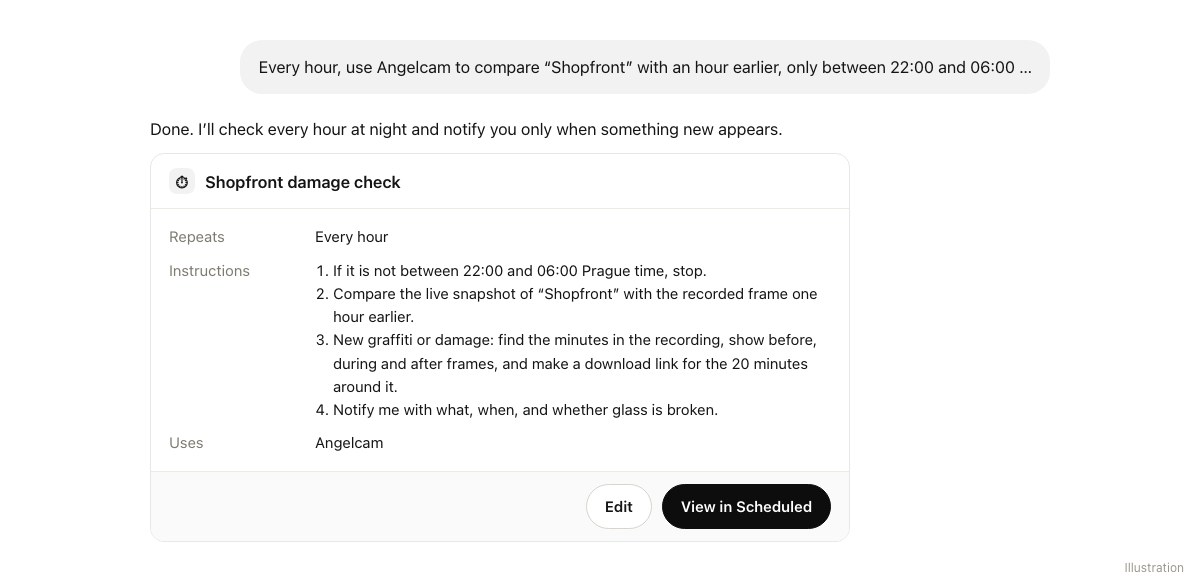
In the same chat, describe the job. ChatGPT turns it into a scheduled task:
Prompt
Every hour, use Angelcam to compare the live picture of the camera “Shopfront” with the recorded frame from one hour earlier, but only between 22:00 and 06:00 Prague time. Outside those hours, stop without doing anything. Ignore changes in light, rain, people walking past and parked vehicles. If there is new graffiti or damage, go through the recording of that hour and find when it happened. Show a frame from before, during and after, and make a download link for the 20 minutes around it. Then notify me with what you found, the time window, and whether any glass is broken. Every check, write one log line: time, result and what you found.
Copy
ChatGPT confirms a scheduled task named Shopfront damage check: every hour, four instructions, uses Angelcam.
The scheduled task. Open Scheduled to see it and its next run. Illustration.
The task runs on OpenAI’s side, so it keeps going when your computer is off. Name Angelcam and your time zone in the prompt. In ChatGPT, choosing an app applies to one message only, and Angelcam reports times in UTC.
5

Get notified, find the evidence

Under
Settings
→
Notifications
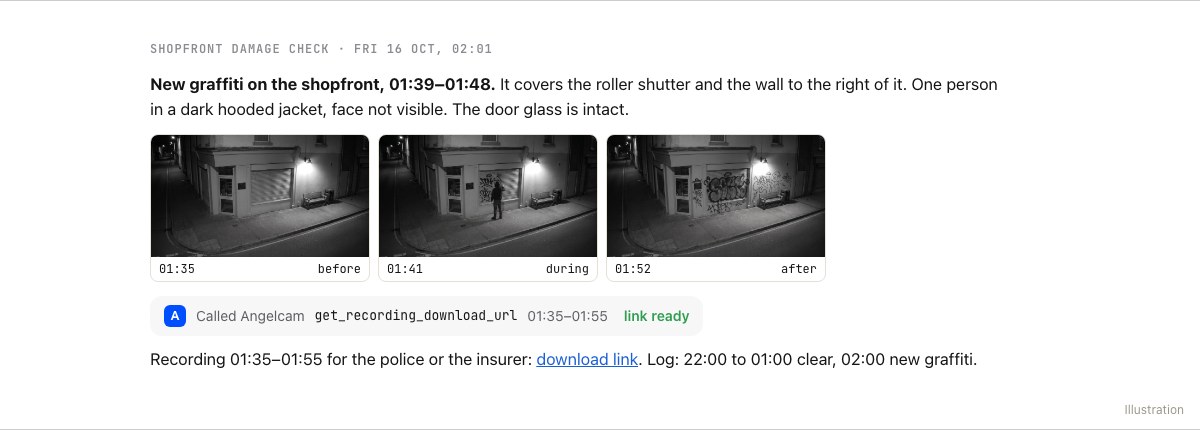
, choose Push, Email or both for tasks. For alerts on your phone, install the ChatGPT app, sign in and allow notifications when it asks. The alert tells you what happened and when. Open it and you land in the task’s chat, with the frames and the download link ready.
The 02:01 run of Shopfront damage check in ChatGPT: new graffiti on the shopfront, 01:39 to 01:48, one person in a dark hooded jacket, door glass intact; before, during and after frames; and an Angelcam download link for 01:35 to 01:55.
What the 02:01 run leaves in the task’s chat. Illustration.
Download the clip soon. Angelcam’s download links don’t stay valid for ever, and the recording itself is kept only as long as your Cloud Recording plan allows.
6

A report for the insurer

After an incident, or once a month, open the task’s chat and ask:
Prompt
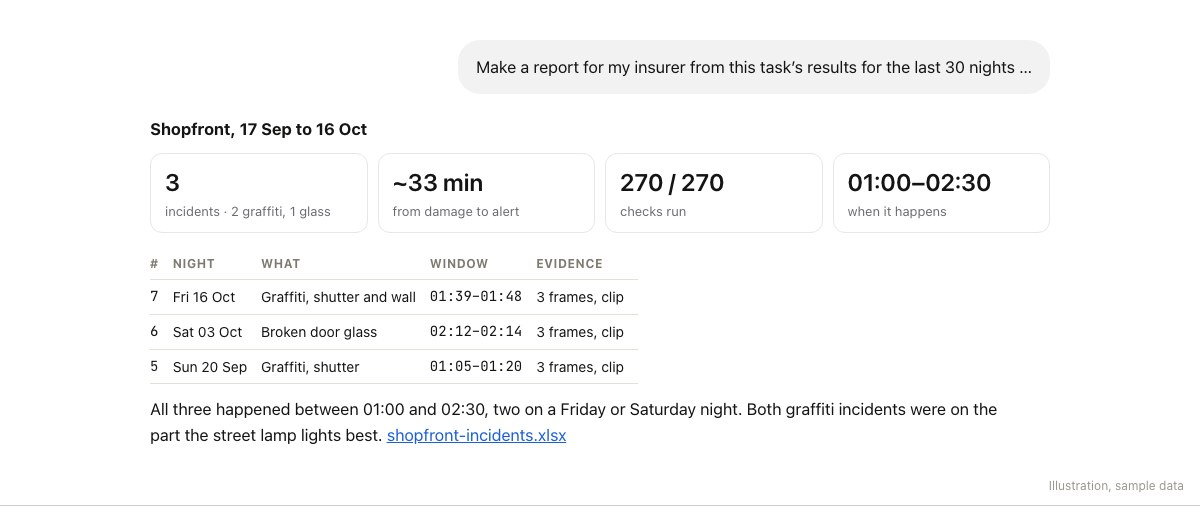
Make a report for my insurer from this task’s results for the last 30 nights: incidents with the date, what happened, the time window and the evidence, how long it took from the damage to the alert, how many checks ran, and when in the night it happens. End with what stands out, and give me the incident table as a spreadsheet.
Copy
ChatGPT’s report for the shopfront, 17 Sep to 16 Oct: 3 incidents, 2 graffiti and 1 broken glass, about 33 minutes from damage to alert, 270 of 270 checks run, all between 01:00 and 02:30; a table of the three incidents with windows and evidence; and a spreadsheet to download.
The report, with sample data. Illustration.

Good to know

  • Any camera you have.
    Angelcam works with 200+ camera brands, so the camera already on your facade is usually enough.
  • It’s an hourly check, not an alarm.
    You hear about it up to an hour later, with the evidence ready. To stop someone in the act you still need an alarm or a monitoring service.
  • Between two frames, things can be missed.
    A broken window can happen between two recorded frames. ChatGPT still finds the minutes, but nobody may be visible.
  • No face recognition.
    ChatGPT describes what it sees (“one person in a dark hooded jacket”). It doesn’t identify anyone. Keep the clip and let the police do that.
  • Someone else should know too?
    Share the task: in
    Scheduled
    , click
    •••
    , choose
    Share
    and send the link. They connect Angelcam in their own ChatGPT, with access to the shopfront camera, and schedule their own copy.
  • Keep the task’s chat.
    If you delete or archive it, the task pauses. A task can also pause after a long quiet stretch, so look at
    Scheduled
    now and then.
  • It can’t change anything.
    The read-only address only reads your cameras and recordings.
  • Pictures leave Angelcam.
    The frames ChatGPT compares are sent to OpenAI as images. You can turn pictures off when you connect, but then ChatGPT gets links only and can’t judge the scene itself. Check your local rules on cameras that see public space.
  • The Angelcam MCP Connector is free while in beta. Cloud Recording is paid.
  • It’s a beta.
    You may hit a rough edge. If something doesn’t work or you miss something, write to us in the chat in MyAngelcam. If you connected the full address, https://mcp.angelcam.com, you can also ask ChatGPT to send feedback to Angelcam.
More ideas: angelcam.com/builders. Setup for other assistants: mcp.angelcam.com.

The idea

When you find a new mark in the morning, the useful questions are what changed and when. Angelcam supplies the camera views and recording; Grok Bot compares them, narrows the time window and prepares evidence for you to review.

Who does what

Angelcam provides live and recorded images. Grok Bot checks for visible changes, records incidents in shopfront-log.csv and prepares a report. A person reviews suspected damage and decides whether to share evidence or take action.
1

Connect Angelcam to Grok Bot

In the Bot that will own the check, ask:
Prompt
Add a custom MCP server named Angelcam at https://mcp.angelcam.com/readonly using streamable HTTP. Start its OAuth sign-in, then list the tools it offers. Do not change any cameras or recording settings.
Copy
Complete the Angelcam sign-in in your browser and allow camera pictures. Keep passwords out of chat. Confirm the Bot can access the correct camera before continuing. The read-only connection supplies camera information and images; Grok Bot interprets them.
2

Compare two known camera views

Prompt
Find my Angelcam camera “Shopfront”. Compare a current snapshot with a recorded frame from one hour earlier. Describe any new marks, broken glass or damage. Ignore lighting, rain and passing people. If the angle, visibility or image quality prevents comparison, say unclear. Do not identify people or infer a crime from appearance alone.
Copy
Illustrative shopfront camera view without graffiti
Use known before-and-after examples and ordinary changes to test the comparison.
Also test hours with rain, shadows and deliveries. Keep the camera angle stable and describe any parts of the scene the Bot should ignore.
3

Narrow down a visible change

Prompt
For the change we just reviewed, inspect recorded frames across that hour in the batches Angelcam permits. Narrow the interval between the last frame without the change and the first frame showing it. Keep before, during if available, and after frames with their timestamps. Request a recording download link around that interval if the connector supports it. If frames are missing, report the gap and do not invent an exact time.
Copy
Open the frames and any clip yourself. The recording can support a review even when no person is visible at the sampled times.
4

Schedule the overnight review

Prompt
Create a routine called Shopfront overnight review. Every hour from 22:00 through 06:00 Europe/Prague, compare a fresh snapshot of the Angelcam camera “Shopfront” with a recorded frame one hour earlier. Ignore the ordinary changes we tested. For suspected new damage, inspect the intervening recording and collect timestamped evidence. Save shopfront-log.csv with camera, check time, result, description, earliest/latest change time, the timestamps of the evidence frames and alert status. Read previous incidents so the same mark is not reported as new every hour. Post one review notification per new suspected incident in #site-team, with the camera and the timestamps of the evidence frames. If a post fails, keep the result in this chat and say why. Mark missing or incomparable images unclear. Never identify a person, make an accusation, or contact police or an insurer.
Copy
If you want Slack delivery, connect it, send one test post to the chosen channel and choose Always allow on the approval card. An approval raised during a routine expires after about 10 minutes, so unattended posts need that rule.
5

Test the complete routine

Open the Bot’s details and its Routines list. Check the saved schedule and time zone, then use Test with a known period or a safe camera state. A test uses real tools and can write to the log or post an alert.
Start with alerts going only to you. Check the timestamps, the saved rows, an unavailable camera, and a second run of the same period. Only enable team alerts after the results and permissions match what you intended. If the routine cannot read Angelcam unattended, pause it and reconnect before relying on it.
6

Keep the evidence together

Prompt
Build a page called Shopfront Watch from shopfront-log.csv. List suspected incidents with the before/after frames, observed time window, description, the camera and timestamps of the evidence frames and review status. Separate unclear checks and gaps from confirmed observations. Refresh it after each new incident. Include a reminder to download needed clips before recording retention or link validity runs out. Do not publish or share the evidence automatically.
Copy
Review each suspected incident before sharing. Keep downloaded footage in your approved storage; a temporary link is not an archive.

Good to know

  • An hourly review is not a live alarm.
    For immediate response, use a dedicated alarm or monitoring service.
  • Images show observations.
    The Bot should not recognize faces, identify a person or decide that someone committed an offence.
  • Keep the recording.
    A brief event can happen between sampled frames. Recording retention limits how far back you can investigate.
  • Keep the log.
    Ask the Bot to save a CSV file in its workspace. Check that later runs can read it; recent run history alone is not your long-term record.
  • Picture access.
    Camera images are supplied to the AI service used by Grok Bot. Use only cameras and recipients you are authorized to include.
  • Review permissions.
    Connect Slack only if you want messages there. Check the destination and scope of any saved permission before enabling unattended posts. If permission is missing, the routine should report that and keep the result in chat.

Setup references

See Grok Bot skills and routines and routine settings and testing for current product controls.
Keep exploring

What else could your cameras
tell you
?

Use another guide as a starting point for your site.
Camera scenes, screens and reports are illustrations or sample data.