All guides
Security & property · Angelcam MCP Connector

Was the container left
open
?
Give closing time a second look.

Check the storage doors overnight and build an alert workflow for the person responsible.
Claude or ChatGPT or Grok Bot
Live or recording snapshots
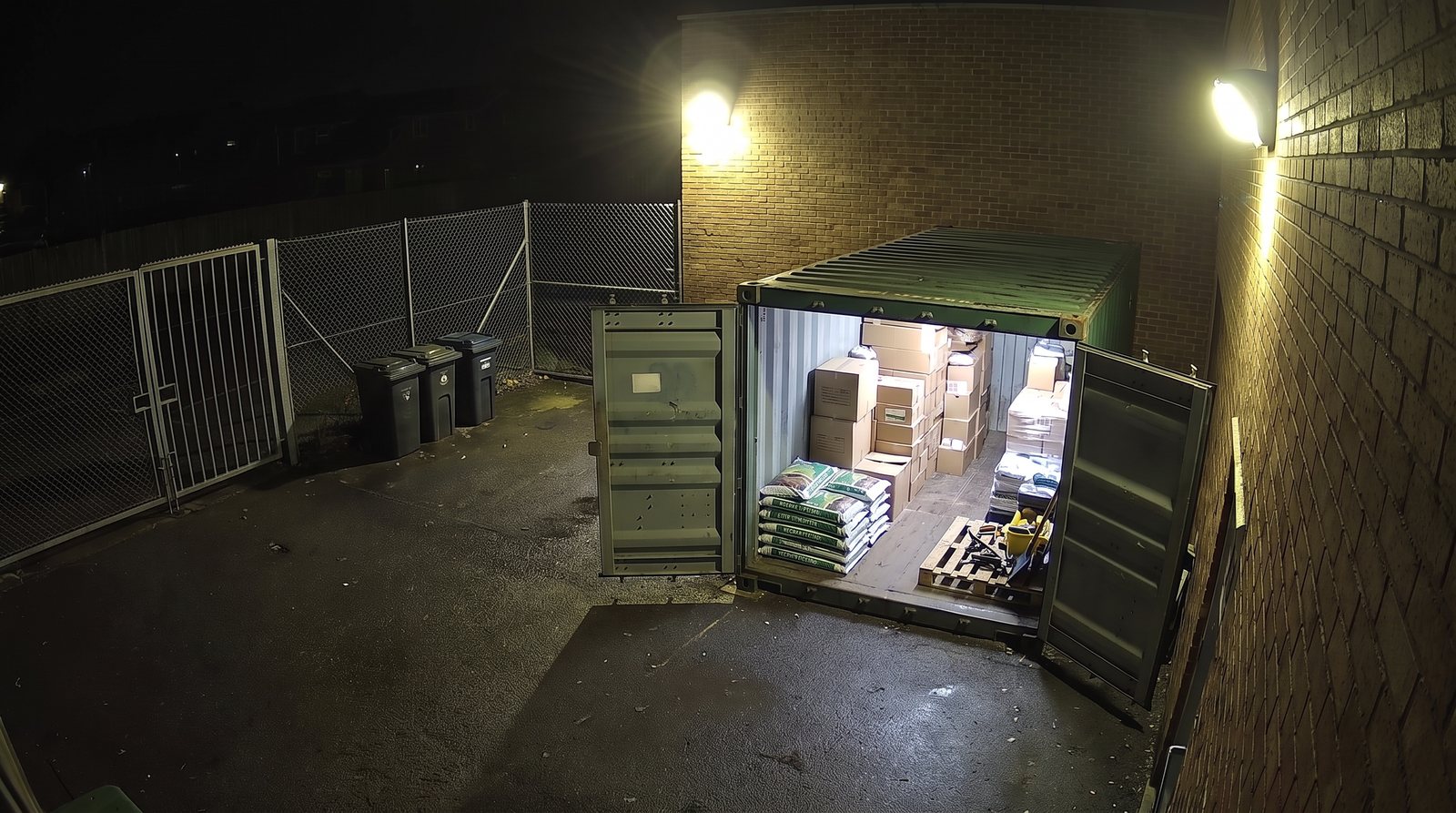
Illustrative storage container camera view
Storage container
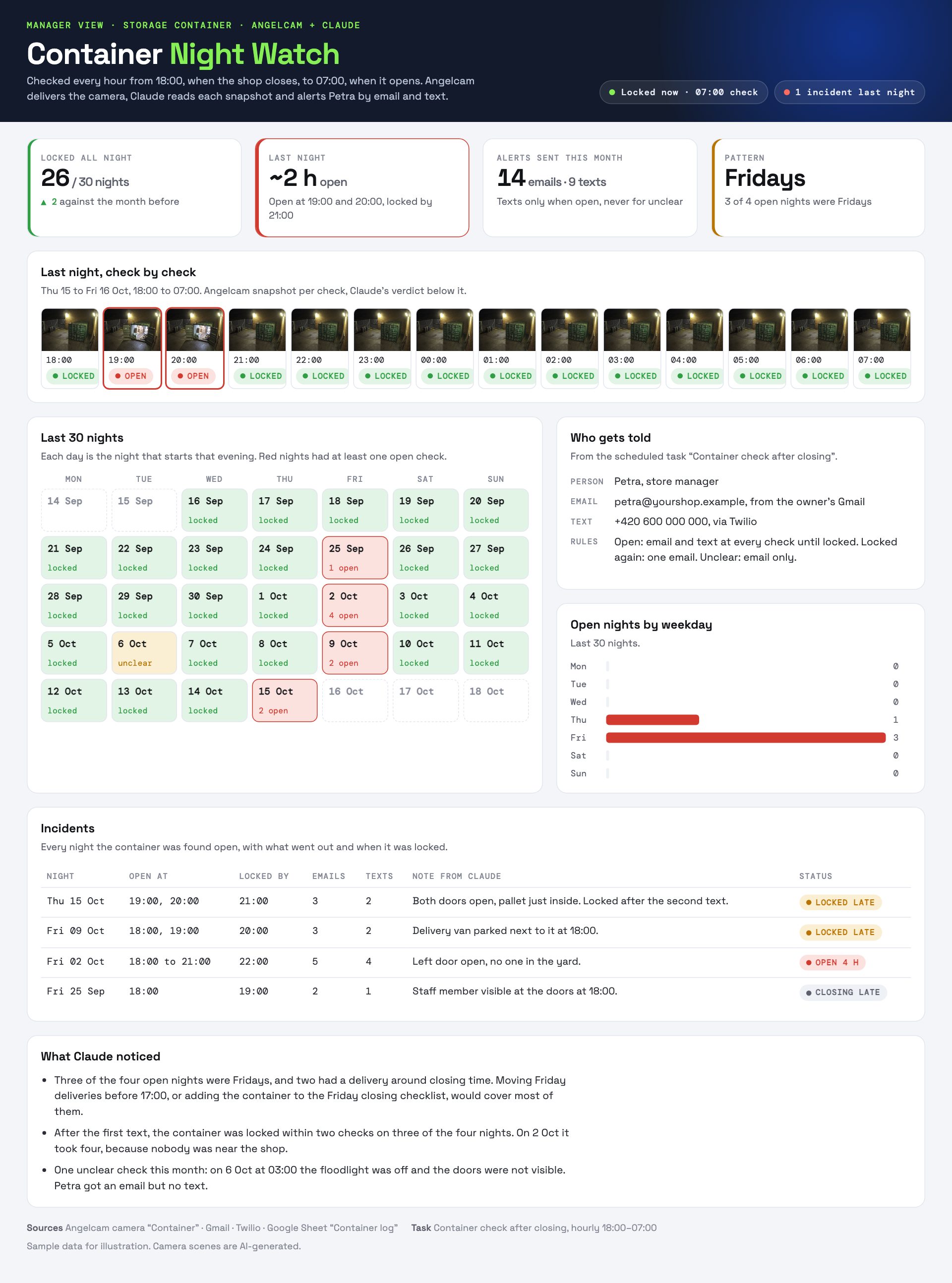
Illustrative example report with sample data
Example report
Camera scenes and report examples are illustrations.
How it works

From a camera picture to an answer you can act on.

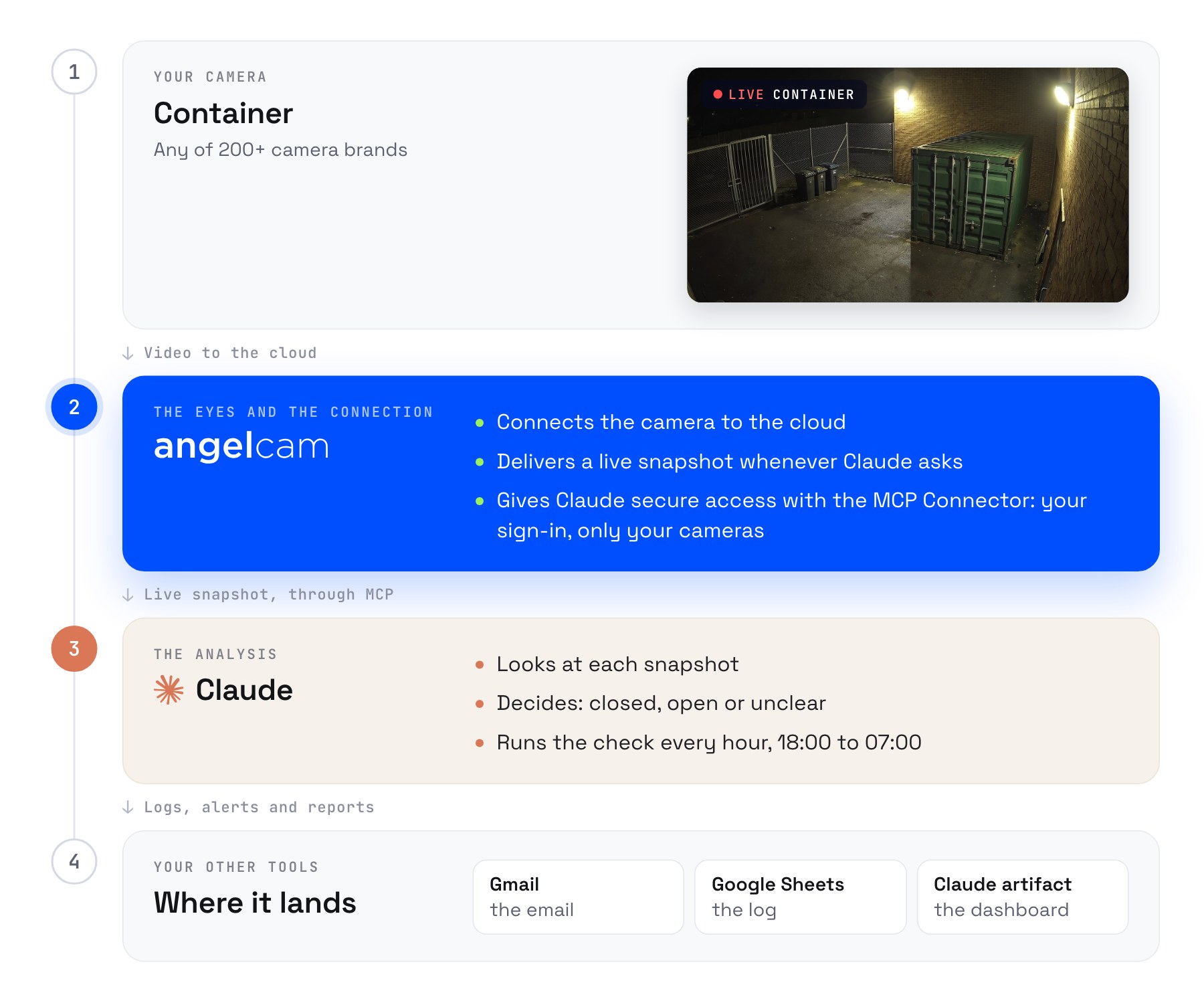
Camera → Angelcam snapshot → AI check → notification. You get a history of door checks, alerts when the container appears open and a report of your overnight checks.
  1. Your camera

    Storage container

    Use a camera connected to your Angelcam account.
  2. Angelcam

    Live or recording snapshots

    Choose a current image or a snapshot from an earlier recording through the MCP Connector.
  3. Your assistant

    Are the container doors closed?

    Use the guide’s prompts to inspect what is visible.
  4. You

    A closing check to review

    Follow the assistant’s edition to log open, closed or unclear results and test its notification workflow.
Choose your snapshot source

Check now. Or look back.

Every use case works with live snapshots and snapshots from recordings. Choose the source that fits the period you want to check.
Check from now on

Live snapshots

Check the doors after closing and notify the responsible person when a current snapshot shows them open.
No Cloud Recording required.
Use live snapshots with your assistant
Prompt
Use live snapshots for the container check. At each scheduled run between 18:00 and 07:00 Europe/Prague, take a fresh snapshot of the Angelcam camera “Container”. Classify the visible doors as open, closed or unclear. Do not claim the container is locked unless the lock is actually visible. Save the camera, timestamp, state and alert status in the configured log. Apply the current-check notification rules we tested. Treat unavailable images as unclear; never substitute an old image.
Copy
Look back at earlier times

Recording snapshots

Review earlier snapshots to see which checks showed the doors open and when they next appeared closed.
Requires Cloud Recording and footage for the selected period.
Use recording snapshots with your assistant
Prompt
Use recording snapshots for the container check. Review “Container” over the night I specify, from 18:00 through 07:00 Europe/Prague, sampling hourly. Log the camera, original timestamp, open/closed/unclear state and note. Group open observations into episodes and show the first later sample where the doors appear closed. Mark recording gaps and describe durations as estimates between samples. Produce a retrospective report, not a current open-door alert. Do not infer that closed doors were locked.
Copy
Live checks build a log from the time they start. They cannot recover missed checks. Recording snapshots can review earlier footage within your retention period. Check the scheduling intervals and storage available in your assistant.
Before you start

Show it what closed looks like.

Try the camera with the container open and closed. Describe the visible doors and ask for an unclear result when the view is obstructed.
Illustrative storage container view for checking the prompt
Pick your assistant

One use case. Choose your way to build it.

The steps and connected apps differ. Follow the edition for the assistant you use.
Anthropic

Claude

Use the Claude edition for its own connection steps, prompts and reporting workflow.
Before you start
  • An Angelcam account with a camera that clearly shows the scene. All use cases support live snapshots and recording snapshots. Cloud Recording is required only for snapshots from recordings; the live option does not need it.
  • A paid Claude plan (Pro, Max, Team or Enterprise).
  • Gmail, for the email. Claude sends it from your own Gmail account.
  • Google Sheets, for the log the manager dashboard reads.
Set it up in Claude
OpenAI

ChatGPT

Use the ChatGPT edition for its own connection steps, prompts and reporting workflow.
Before you start
  • An Angelcam account with a camera that clearly shows the scene. All use cases support live snapshots and recording snapshots. Cloud Recording is required only for snapshots from recordings; the live option does not need it.
  • A paid ChatGPT plan that can add custom MCP servers, plus ChatGPT on the web at chatgpt.com. For now, they can be added only on the web. On Business, Enterprise and Edu, an admin usually adds the server for the workspace, and you install it.
  • The ChatGPT app on your phone, if you want the alerts there and not only by email.
  • One free slot for a scheduled task. Plus has 5, Business 10, and Pro and Enterprise 15.
Set it up in ChatGPT
xAI

Grok Bot

Set up a Grok Bot routine, save a CSV log and build a report you can review.
Before you start
  • An Angelcam account with a camera that clearly shows the scene. All use cases support live snapshots and recording snapshots. Cloud Recording is required only for snapshots from recordings; the live option does not need it.
  • Grok Bot with access to custom MCP connections and routines. Choose one Bot to own this workflow.
  • Optional: Slack and a channel for the person responsible for closing. Start with messages in the Bot’s chat while you test.
Set it up in Grok Bot
Step by step

From connection to a result you can review.

Both snapshot sources work. The walkthrough below uses live snapshots. Use the source prompts above for the other option.

The idea

Your shop closes at 6 pm. Behind it stands the storage container with the stock, and the last person out is supposed to lock it. Some nights nobody does.
In this guide Angelcam brings the picture from your container camera, and Claude looks at it every hour from 6 pm until the shop opens at 7 am. If the doors are open, the person responsible gets an email, and another one every hour until it is closed. You set it all up in Claude, in about 20 minutes.

Who does what

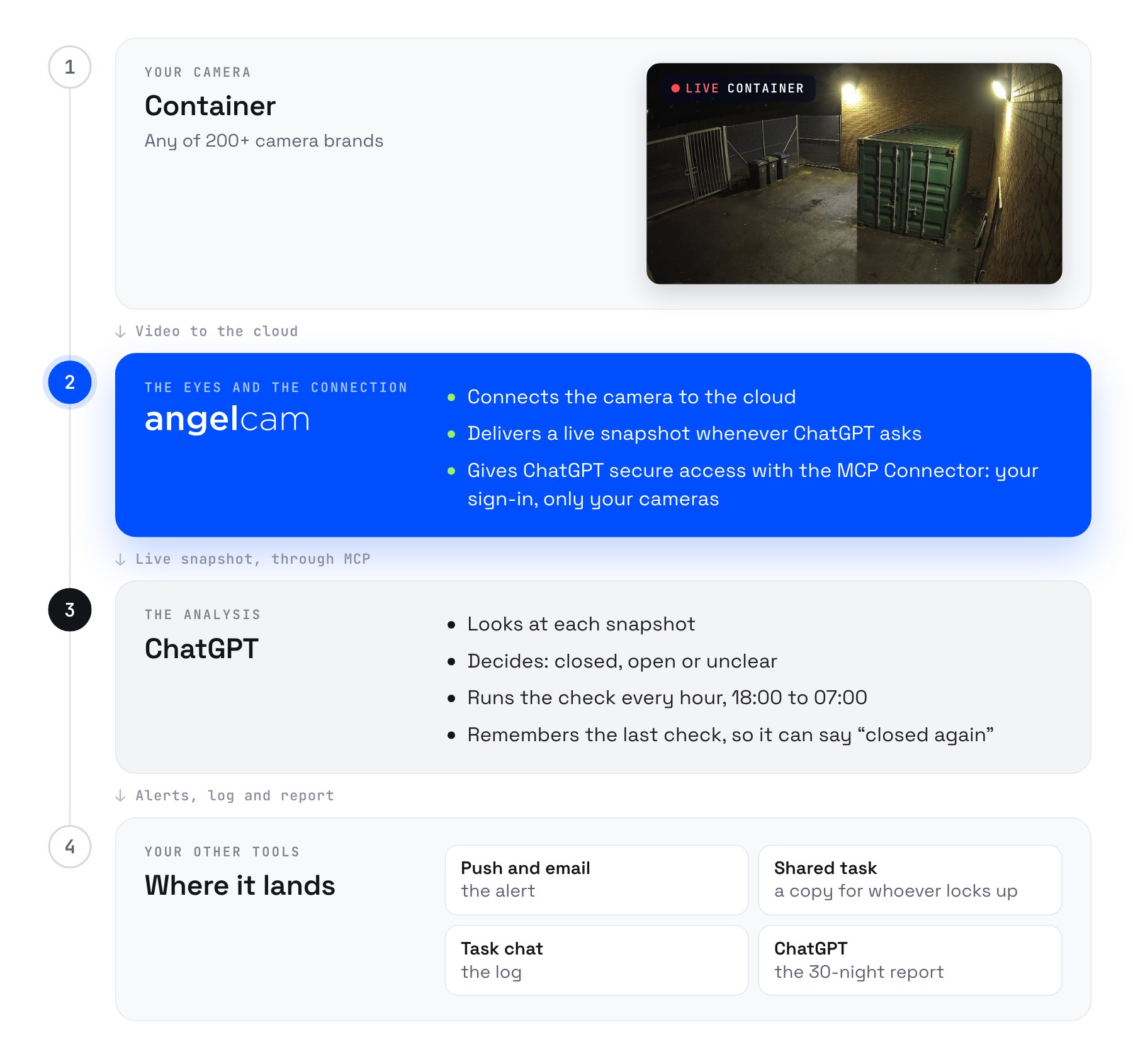
Who does what: your container camera, any of 200+ brands, connects to Angelcam. Angelcam connects it to the cloud, delivers a live snapshot whenever Claude asks, and gives Claude secure access with the MCP Connector. Claude looks at each snapshot, decides closed, open or unclear, and runs the check every hour from 18:00 to 07:00. The alerts go out by Gmail.
Angelcam delivers the camera and the connection. Claude does the analysis.
1

Connect Angelcam to Claude

In Claude, open
Customize
→
Connectors
, choose
Add custom connector
, paste
https://mcp.angelcam.com/readonly
and click
Add
. Then click
Connect
, sign in with your Angelcam account and approve, with “Pictures from your cameras” ticked.
2

Connect Gmail

In the same
Connectors
list, find Gmail, click
Connect
and sign in.
3

Show Claude the container

Prompt
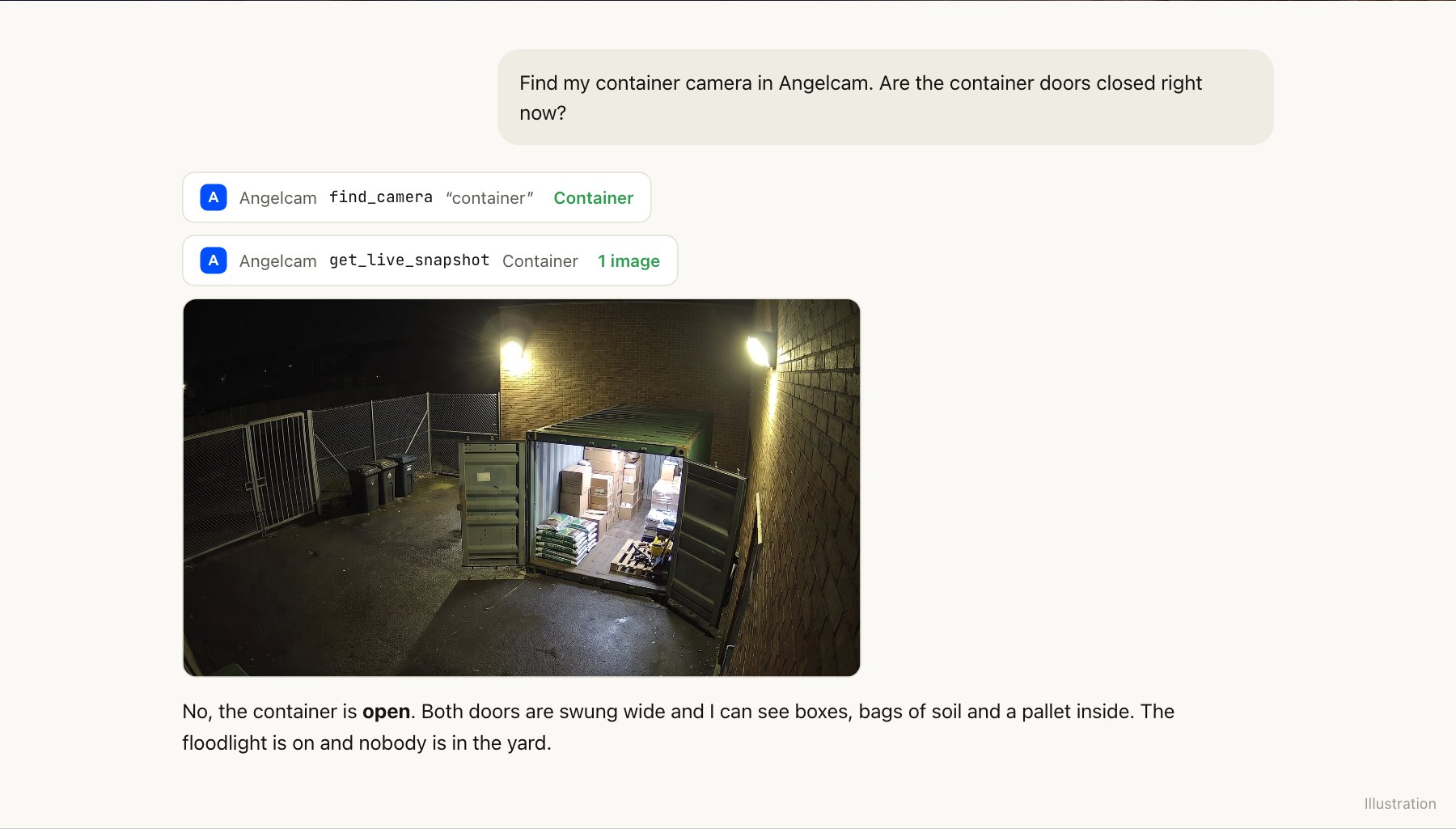
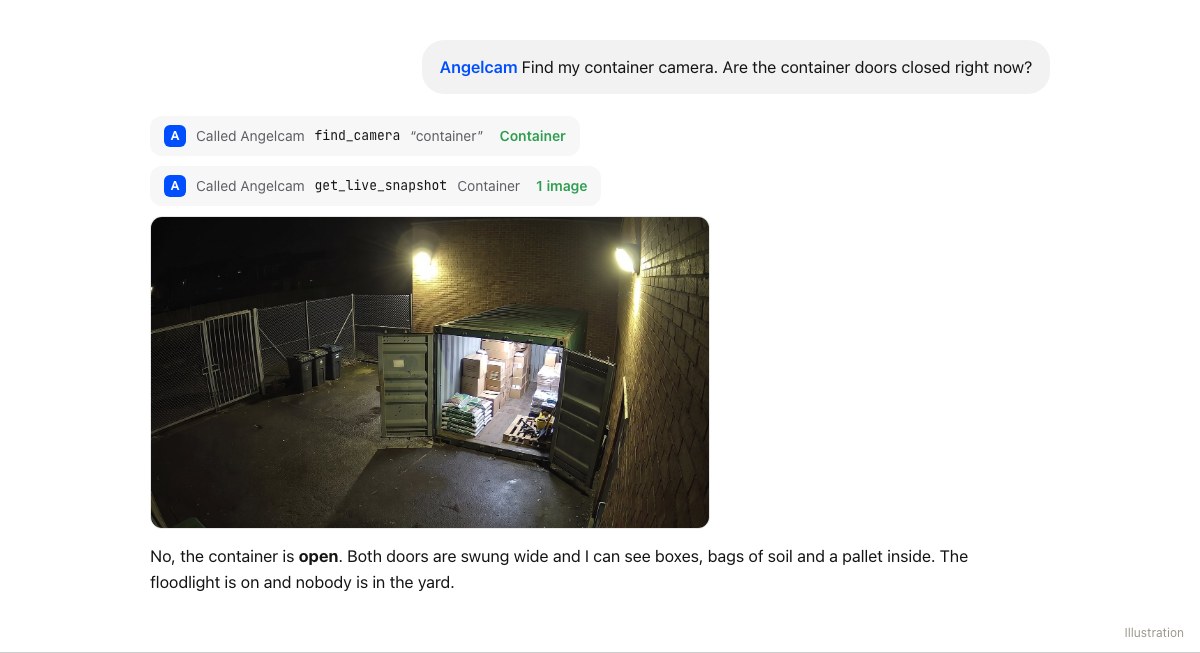
Find my container camera in Angelcam. Are the container doors closed right now?
Copy
A Claude chat: Claude finds the Container camera, takes a live snapshot and answers that the container is open, with both doors swung wide and the stock visible.
Angelcam finds the camera and delivers the snapshot. Claude looks at it. Illustration.
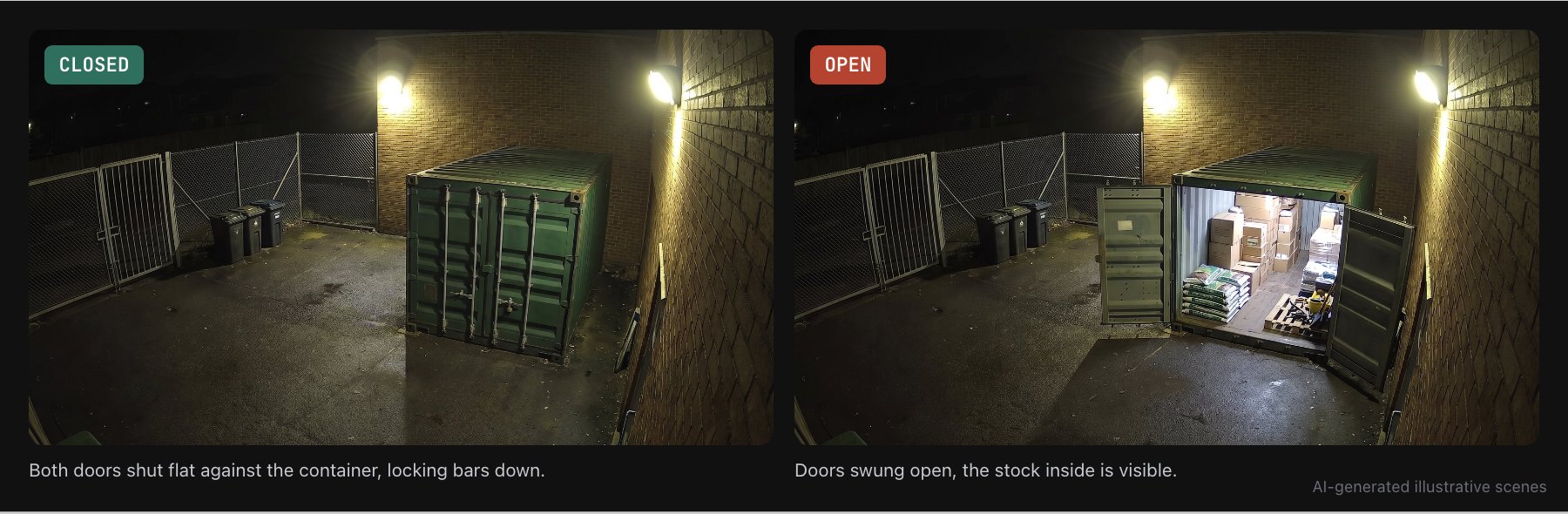
Try it with the doors open and with them closed. Then describe the closed container in one sentence, for example “Closed means both doors are shut flat against the container and the locking bars are down.” You will use that sentence in the task.
Two night views of the same container: closed, with both doors shut, and open, with the doors swung wide and the stock visible.
Closed and open, on the same camera. AI-generated illustrative scenes.
4

Schedule the check

Prompt
Every hour, check the Angelcam camera “Container”, but only between 18:00 and 07:00 Prague time. Outside those hours, stop without doing anything. Take a live snapshot and decide whether the container is closed, open or unclear. Closed means both doors are shut flat against the container and the locking bars are down. If it is open: email Petra at petra@yourshop.example with the subject “Container open at [time]” and the line “Container open at [time]. Please lock it.” Do this at every check until it is closed. If it is closed and you sent a “Container open” email earlier tonight, send Petra one email: “Container closed again at [time]”. If you can’t tell, or can’t reach the camera, email Petra and say why. Every check, add a row to the Container log sheet with the time, the state and what you sent.
Copy
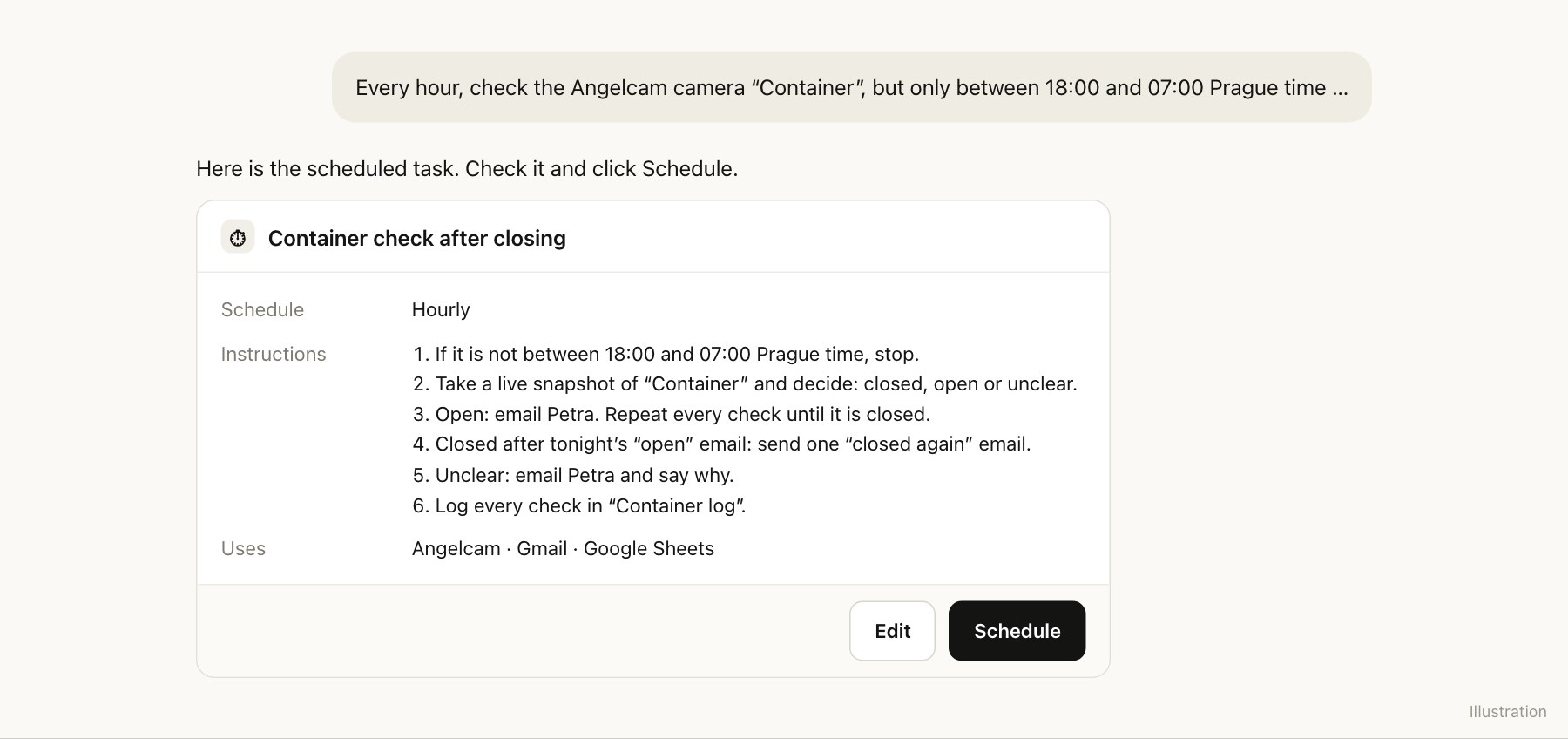
Check the name, schedule and instructions Claude proposes, then click
Schedule
. The task runs in the cloud, so it keeps going when your computer is off.
Claude proposes a scheduled task named Container check after closing: hourly, with five steps, using Angelcam and Gmail, and a Schedule button.
The scheduled task, ready to save. Illustration.
Each check starts fresh and doesn’t remember the last one. That is why the “closed again” rule looks in Gmail for tonight’s alert: Claude reads your sent mail to know whether it already warned Petra.
5

Let it send without asking

By default, Claude asks for your approval before it sends an email. At 2 am nobody is there to click, so for this task allow sending without asking: open it under
Scheduled
and change its approval setting. On Team and Enterprise plans, the owner decides whether members may do this.
6

Test it

One evening after 18:00, leave the doors open, open the task under
Scheduled
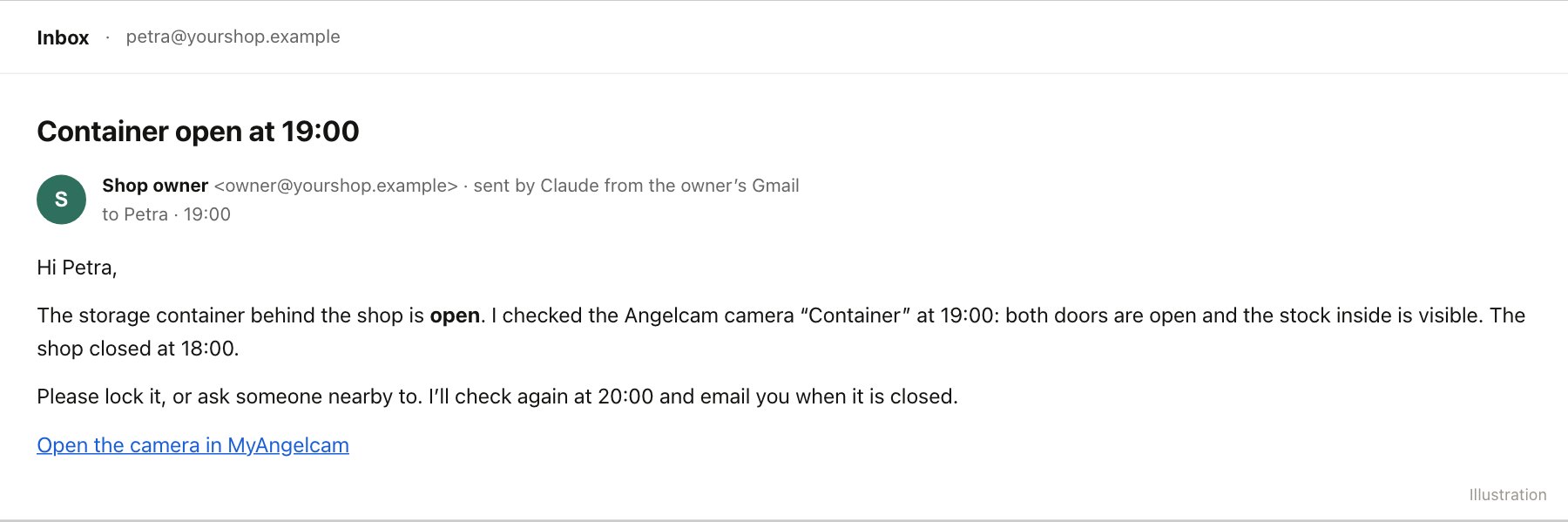
and run it now. Petra should get the email within a minute or two. Close the doors and run it again to see the “closed again” email.
An email in Petra's inbox, sent from the shop owner's Gmail by Claude: Container open at 19:00, both doors are open, please lock it, Claude will check again at 20:00.
The email Petra gets. Illustration.
7

Build the manager dashboard

After a few weeks in the log, ask Claude for the view a manager needs:
Prompt
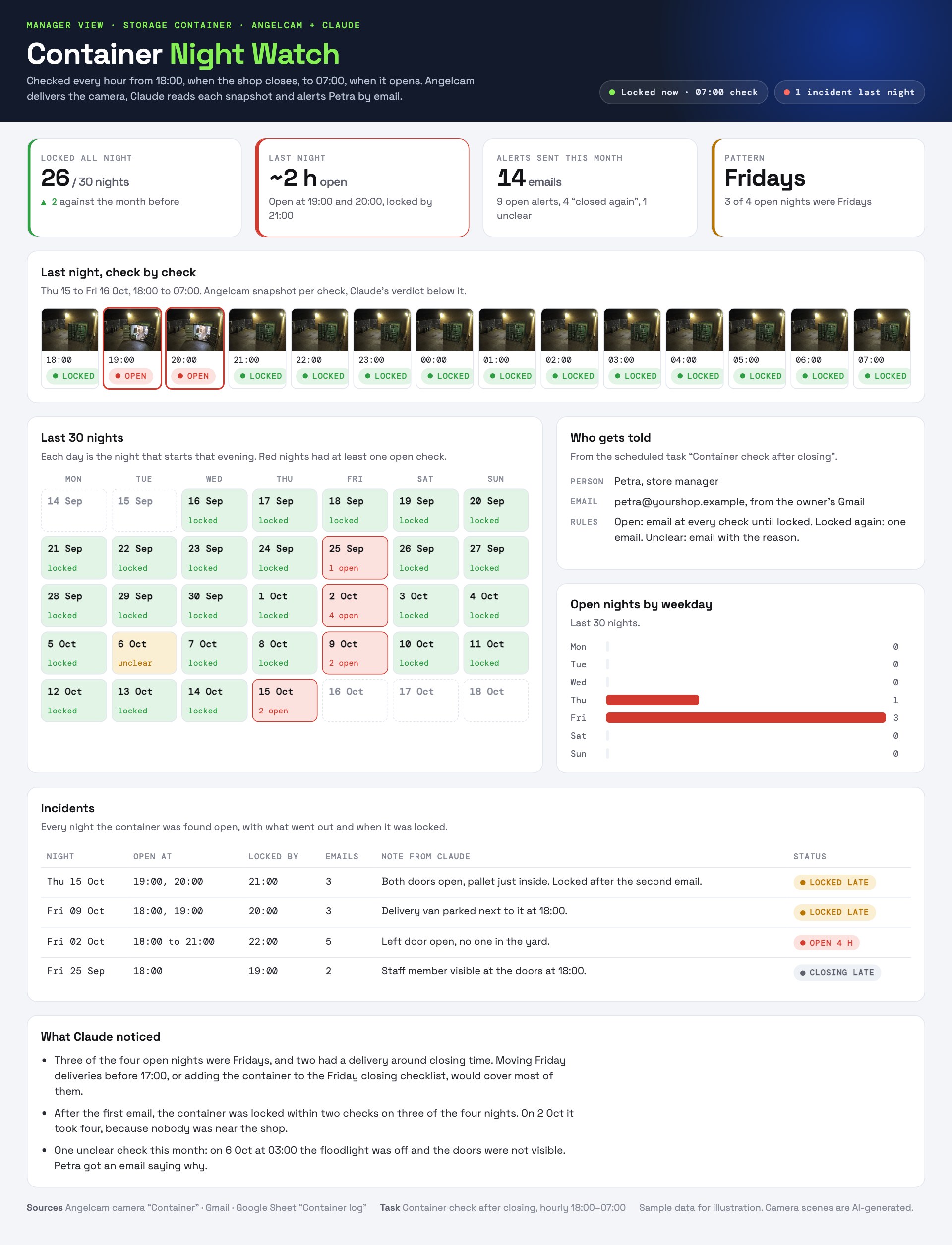
Build an artifact called Container Night Watch. Each time I open it, read the Container log sheet and show: cards for nights locked out of the last 30, how long it was open last night, the emails sent, and any weekday pattern; last night check by check, with the recorded frame for each check if the camera has Cloud Recording; a calendar of the last 30 nights; who gets told and the rules; open nights by weekday; and a table of incidents. End with what stands out.
Copy
The Container Night Watch dashboard: cards for 26 of 30 nights locked, about 2 hours open last night, 14 emails sent, and Fridays as the pattern; last night check by check; a 30-night calendar; who gets told; open nights by weekday; incidents; and Claude’s notes.
The manager dashboard, with sample data. Three of the four open nights were Fridays.

Good to know

  • Any camera you have.
    Angelcam works with 200+ camera brands, so the camera already watching the yard is usually enough.
  • It’s a second look, not an alarm.
    Up to an hour can pass between two checks. If you need to know the moment a door opens, use a door contact or a monitoring service.
  • Unclear checks are flagged.
    An unclear check (fog, a dead floodlight) emails Petra with the reason, so someone can look at the camera.
  • More than one person?
    Add a second email address to the prompt.
  • It can’t lock anything.
    This guide uses the read-only address, so the connector only reads: it never records, arms, configures or deletes anything.
  • Pictures leave Angelcam.
    The snapshots Claude looks at are sent to Anthropic as images. You can turn pictures off when you connect, but then Claude gets links only and can’t judge the scene itself.
  • A morning line, if you want one.
    Add a second task: “Every day at 07:00, email me one line: was the container closed all night?”
  • The Angelcam MCP Connector is free while in beta.
  • It’s a beta.
    You may hit a rough edge. If something doesn’t work or you miss something, write to us in the chat in MyAngelcam.
More ideas: angelcam.com/builders. Setup for other assistants: mcp.angelcam.com.

The idea

Your shop closes at 6 pm. Behind it stands the storage container with the stock, and the last person out is supposed to lock it. Some nights nobody does.
In this guide Angelcam brings the picture from your container camera, and ChatGPT looks at it every hour from 6 pm until the shop opens at 7 am. If the doors are open, ChatGPT alerts you, and again every hour until they’re closed. Then it tells you once that the container is closed again. You can share the task with the person who locks up, so the alerts reach them as well. You set it all up in ChatGPT on the web, in about 20 minutes. Use Claude instead? There is a Claude version of this guide, with email alerts.

Who does what

Who does what: your container camera, any of 200+ brands, connects to Angelcam. Angelcam connects it to the cloud, delivers a live snapshot whenever ChatGPT asks, and gives ChatGPT secure access with the MCP Connector. ChatGPT looks at each snapshot, decides closed, open or unclear, runs the check every hour from 18:00 to 07:00, and remembers the last check so it can say closed again. Results arrive as push and email alerts, a shared copy of the task for whoever locks up, a log in the task chat and a 30-night report.
Angelcam delivers the camera and the connection. ChatGPT does the analysis.
1

Connect Angelcam to ChatGPT

On chatgpt.com, open
Plugins
, click + and choose
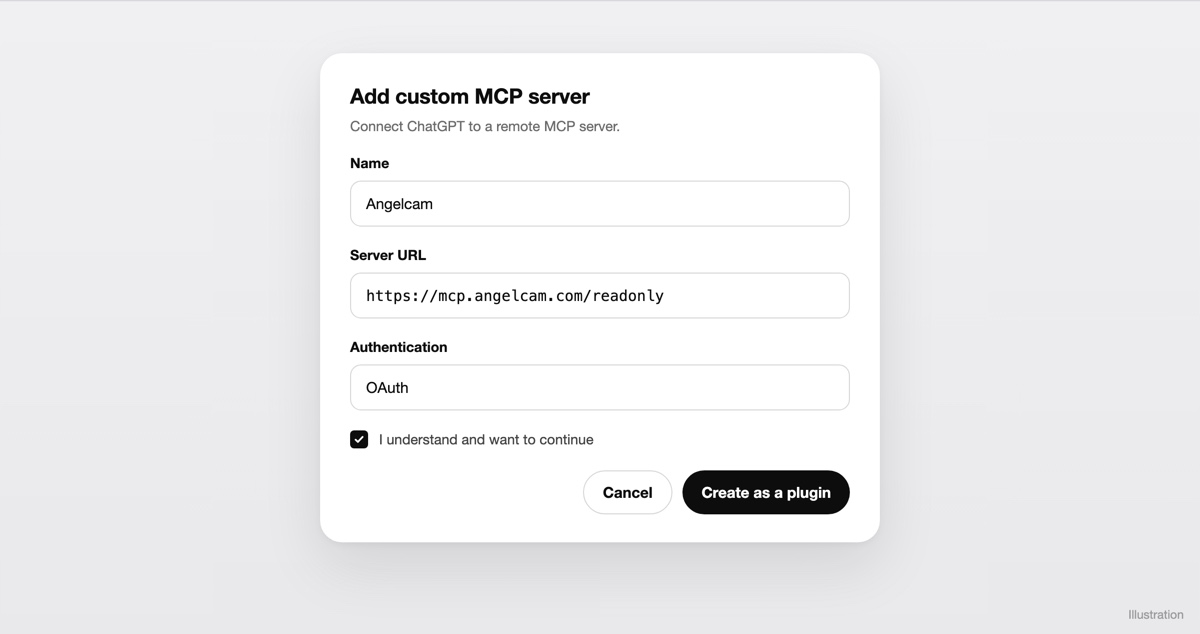
Add custom MCP server
. Name it Angelcam, paste
https://mcp.angelcam.com/readonly
as the server URL and choose OAuth. Tick “I understand and want to continue”, click
Create as a plugin
and install it. Then sign in with your Angelcam account and approve, with “Pictures from your cameras” ticked. ChatGPT calls this a plugin, but it’s a private connection in your own account. Angelcam doesn’t publish an official ChatGPT plugin.
This guide only looks, so it uses Angelcam’s read-only address. A connection made with it can never start or stop a recording.
An Add custom MCP server dialog in ChatGPT with the name Angelcam, the server URL https://mcp.angelcam.com/readonly, OAuth authentication and an “I understand and want to continue” checkbox.
Adding the Angelcam server in ChatGPT. Illustration: the labels in ChatGPT may differ slightly.
2

Show ChatGPT the container

Start a new chat. Type @Angelcam at the start of your message and ask:
Prompt
Use Angelcam to find my container camera. Are the container doors closed right now?
Copy
A ChatGPT chat: ChatGPT calls Angelcam to find the Container camera and take a live snapshot, then answers that the container is open, with both doors swung wide and the stock visible.
Angelcam finds the camera and delivers the snapshot. ChatGPT looks at it. Illustration.
Try it with the doors open and with them closed. Then describe the closed container in one sentence, for example “Closed means both doors are shut flat against the container and the locking bars are down.” You will use that sentence in the task.
Two night views of the same container: closed, with both doors shut, and open, with the doors swung wide and the stock visible.
Closed and open, on the same camera. AI-generated illustrative scenes.
3

Schedule the check

In the same chat, describe the job. ChatGPT turns it into a scheduled task:
Prompt
Every hour, use Angelcam to check the camera “Container”, but only between 18:00 and 07:00 Prague time. Outside those hours, stop without doing anything. Take a live snapshot and decide whether the container is closed, open or unclear. Closed means both doors are shut flat against the container and the locking bars are down. If it is open, notify me: “Container open at [time]. Please lock it.” Do this at every check until it is closed. If it is closed and the last check found it open, notify me once: “Container closed again at [time].” If you can’t tell, or can’t reach the camera, don’t notify me. Note it for the morning. Every check, write one log line: time, state and whether you notified me. At the 07:00 check, also send me one line about the night, including any unclear checks.
Copy
Check the schedule and the instructions, then open
Scheduled
in the sidebar to see the task and its next run. It runs on OpenAI’s side, so it keeps going when your computer is off.
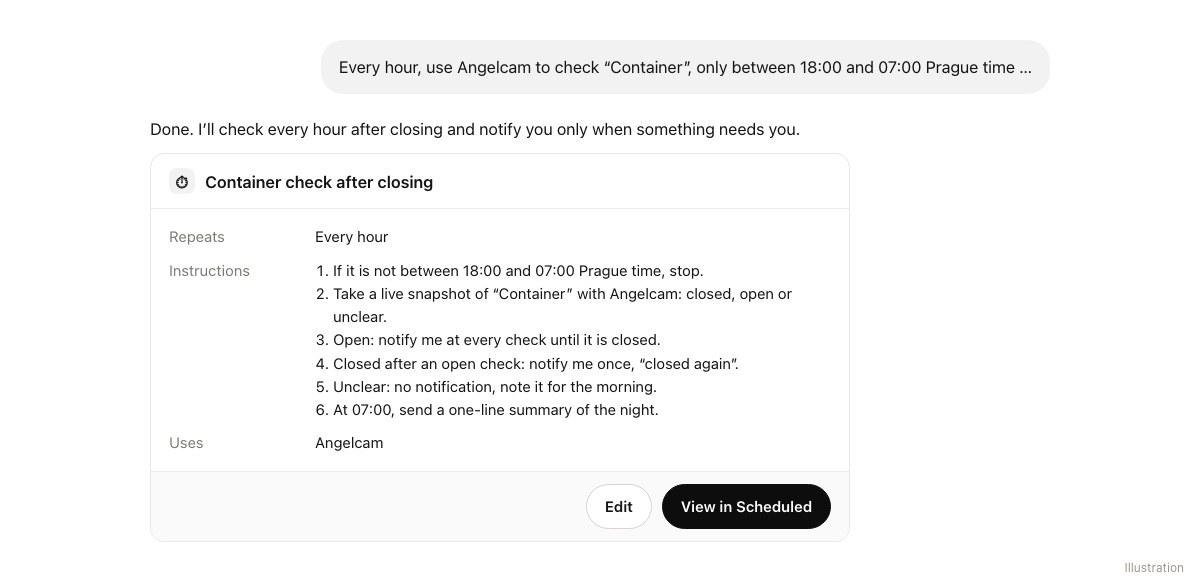
ChatGPT confirms a scheduled task named Container check after closing: repeats every hour, six instructions, uses Angelcam.
The scheduled task. Illustration.
ChatGPT can use what it found in earlier runs of the task. That is how it knows the last check found the container open, and sends “closed again” only once. Name Angelcam and your time zone in the prompt. In ChatGPT, choosing an app applies to one message only, and Angelcam reports times in UTC.
4

Get the alerts on your phone

Under
Settings
→
Notifications
, choose Push, Email or both for tasks. For alerts on your phone, install the ChatGPT app, sign in and allow notifications when it asks.
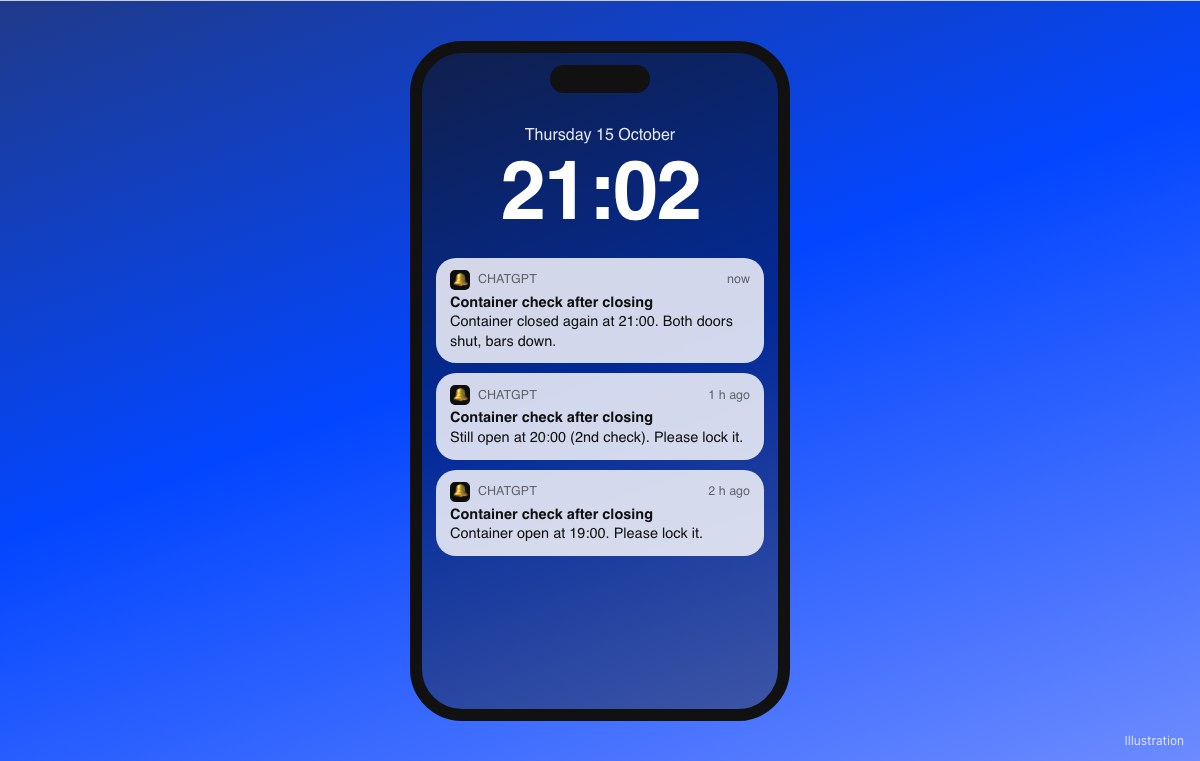
To test it, leave the doors open one evening after 18:00 and wait for the next full hour. Close them and wait one more hour to see the “closed again” alert.
A phone lock screen with three ChatGPT notifications from the task Container check after closing: open at 19:00, still open at 20:00, and closed again at 21:00.
One alert per check until it is locked, then one “closed again”. Illustration.
5

Share it with the person who locks up

ChatGPT notifies only the account that runs the task. To alert Petra, who closes the shop, share the task with her and she runs her own copy:
  1. In MyAngelcam, give Petra access to the container camera.
  2. In ChatGPT, open
    Scheduled
    , click
    •••
    next to the task, choose
    Share
    and then
    Copy link
    . Send her the link.
  3. Petra connects Angelcam in her own ChatGPT, as in step 1, signing in with her own Angelcam account. Then she opens the link, checks the time zone and clicks
    Schedule task
    .
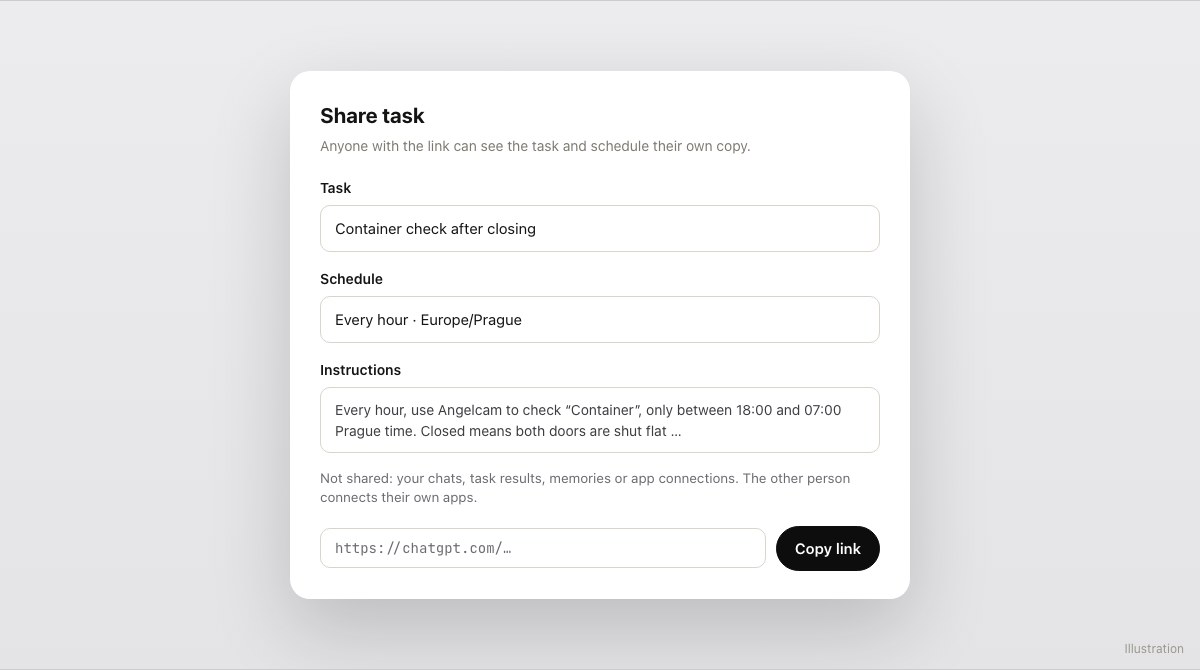
Her copy runs in her account and alerts her phone. Your chats, task results and app connections are not part of the link. She needs a paid ChatGPT plan and a free task slot too. A link shared from a Business, Enterprise or Edu workspace opens only for members of that workspace.
A Share task dialog in ChatGPT for Container check after closing: every hour, Europe/Prague, the instructions, a note that chats, results and app connections are not shared, and a Copy link button.
Sharing the task. Illustration.
6

Get the 30-night report

Each check leaves its log line in the task’s chat. After a month, open that chat and ask:
Prompt
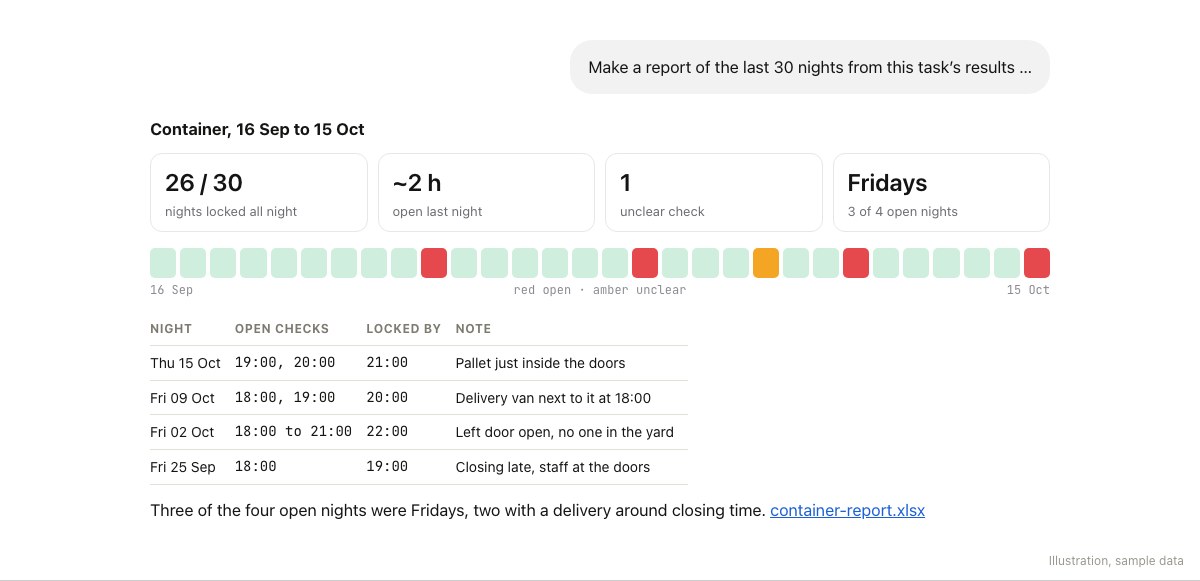
Make a report of the last 30 nights from this task’s results: nights locked all night out of 30, how long it was open last night, unclear checks, and any weekday pattern. Show the nights as a grid, add a table of the open nights with the open checks and when it was locked, end with what stands out, and give me the table as a spreadsheet.
Copy
ChatGPT’s report for the container, 16 Sep to 15 Oct: 26 of 30 nights locked, about 2 hours open last night, 1 unclear check, Fridays for 3 of 4 open nights; a 30-night grid; a table of open nights; and a spreadsheet to download.
The report, with sample data. Three of the four open nights were Fridays. Illustration.

Good to know

  • Any camera you have.
    Angelcam works with 200+ camera brands, so the camera already watching the yard is usually enough.
  • It’s a second look, not an alarm.
    Up to an hour can pass between two checks. If you need to know the moment a door opens, use a door contact or a monitoring service.
  • No alerts for “unclear”.
    An unclear check (fog, a dead floodlight) goes into the morning line, so nobody is woken up for nothing.
  • Email or text someone without ChatGPT?
    Depending on your plan and workspace settings, ChatGPT may be able to send an email for you. A scheduled run that needs your approval to send waits until you give it, so at 2 am the message may not go out. The Claude version of this guide sends emails on its own.
  • Keep the task’s chat.
    If you delete or archive it, the task pauses. A task can also pause after a long quiet stretch, so look at
    Scheduled
    now and then.
  • It can’t lock anything.
    The read-only address sees only what your Angelcam account sees, and it never records, arms, configures or deletes anything.
  • Pictures leave Angelcam.
    The snapshots ChatGPT looks at are sent to OpenAI as images. You can turn pictures off when you connect, but then ChatGPT gets links only and can’t judge the scene itself.
  • The Angelcam MCP Connector is free while in beta.
  • It’s a beta.
    You may hit a rough edge. If something doesn’t work or you miss something, write to us in the chat in MyAngelcam. If you connected the full address, https://mcp.angelcam.com, you can also ask ChatGPT to send feedback to Angelcam.
More ideas: angelcam.com/builders. Setup for other assistants: mcp.angelcam.com.

The idea

The last person out should close the storage container. Grok Bot can give the camera a second look after closing, keep a log and tell the team when the doors appear open.

Who does what

Angelcam provides a fresh camera snapshot. Grok Bot classifies the visible doors as open, closed or unclear and records the result in container-log.csv. Optional Slack messages tell the person responsible what the camera showed.
1

Connect Angelcam to Grok Bot

In the Bot that will own the check, ask:
Prompt
Add a custom MCP server named Angelcam at https://mcp.angelcam.com/readonly using streamable HTTP. Start its OAuth sign-in, then list the tools it offers. Do not change any cameras or recording settings.
Copy
Complete the Angelcam sign-in in your browser and allow camera pictures. Keep passwords out of chat. Confirm the Bot can access the correct camera before continuing. The read-only connection supplies camera information and images; Grok Bot interprets them.
2

Teach it what closed looks like

Prompt
Find my Angelcam camera “Container” and take a current snapshot. Are both container doors closed, open or unclear? Closed means both doors are shut flat against the container. If the view does not show the lock, do not claim it is locked. Explain what you can actually see.
Copy
Illustrative container camera views with doors closed and open
Test both door states on the same camera before scheduling the check.
Try the same question with the doors open and closed, including at night. Adapt the closed-state description to your camera angle.
3

Choose who gets the alert

Connect Slack if you want channel alerts. Grok Bot asks for approval before it posts anything, and an approval raised during a routine expires after about 10 minutes, so at night nobody is there to click it. Send one test post now and choose Always allow on the approval card. You can review or remove that rule in Settings.
Prompt
Post a test message in #site-team: “Container check test. No action required.” Do not send email or SMS.
Copy
4

Set the after-hours routine

Prompt
Create a routine called Container after closing. Every hour, but only from 18:00 through 07:00 Europe/Prague, take a fresh live snapshot from the Angelcam camera “Container”. Outside those hours, stop. Classify the doors as open, closed or unclear using the description we tested. Never infer that a closed door is locked. Append container-log.csv with camera, UTC time, local time, state, note and any alert sent. Read earlier rows before deciding whether this is a new open episode or the first closed check after one. Post in #site-team when it is open at each hourly check and once when it is closed again. If a post fails, report it in this chat. Report unclear or unavailable images in this chat, without calling them closed. Never reuse an old image or send the same check’s alert twice.
Copy
Change the hours and channel to match your site. Use the log to keep the “closed again” message to one post per open episode.
5

Test the complete routine

Open the Bot’s details and its Routines list. Check the saved schedule and time zone, then use Test with a known period or a safe camera state. A test uses real tools and can write to the log or post an alert.
Start with alerts going only to you. Check the timestamps, the saved rows, an unavailable camera, and a second run of the same period. Only enable team alerts after the results and permissions match what you intended. If the routine cannot read Angelcam unattended, pause it and reconnect before relying on it.
6

Review the nights

Prompt
Build a page called Container Night Watch from container-log.csv. Show the last 30 nights as a grid, open and unclear checks, gaps in coverage, and the messages sent. Show the first and last open observations for each episode. Label the time between checks as an estimate, not an exact opening duration. Refresh it after the 07:00 check.
Copy
Review open, closed and unclear examples with the person responsible. Pause the routine if the camera moves or stops showing the doors.

Good to know

  • A closed door is not proof of a lock.
    Only describe a locking bar or padlock when the camera actually shows it.
  • Checks have gaps.
    A door can open and close between snapshots. Use a door sensor or monitoring service when you need an immediate alarm.
  • Keep the log.
    Ask the Bot to save a CSV file in its workspace. Check that later runs can read it; recent run history alone is not your long-term record.
  • Picture access.
    Camera images are supplied to the AI service used by Grok Bot. Use only cameras and recipients you are authorized to include.
  • Review permissions.
    Connect Slack only if you want messages there. Check the destination and scope of any saved permission before enabling unattended posts. If permission is missing, the routine should report that and keep the result in chat.

Setup references

See Grok Bot skills and routines and routine settings and testing for current product controls.
Keep exploring

What else could your cameras
tell you
?

Use another guide as a starting point for your site.
Camera scenes, screens and reports are illustrations or sample data.