All guides
Animal welfare · Angelcam MCP Connector

Is the horse
lying down
?
Collect observations from your stable camera.

Review posture changes from live or recording snapshots and collect observations to share with your vet.
Claude or ChatGPT or Grok Bot
Live or recording snapshots
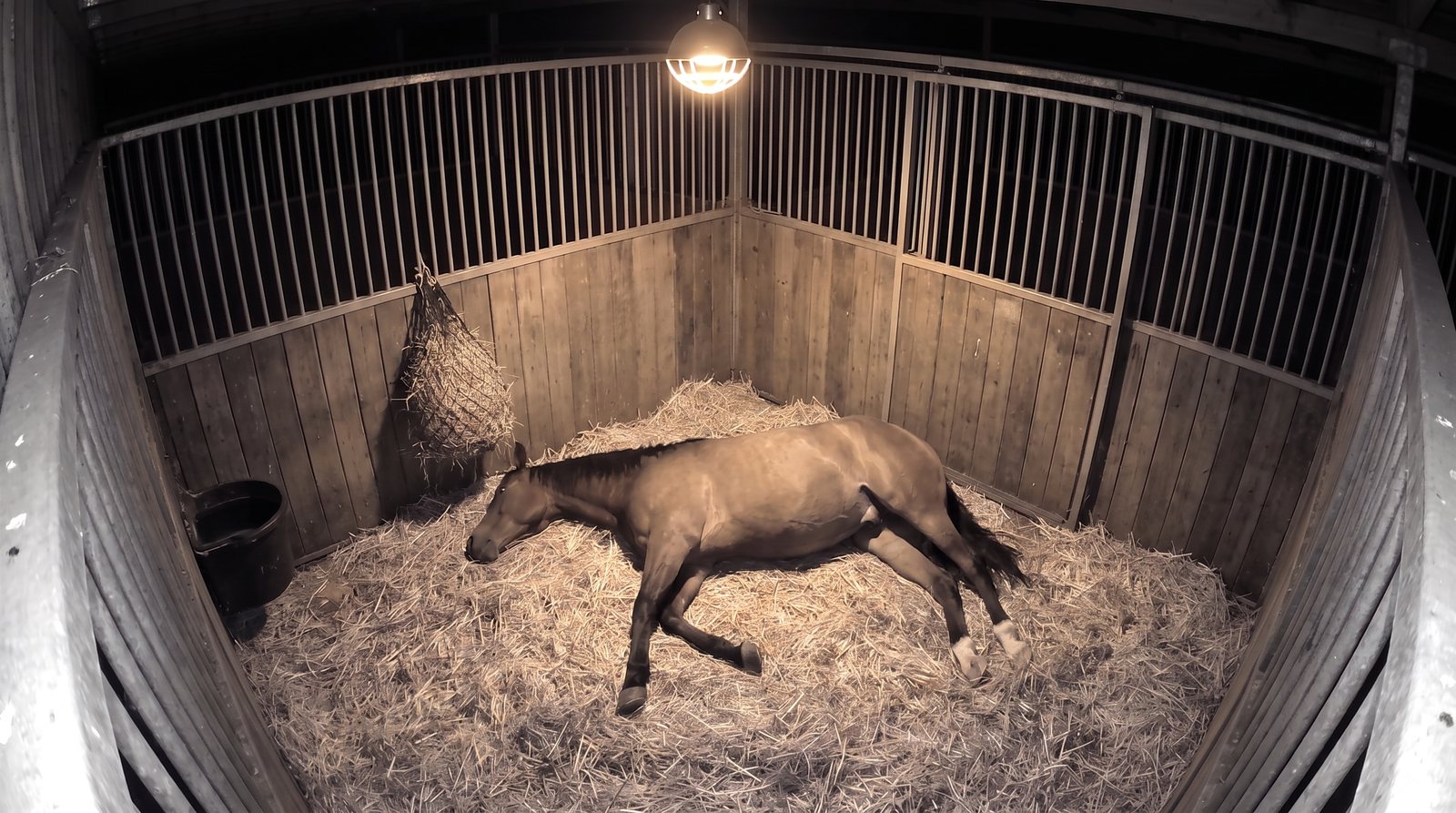
Illustrative stable camera view
Stable
Illustrative example report with sample data
Example report
Camera scenes and report examples are illustrations.
How it works

From a camera picture to an answer you can act on.

Camera → Angelcam snapshots → AI posture check → observation log. Use live or recording snapshots. You get a history of sampled postures, notes on changes and a report to review with your vet.
  1. Your camera

    Stable

    Use a camera connected to your Angelcam account.
  2. Angelcam

    Live or recording snapshots

    Choose a current image or a snapshot from an earlier recording through the MCP Connector.
  3. Your assistant

    What posture can you see?

    Use the guide’s prompts to inspect what is visible.
  4. You

    Observations for human review

    Keep a record of visible posture changes to discuss with the people caring for the horse. This workflow does not replace veterinary assessment.
Choose your snapshot source

Check now. Or look back.

Every use case works with live snapshots and snapshots from recordings. Choose the source that fits the period you want to check.
Check from now on

Live snapshots

Log the horse’s visible posture as checks happen, then compare the collected observations with its reviewed baseline.
No Cloud Recording required.
Use live snapshots with your assistant
Prompt
Use live snapshots for stable observations. At each scheduled check, request a fresh Angelcam snapshot of “Stall 3” and label Bella as standing, chest lying, flat lying or not visible. Confirm a sampling interval supported by my assistant and review it with the people caring for the horse. Save horse, camera, timestamp, posture and uncertainty in the configured log. Compare only actual sampled observations with the reviewed baseline. Do not infer continuous posture between checks, diagnose illness or send notifications without the exact vet-agreed rules and approved destination.
Copy
Look back at earlier times

Recording snapshots

Sample an earlier period of stall footage to review posture changes and prepare a report for the stable team or vet.
Requires Cloud Recording and footage for the selected period.
Use recording snapshots with your assistant
Prompt
Use recording snapshots for stable observations. Review the period I specify from “Stall 3”, sampling about every five minutes where footage is available. Log Bella’s posture, camera, original timestamp and uncertainty for every sample. Mark gaps as not visible and do not infer uninterrupted posture between frames. Compare with the reviewed baseline and prepare an observation report for human review. Keep historical findings separate from current alerts; do not diagnose or apply unapproved medical thresholds.
Copy
Live checks build a log from the time they start. They cannot recover missed checks. Recording snapshots can review earlier footage within your retention period. Check the scheduling intervals and storage available in your assistant.
Before you start

Start with observations, then review with your vet.

Test known examples of standing, chest lying and flat lying. The source guide calls for veterinary review of any thresholds before relying on alerts.
Illustrative stable view for checking the prompt
Pick your assistant

One use case. Choose your way to build it.

The steps and connected apps differ. Follow the edition for the assistant you use.
Anthropic

Claude

Use the Claude edition for its own connection steps, prompts and reporting workflow.
Before you start
  • An Angelcam account with a camera that clearly shows the scene. All use cases support live snapshots and recording snapshots. Cloud Recording is required only for snapshots from recordings; the live option does not need it.
  • A paid Claude plan (Pro, Max, Team or Enterprise).
  • Google Sheets for the log and Gmail for the alerts and the morning summary. Both are connected under Customize → Connectors.
Set it up in Claude
OpenAI

ChatGPT

Use the ChatGPT edition for its own connection steps, prompts and reporting workflow.
Before you start
  • An Angelcam account with a camera that clearly shows the scene. All use cases support live snapshots and recording snapshots. Cloud Recording is required only for snapshots from recordings; the live option does not need it.
  • A paid ChatGPT plan that can add custom MCP servers, plus ChatGPT on the web at chatgpt.com. For now, they can be added only on the web. On Business, Enterprise and Edu, an admin usually adds the server for the workspace, and you install it.
  • The ChatGPT app on your phone, if you want the alerts there and not only by email.
  • One free slot for a scheduled task. Plus has 5, Business 10, and Pro and Enterprise 15.
Set it up in ChatGPT
xAI

Grok Bot

Set up a Grok Bot routine, save a CSV log and build a report you can review.
Before you start
  • An Angelcam account with a camera that clearly shows the scene. All use cases support live snapshots and recording snapshots. Cloud Recording is required only for snapshots from recordings; the live option does not need it.
  • Grok Bot with access to custom MCP connections and routines. Choose one Bot to own this workflow.
  • A camera showing the whole stall and a named horse. Optional: Slack for the stable team. Use observation-only logging until your vet has reviewed the proposed rules.
Set it up in Grok Bot
Step by step

From connection to a result you can review.

Both snapshot sources work. The walkthrough below uses recording snapshots. Use the source prompts above for the other option.

The idea

A horse lying down is usually just resting. A horse that lies down too long, or keeps going down and getting up, may be in pain. Nobody can sit in the stable all night to tell the difference. Your stall camera can.
In this guide Angelcam records the stall and, every hour, hands Claude the last hour of footage, one frame about every 5 minutes. For each frame Claude notes whether your horse is standing, lying on its chest or lying flat. It emails you when the pattern looks wrong, and it builds a report you can show your vet. You set it all up in Claude.

Why lying down matters when a horse is ill

Healthy horses lie down, but not for long.
Studies put the total at about 30 minutes to 2 hours a day, around 20 minutes at a time, mostly at night (VetAgro Sup animal welfare chair, 2024). Some vets give one to three hours (The Horse, Nancy Diehl, VMD). Horses can doze standing up, but REM sleep only happens when they lie flat on their side, and flat lying is just 1 to 4% of their day.
A change in lying down is often the first sign of pain.
  • Colic:
    lying down and rolling are among the most common signs of abdominal pain (Merck Veterinary Manual). As colic gets worse, horses get up and down again and again (University of Arizona).
  • Laminitis:
    a horse with painful feet often lies down to take the weight off them (RSPCA).
Staying down is harmful in itself.
A horse weighs around half a tonne. Lying too long, that weight presses on its organs and can cause circulation and breathing problems (VetAgro Sup). In a horse that stays down, muscle damage can start within about two hours (Miller,
Nursing Care of the Recumbent Horse
). A horse that can’t get up is an emergency.
Not lying down at all is a warning too.
A horse in pain may refuse to lie down. Without lying-down sleep, after about two weeks it can start to collapse when it dozes off (The Horse, Joseph Bertone, DVM).
So it’s worth watching both: lying down too long or too often, and not lying down at all. This guide doesn’t replace your vet. Agree the limits below with them, and call them when something looks wrong.
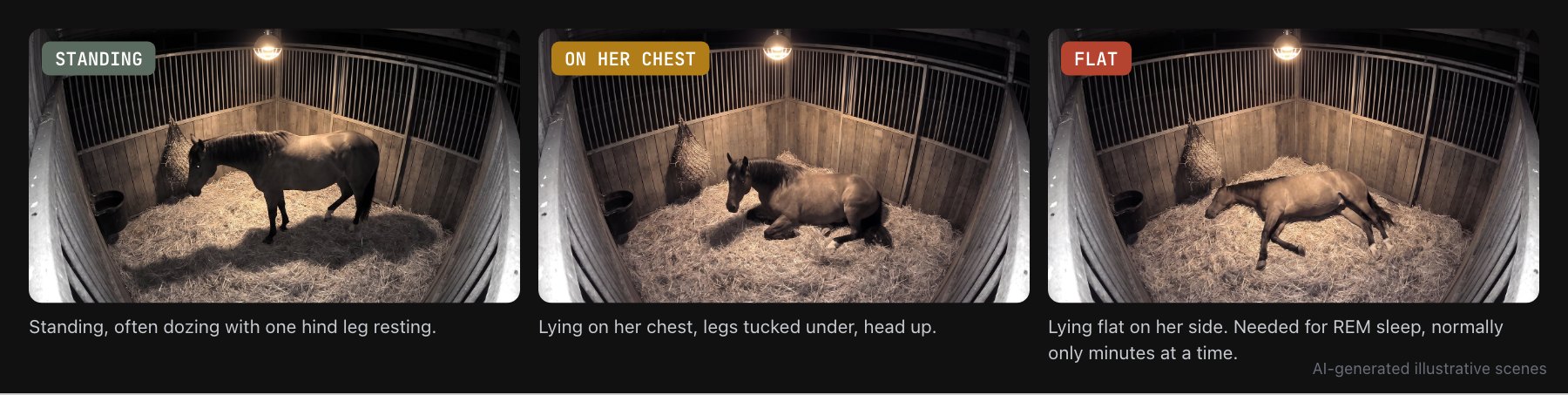
Three night views of the same stall: the mare standing, lying on her chest with legs tucked under, and lying flat on her side.
The three positions Claude tells apart. AI-generated illustrative scenes.

Who does what

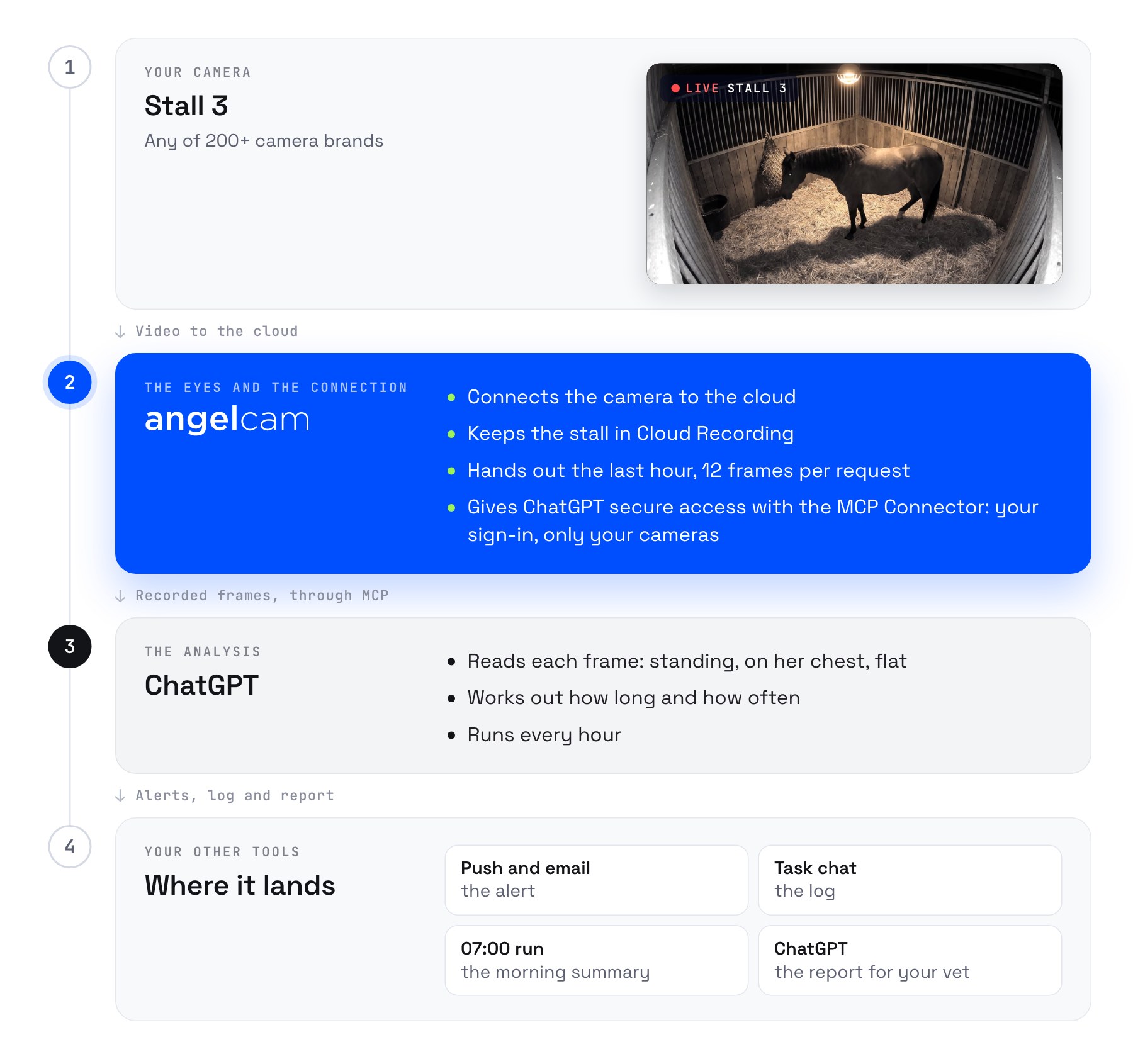
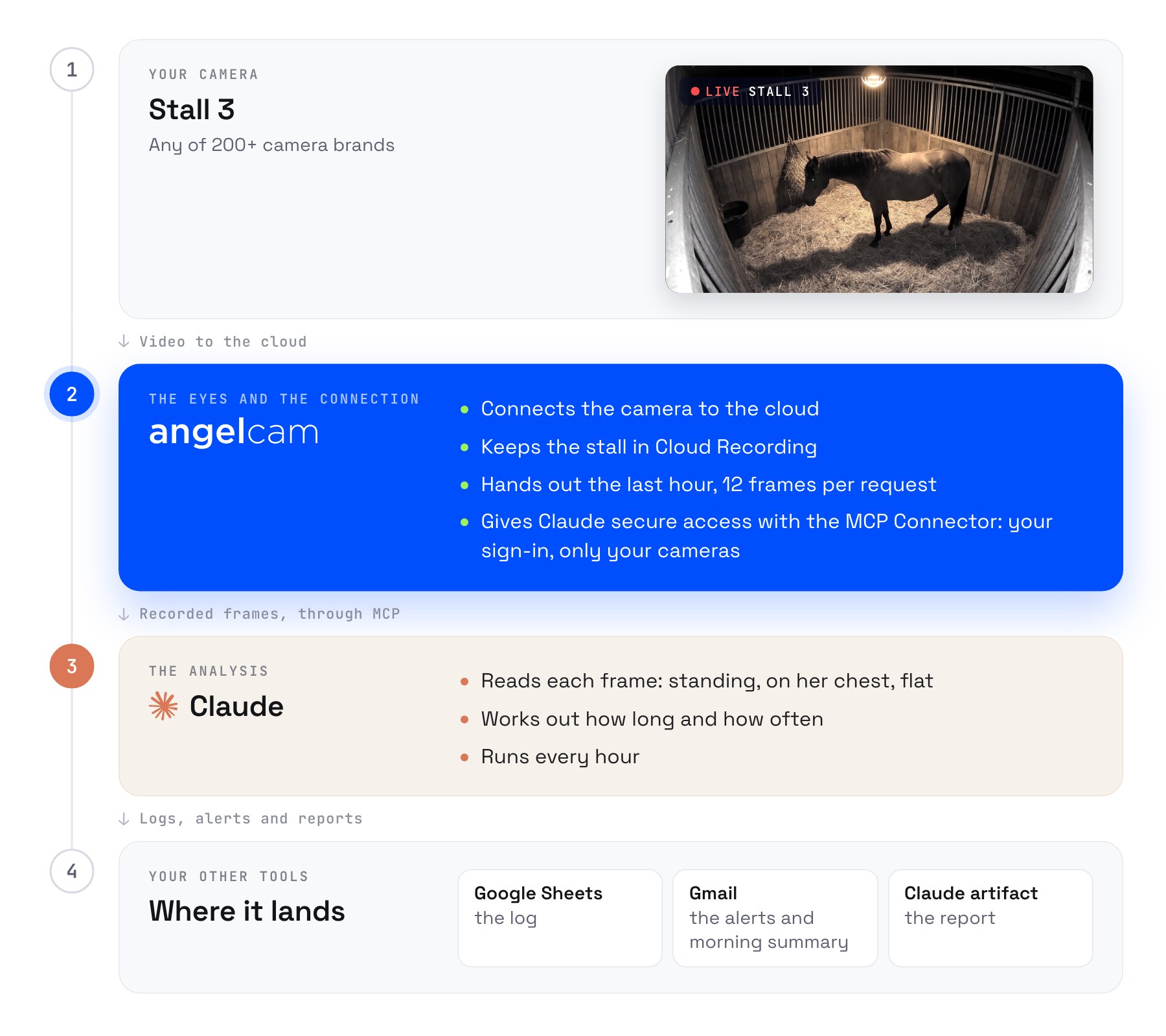
Who does what: the stall camera, any of 200+ brands, connects to Angelcam. Angelcam keeps the stall in Cloud Recording, hands out the last hour at 12 frames per request, and gives Claude secure access with the MCP Connector. Claude reads each frame as standing, on her chest or flat, works out how long and how often, and runs every hour. The results land in Google Sheets, Gmail alerts, a Gmail summary and a Claude artifact.
Angelcam delivers the camera and the connection. Claude does the analysis.
1

Connect Angelcam to Claude

In Claude, open
Customize
→
Connectors
, choose
Add custom connector
, paste
https://mcp.angelcam.com/readonly
and click
Add
. Then click
Connect
, sign in with your Angelcam account and approve, with “Pictures from your cameras” ticked. Connect Google Sheets and Gmail from the same list.
2

Look back over one hour

Prompt
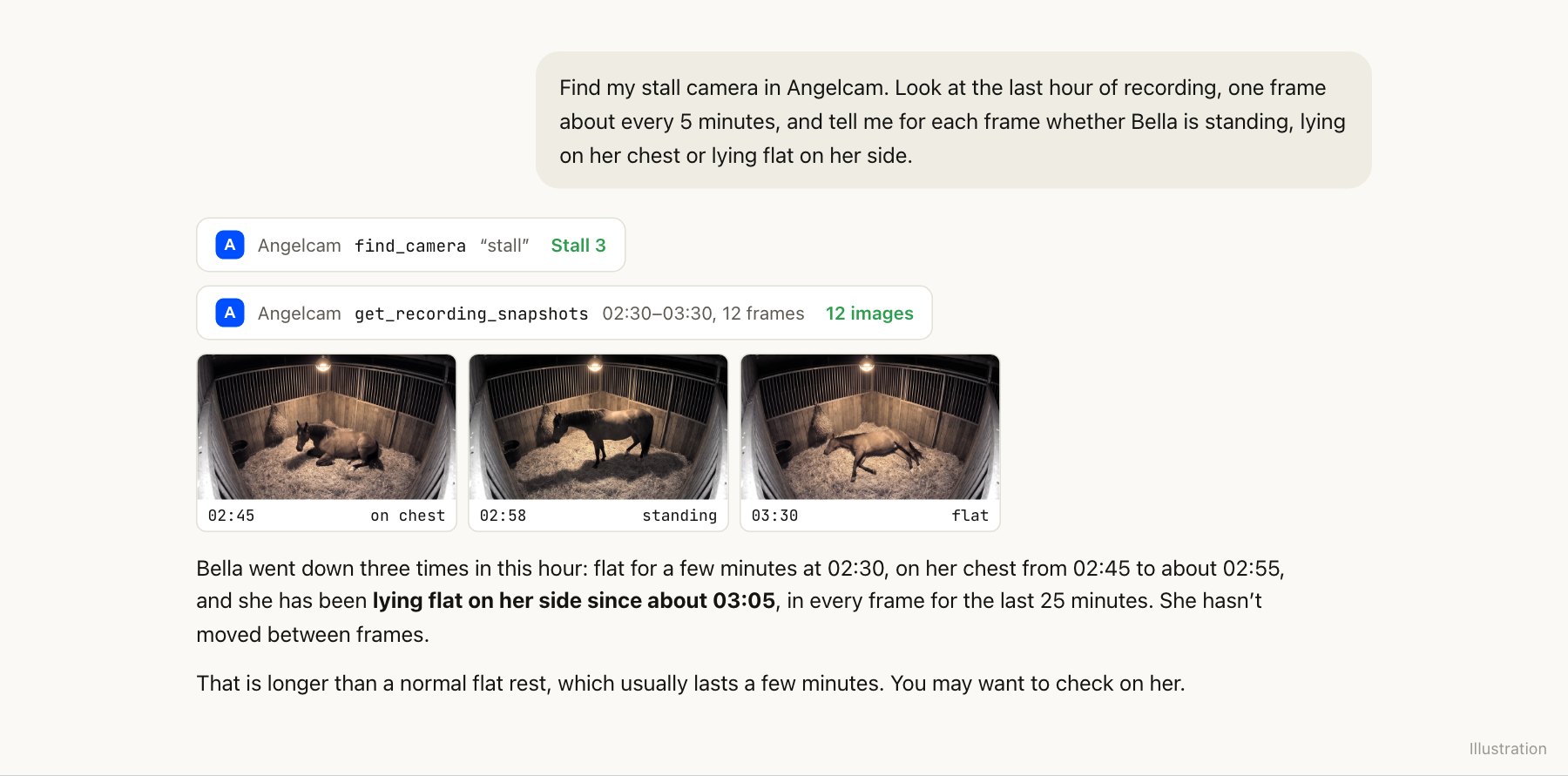
Find my stall camera in Angelcam. Look at the last hour of recording, one frame about every 5 minutes, and tell me for each frame whether Bella is standing, lying on her chest or lying flat on her side.
Copy
Angelcam hands out up to 12 recorded frames in one request, so a whole hour about 5 minutes apart takes a single call. Claude then reads each frame.
A Claude chat: Claude reviews 12 recorded frames from Stall 3 and reports that Bella went down three times in the hour and has been lying flat since 03:05.
Angelcam delivers the hour of recording. Claude reviews it. Illustration.
Try it on an hour when you know she lay down. If Claude mixes up the positions, tell it what to look for, for example “Flat means her head and neck are on the straw and her legs point sideways.”
3

Learn what’s normal for your horse

Every horse is different. Create a Google Sheet called
Stable log
(Time, Position, Note) and let the hourly check from step 4 run for a week before you switch on the alerts. Then ask:
Prompt
From the Stable log, what is Bella’s normal day: minutes lying down, minutes lying flat, and how many times she lies down?
Copy
Show the answer to your vet and agree on when you want to be alerted.
4

Schedule the hourly check

Prompt
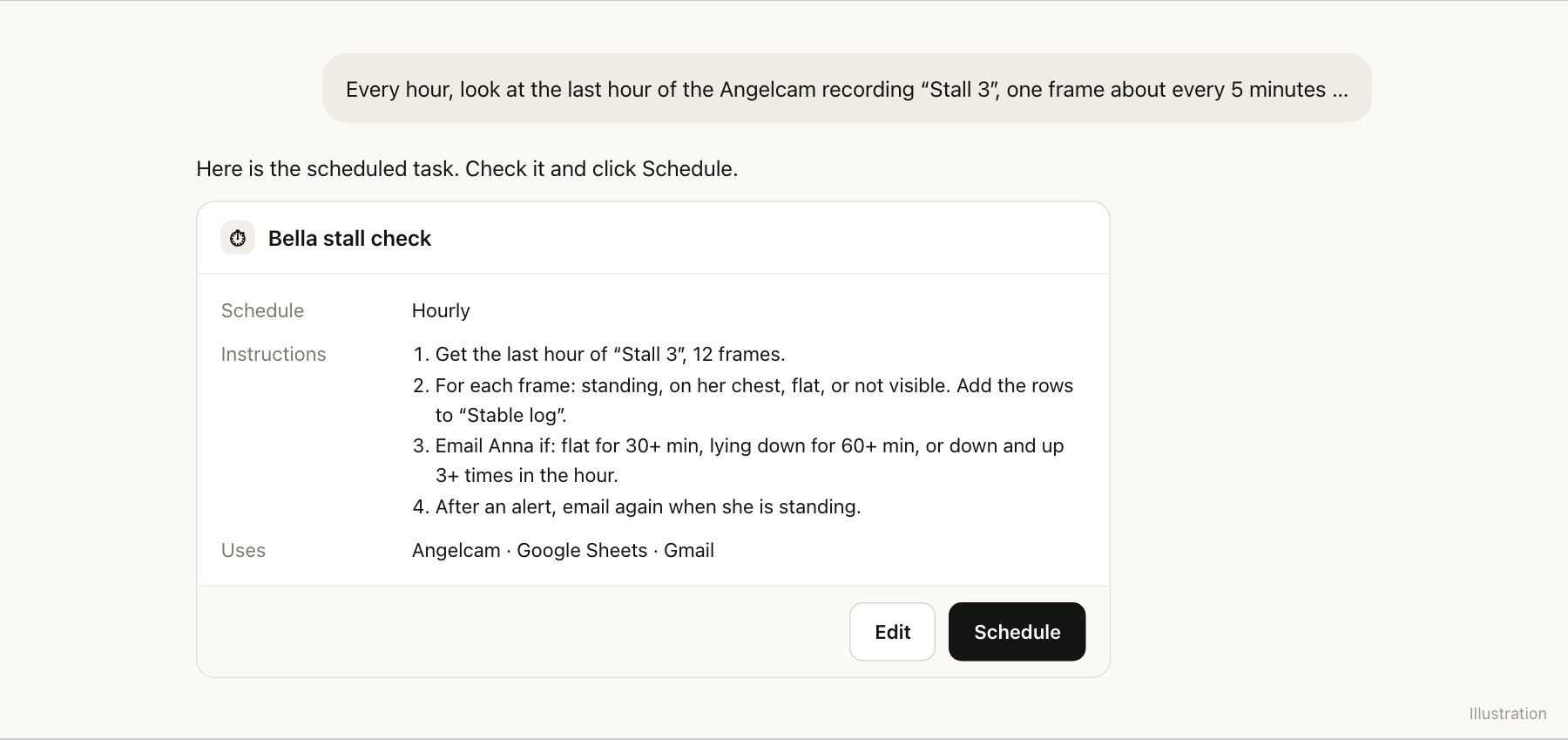
Every hour, look at the last hour of the Angelcam recording of “Stall 3”, one frame about every 5 minutes. Times are Prague time. For each frame, decide whether Bella is standing, lying on her chest, lying flat on her side, or not visible, and add a row to the Stable log sheet. Email Anna at anna@yourstable.example if, counting the earlier rows in the log, Bella has been lying flat for 30 minutes or more, lying down in any position for 60 minutes or more, or went down and got up 3 or more times in this hour. Say what you saw and since when. If you emailed Anna earlier tonight and Bella is now standing, email her once to say so.
Copy
Claude proposes a scheduled task named Bella stall check: hourly, four steps, using Angelcam, Google Sheets and Gmail, with a Schedule button.
Check it and click Schedule. Illustration.
Each check starts fresh, which is why it reads the earlier rows in the Stable log: that’s how it knows Bella has been lying flat since 03:05 and not just since 03:30. Alerts go out without anyone awake to approve them, so allow this task to send without asking (open it under
Scheduled
and change its approval setting).
5

A summary every morning

Add a second task that runs daily at 07:00:
Prompt
Every day at 07:00, read the last 24 hours of the Stable log and email me a short summary: minutes lying down, minutes lying flat, how many times Bella went down, and anything unusual compared with her normal week. If she hasn’t lain down at all for two nights in a row, say so at the top.
Copy
6

Build the manager dashboard

A stable usually has more than one horse. Give each stall camera the same hourly task, or one task that goes through all of them, and log the horse’s name with every row. Then:
Prompt
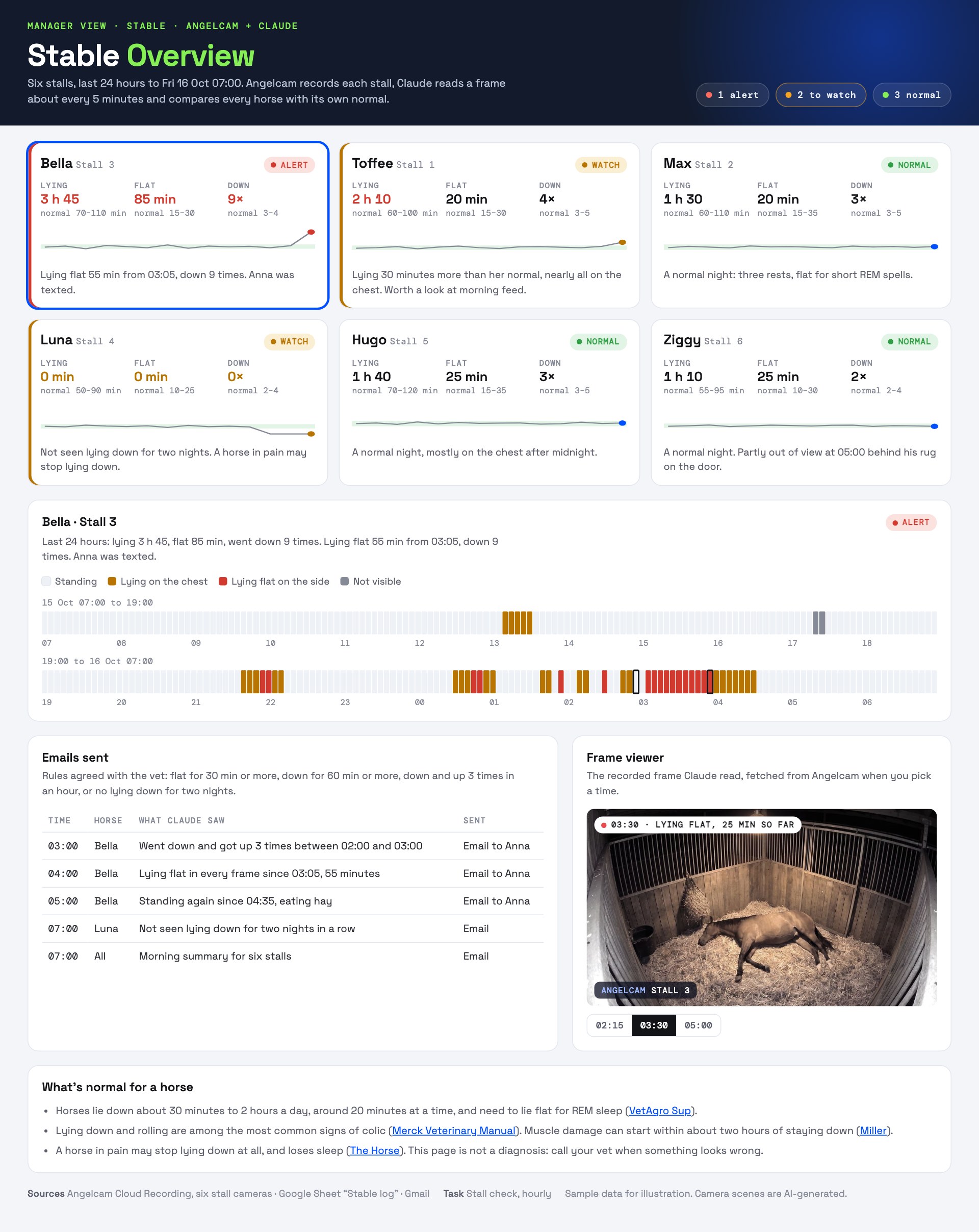
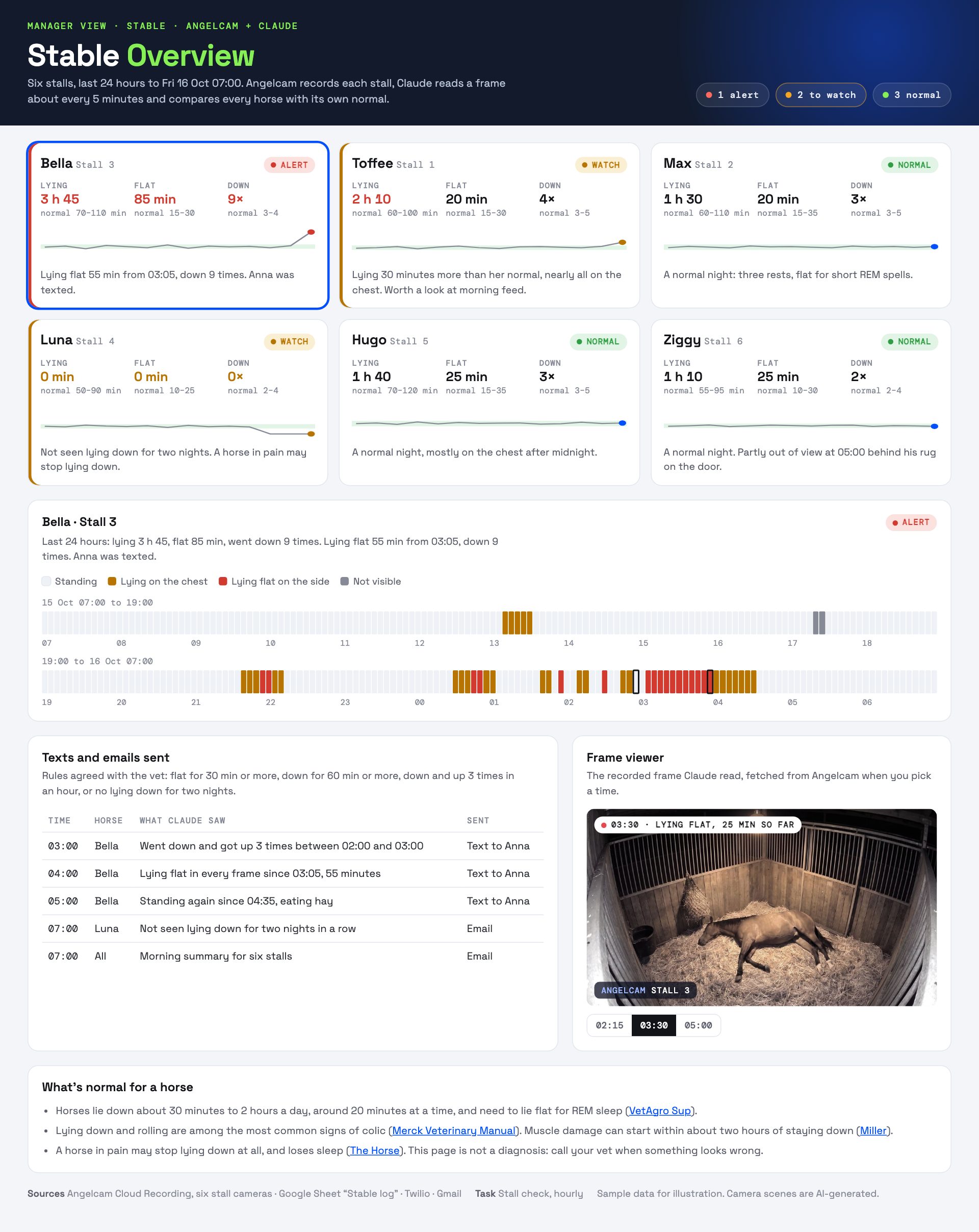
Build an artifact called Stable Overview. Each time I open it, read the Stable log sheet and show a card for every horse: lying down, lying flat and times down in the last 24 hours against its own normal, a 14-day line, and a status (normal, watch or alert). When I click a horse, show its 24-hour strip coloured by position, the emails sent, and a frame viewer that fetches the recorded frame from Angelcam.
Copy
The Stable Overview dashboard: six horse cards, Bella on alert with 3 h 45 lying and 85 min flat, Toffee and Luna to watch, three normal; Bella’s 24-hour strip with a long flat stretch from 03:05; emails sent; a frame viewer; and what is normal for a horse.
The manager dashboard, with sample data. Luna is flagged for the opposite reason: she hasn’t lain down for two nights.

Good to know

  • It’s not a diagnosis, and it’s not an alarm.
    Claude tells you what it saw, up to an hour later. If your horse looks unwell, call your vet.
  • Frames are about 5 minutes apart.
    A quick roll between two frames can be missed. Long stretches, which matter most, are what it catches.
  • The camera has to see the whole stall.
    A blanket, deep shadow or a second horse in the frame make the positions harder to tell. When Claude can’t tell, it logs “not visible”.
  • It can’t change anything.
    This guide uses the read-only address, so the connector only reads your cameras and recordings.
  • Pictures leave Angelcam.
    The frames Claude looks at are sent to Anthropic as images. You can turn pictures off when you connect, but then Claude gets links only and can’t judge the scene itself.
  • The Angelcam MCP Connector is free while in beta. Cloud Recording is paid.
  • It’s a beta.
    You may hit a rough edge. If something doesn’t work or you miss something, write to us in the chat in MyAngelcam.
More ideas: angelcam.com/builders. Setup for other assistants: mcp.angelcam.com.

The idea

A horse lying down is usually just resting. A horse that lies down too long, or keeps going down and getting up, may be in pain. Nobody can sit in the stable all night to tell the difference. Your stall camera can.
In this guide Angelcam records the stall and, every hour, hands ChatGPT the last hour of footage, one frame about every 5 minutes. For each frame ChatGPT notes whether your horse is standing, lying on its chest or lying flat. It alerts you when the pattern looks wrong, sends you a summary every morning, and makes a report you can show your vet. You set it all up in ChatGPT on the web. Use Claude instead? There is a Claude version of this guide, with email alerts and a Google Sheets log.

Why lying down matters when a horse is ill

Healthy horses lie down, but not for long.
Studies put the total at about 30 minutes to 2 hours a day, around 20 minutes at a time, mostly at night (VetAgro Sup animal welfare chair, 2024). Some vets give one to three hours (The Horse, Nancy Diehl, VMD). Horses can doze standing up, but REM sleep only happens when they lie flat on their side, and flat lying is just 1 to 4% of their day.
A change in lying down is often the first sign of pain.
  • Colic:
    lying down and rolling are among the most common signs of abdominal pain (Merck Veterinary Manual). As colic gets worse, horses get up and down again and again (University of Arizona).
  • Laminitis:
    a horse with painful feet often lies down to take the weight off them (RSPCA).
Staying down is harmful in itself.
A horse weighs around half a tonne. Lying too long, that weight presses on its organs and can cause circulation and breathing problems (VetAgro Sup). In a horse that stays down, muscle damage can start within about two hours (Miller,
Nursing Care of the Recumbent Horse
). A horse that can’t get up is an emergency.
Not lying down at all is a warning too.
A horse in pain may refuse to lie down. Without lying-down sleep, after about two weeks it can start to collapse when it dozes off (The Horse, Joseph Bertone, DVM).
So it’s worth watching both: lying down too long or too often, and not lying down at all. This guide doesn’t replace your vet. Agree the limits below with them, and call them when something looks wrong.
Three night views of the same stall: the mare standing, lying on her chest with legs tucked under, and lying flat on her side.
The three positions ChatGPT tells apart. AI-generated illustrative scenes.

Who does what

Who does what: the stall camera, any of 200+ brands, connects to Angelcam. Angelcam keeps the stall in Cloud Recording, hands out the last hour at 12 frames per request, and gives ChatGPT secure access with the MCP Connector. ChatGPT reads each frame as standing, on her chest or flat, works out how long and how often, and runs every hour. Results arrive as push and email alerts, a log in the task chat, a morning summary from the 07:00 run, and a report for your vet.
Angelcam delivers the camera, the recording and the connection. ChatGPT does the analysis.
1

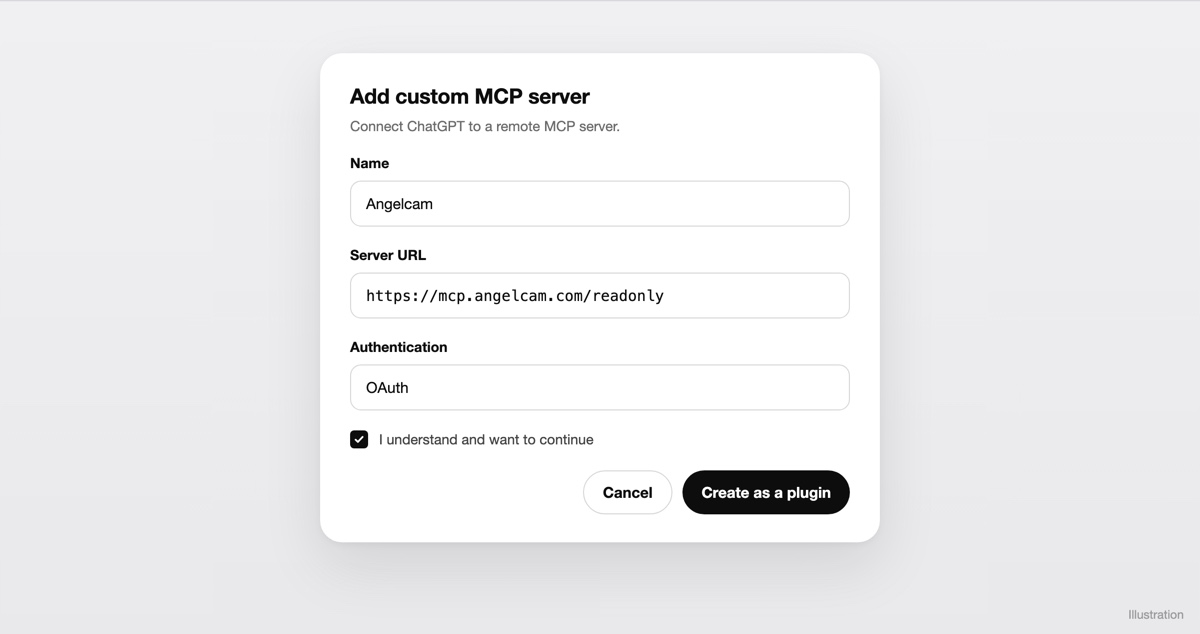
Connect Angelcam to ChatGPT

On chatgpt.com, open
Plugins
, click + and choose
Add custom MCP server
. Name it Angelcam, paste
https://mcp.angelcam.com/readonly
as the server URL and choose OAuth. Tick “I understand and want to continue”, click
Create as a plugin
and install it. Then sign in with your Angelcam account and approve, with “Pictures from your cameras” ticked. ChatGPT calls this a plugin, but it’s a private connection in your own account. Angelcam doesn’t publish an official ChatGPT plugin.
This guide only looks at recordings, so it uses the read-only address. A connection made with Angelcam’s read-only address can never start or stop a recording.
An Add custom MCP server dialog in ChatGPT with the name Angelcam, the server URL https://mcp.angelcam.com/readonly, OAuth authentication and an “I understand and want to continue” checkbox.
Adding the Angelcam server in ChatGPT. Illustration: the labels in ChatGPT may differ slightly.
2

Look back over one hour

Start a new chat. Type @Angelcam at the start of your message and ask:
Prompt
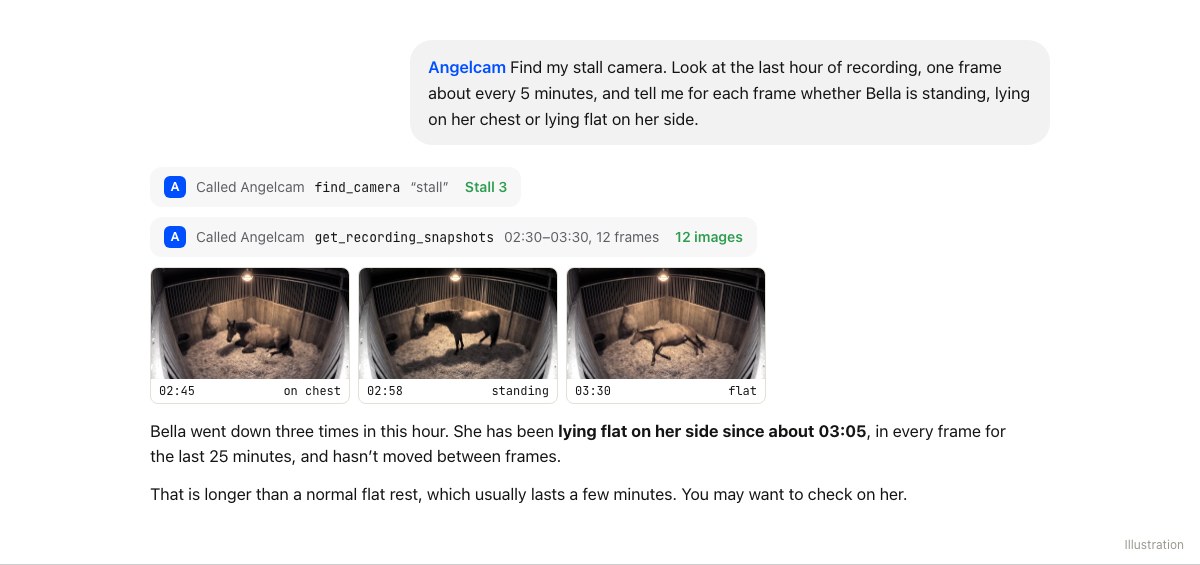
Use Angelcam to find my stall camera. Look at the last hour of recording, one frame about every 5 minutes, and tell me for each frame whether Bella is standing, lying on her chest or lying flat on her side.
Copy
Angelcam hands out up to 12 recorded frames in one request, so a whole hour about 5 minutes apart takes a single call. ChatGPT then reads each frame.
A ChatGPT chat: ChatGPT calls Angelcam for 12 recorded frames from Stall 3 and reports that Bella went down three times in the hour and has been lying flat since 03:05.
Angelcam delivers the hour of recording. ChatGPT reviews it. Illustration.
Try it on an hour when you know she lay down. If ChatGPT mixes up the positions, tell it what to look for, for example “Flat means her head and neck are on the straw and her legs point sideways.”
3

Log every hour for a week

Every horse is different, so start with a week of logging and no alerts. In the same chat, ask for a scheduled task:
Prompt
Every hour, use Angelcam to look at the last hour of the recording of “Stall 3”, one frame about every 5 minutes. Times are Prague time. For each frame, decide whether Bella is standing, lying on her chest, lying flat on her side, or not visible, and write one log line per frame. Don’t notify me yet.
Copy
Open
Scheduled
in the sidebar to see the task and its next run. It runs on OpenAI’s side, so it keeps going when your computer is off. Name Angelcam and your time zone in the prompt. In ChatGPT, choosing an app applies to one message only, and Angelcam reports times in UTC.
4

Learn what’s normal for your horse

After a week, open the task’s chat and ask:
Prompt
From this task’s log, what is Bella’s normal day: minutes lying down, minutes lying flat, and how many times she lies down?
Copy
Show the answer to your vet and agree on when you want to be woken up.
5

Switch on the alerts

In the task’s chat, add the rules you agreed with your vet:
Prompt
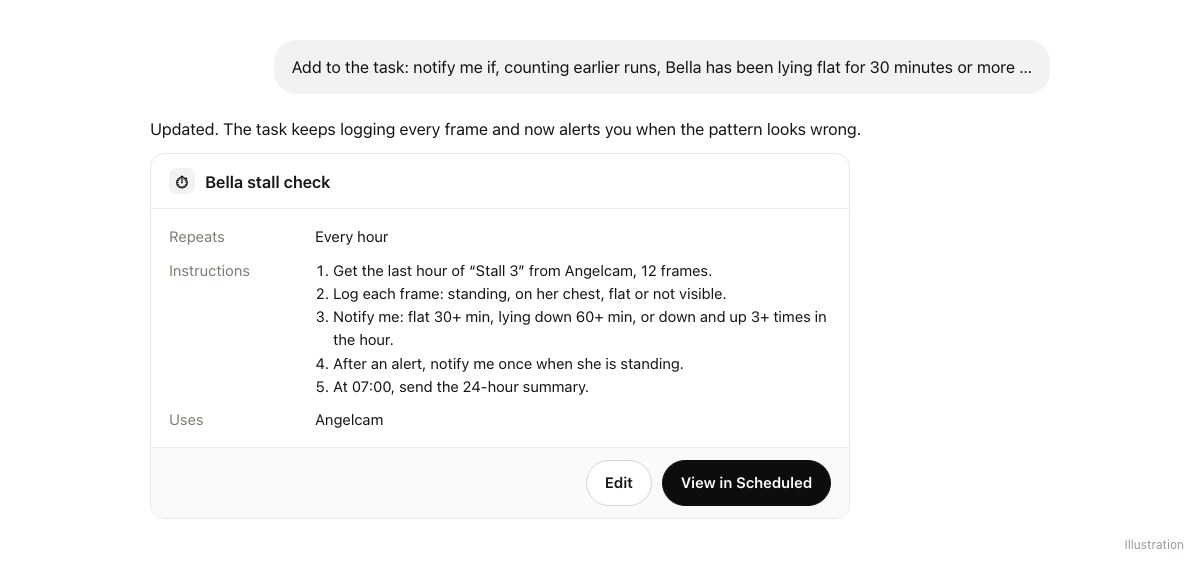
Change the task. Notify me if, counting earlier runs, Bella has been lying flat for 30 minutes or more, lying down in any position for 60 minutes or more, or went down and got up 3 or more times in this hour. Say what you saw and since when. If you notified me earlier tonight and Bella is now standing, notify me once to say so. At the 07:00 run, also send me a summary of the last 24 hours: minutes lying down, minutes lying flat, how many times Bella went down, and anything unusual compared with her normal week. If she hasn’t lain down at all for two nights in a row, say so at the top.
Copy
ChatGPT confirms the updated task Bella stall check: every hour, five instructions including the three alert rules and a 07:00 summary, uses Angelcam.
The task with the alerts on. Illustration.
ChatGPT can use what it found in earlier runs of the task. That is how it knows Bella has been lying flat since 03:05, not just since 03:30. The 07:00 run sends the morning summary, so you don’t need a second task.
Under
Settings
→
Notifications
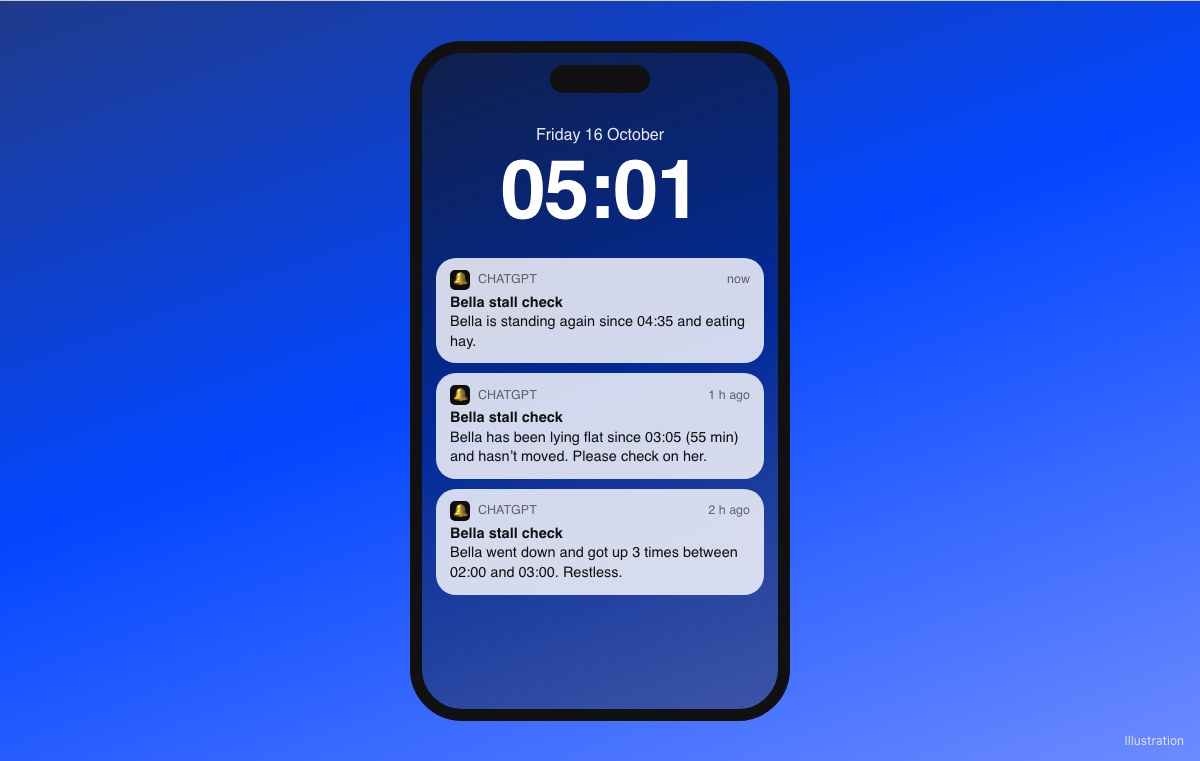
, choose Push, Email or both for tasks. For alerts on your phone, install the ChatGPT app, sign in and allow notifications when it asks.
A phone lock screen at 05:01 with three ChatGPT alerts from Bella stall check: restless between 02:00 and 03:00, lying flat since 03:05 for 55 minutes, and standing again since 04:35.
What you get on your phone. Illustration.
6

A report for your vet

When something happened, or before a vet visit, open the task’s chat and ask:
Prompt
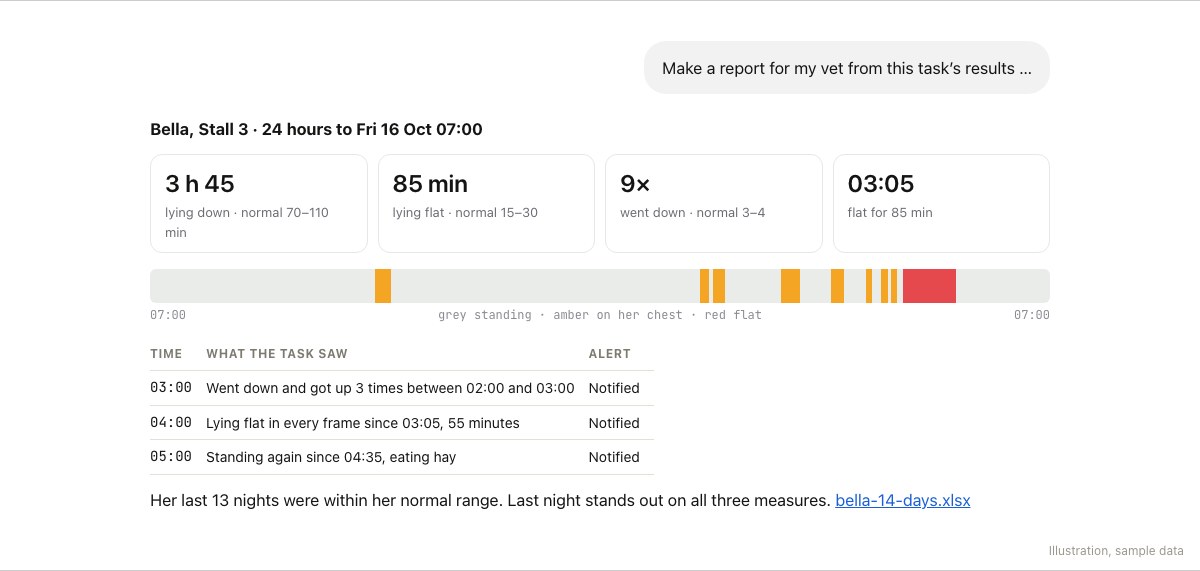
Make a report for my vet from this task’s results: Bella’s last 24 hours as a strip coloured by position, minutes lying down, minutes flat and times down against her normal, the alerts you sent, and her last 14 days. Give me the 14 days as a spreadsheet.
Copy
ChatGPT’s report for Bella, Stall 3, 24 hours to Fri 16 Oct 07:00: 3 h 45 lying down against a normal of 70 to 110 minutes, 85 minutes flat against 15 to 30, down 9 times against 3 to 4, flat from 03:05; a 24-hour strip coloured by position; the three alerts; and a 14-day spreadsheet.
The report, with sample data. Illustration.
More than one horse? Each stall can have its own task, but every task uses a slot (5 on Plus). One task can go through several stall cameras instead: ask it to name the horse on every log line.

Good to know

  • It’s not a diagnosis, and it’s not an alarm.
    ChatGPT tells you what it saw, up to an hour later. If your horse looks unwell, call your vet.
  • Frames are about 5 minutes apart.
    A quick roll between two frames can be missed. Long stretches, which matter most, are what it catches.
  • The camera has to see the whole stall.
    A blanket, deep shadow or a second horse in the frame make the positions harder to tell. When ChatGPT can’t tell, it logs “not visible”.
  • Someone else on night duty?
    Share the task: in
    Scheduled
    , click
    •••
    , choose
    Share
    and send the link. They connect Angelcam in their own ChatGPT, with access to the stall camera, and schedule their own copy.
  • Keep the task’s chat.
    If you delete or archive it, the task pauses. A task can also pause after a long quiet stretch, so look at
    Scheduled
    now and then.
  • It can’t change anything.
    The read-only address only reads your cameras and recordings.
  • Pictures leave Angelcam.
    The frames ChatGPT looks at are sent to OpenAI as images. You can turn pictures off when you connect, but then ChatGPT gets links only and can’t judge the scene itself.
  • The Angelcam MCP Connector is free while in beta. Cloud Recording is paid.
  • It’s a beta.
    You may hit a rough edge. If something doesn’t work or you miss something, write to us in the chat in MyAngelcam. If you connected the full address, https://mcp.angelcam.com, you can also ask ChatGPT to send feedback to Angelcam.
More ideas: angelcam.com/builders. Setup for other assistants: mcp.angelcam.com.

The idea

Use the stall recording to collect observations you can review with the people caring for your horse. Angelcam supplies recorded frames; Grok Bot labels visible posture and keeps a time-stamped log. Agree any notification rules with your vet before enabling them.

Who does what

Angelcam records the stall. Grok Bot reviews a sequence of frames and saves standing, chest lying, flat lying or not visible in stable-log.csv. You compare those observations with the horse’s usual pattern and review concerns with a vet.
1

Connect Angelcam to Grok Bot

In the Bot that will own the check, ask:
Prompt
Add a custom MCP server named Angelcam at https://mcp.angelcam.com/readonly using streamable HTTP. Start its OAuth sign-in, then list the tools it offers. Do not change any cameras or recording settings.
Copy
Complete the Angelcam sign-in in your browser and allow camera pictures. Keep passwords out of chat. Confirm the Bot can access the correct camera before continuing. The read-only connection supplies camera information and images; Grok Bot interprets them.
2

Review an hour you already know

Prompt
Find my Angelcam camera “Stall 3”. Review the last complete hour of recording, using one frame about every five minutes. For each frame, label Bella as standing, lying on her chest, lying flat on her side, or not visible. Show the timestamp and the picture. Do not diagnose a condition or guess when the posture is unclear.
Copy
Illustrative stable camera views showing three horse postures
Standing, chest lying and flat lying. Illustrations for checking the labels.
Compare the labels with known footage. Correct the description if bedding, a blanket or the camera angle makes two postures look similar.
3

Build a baseline before alerts

Prompt
Save stable-log.csv with Horse, Camera, UTC time, Local time, Posture and Note. Use our tested posture labels for Bella. Keep one row per horse and frame timestamp and mark missing frames as not visible. Prepare an observation-only workflow with no alerts. After a week of reviewable data, summarize sampled posture patterns and gaps; do not treat the samples as exact durations.
Copy
Review the baseline with your vet and write down any agreed notification rules. Do not copy thresholds from another horse’s example.
4

Create the hourly observation routine

Prompt
Create a routine called Bella posture observations. Every hour, review the previous complete hour of Angelcam recording from “Stall 3”, sampling about every five minutes. Use our tested labels. Read stable-log.csv first and add only missing timestamps. Include the horse and camera on each row. Report camera failures and uncertain frames in this chat. Summarize the observed sequence without diagnosing illness or claiming uninterrupted posture between samples. Keep notifications off until I give you the exact vet-agreed rules and approved destination.
Copy
After your vet has reviewed the baseline, add those exact rules in a separate instruction and test them on known footage. A missing frame must not reset a concerning sequence as though the horse stood up.
5

Test the complete routine

Open the Bot’s details and its Routines list. Check the saved schedule and time zone, then use Test with a known period or a safe camera state. A test uses real tools and can write to the log or post an alert.
Start with alerts going only to you. Check the timestamps, the saved rows, an unavailable camera, and a second run of the same period. Only enable team alerts after the results and permissions match what you intended. If the routine cannot read Angelcam unattended, pause it and reconnect before relying on it.
6

Make a report for the stable team

Prompt
Build a page called Stable Overview from stable-log.csv. For each horse show a 24-hour strip of sampled postures, approximate time in each posture, gaps, and comparisons with its own reviewed baseline. Keep the original timestamps and camera names available for checking recorded frames. Mark estimates clearly. Refresh the page daily at 07:00 Europe/Prague and summarize observations in this chat. Do not diagnose, recommend treatment or send alerts without the agreed rules.
Copy
If you add horses, log their names and cameras separately. Share observations and source frames with the vet rather than an unexplained alert score.

Good to know

  • This is an observation aid.
    It does not replace care or veterinary assessment. If a horse appears unwell or cannot get up, contact your vet rather than waiting for a routine.
  • Sampling can miss movement.
    A short roll or a posture change between frames may be absent from the log. Never describe sampled minutes as continuous observation.
  • Keep the log.
    Ask the Bot to save a CSV file in its workspace. Check that later runs can read it; recent run history alone is not your long-term record.
  • Picture access.
    Camera images are supplied to the AI service used by Grok Bot. Use only cameras and recipients you are authorized to include.
  • Review permissions.
    Connect Slack only if you want messages there. Check the destination and scope of any saved permission before enabling unattended posts. If permission is missing, the routine should report that and keep the result in chat.

Setup references

See Grok Bot skills and routines and routine settings and testing for current product controls.
Keep exploring

What else could your cameras
tell you
?

Use another guide as a starting point for your site.
Camera scenes, screens and reports are illustrations or sample data.