arrow_back
All guides
Gate check · Angelcam MCP Connector

Is the gate
closed
?
Your AI checks it every hour.

The last person out forgets the gate, and nobody notices until the morning. Your camera already sees the gate. Angelcam delivers the picture, and your AI assistant does the looking: every hour after closing it checks the gate, writes it down and tells you when it’s open.
videocam
Live or recording snapshots
check_circle
Claude, ChatGPT or Grok Bot
check_circle
About 15 minutes
check_circle
Free while in beta
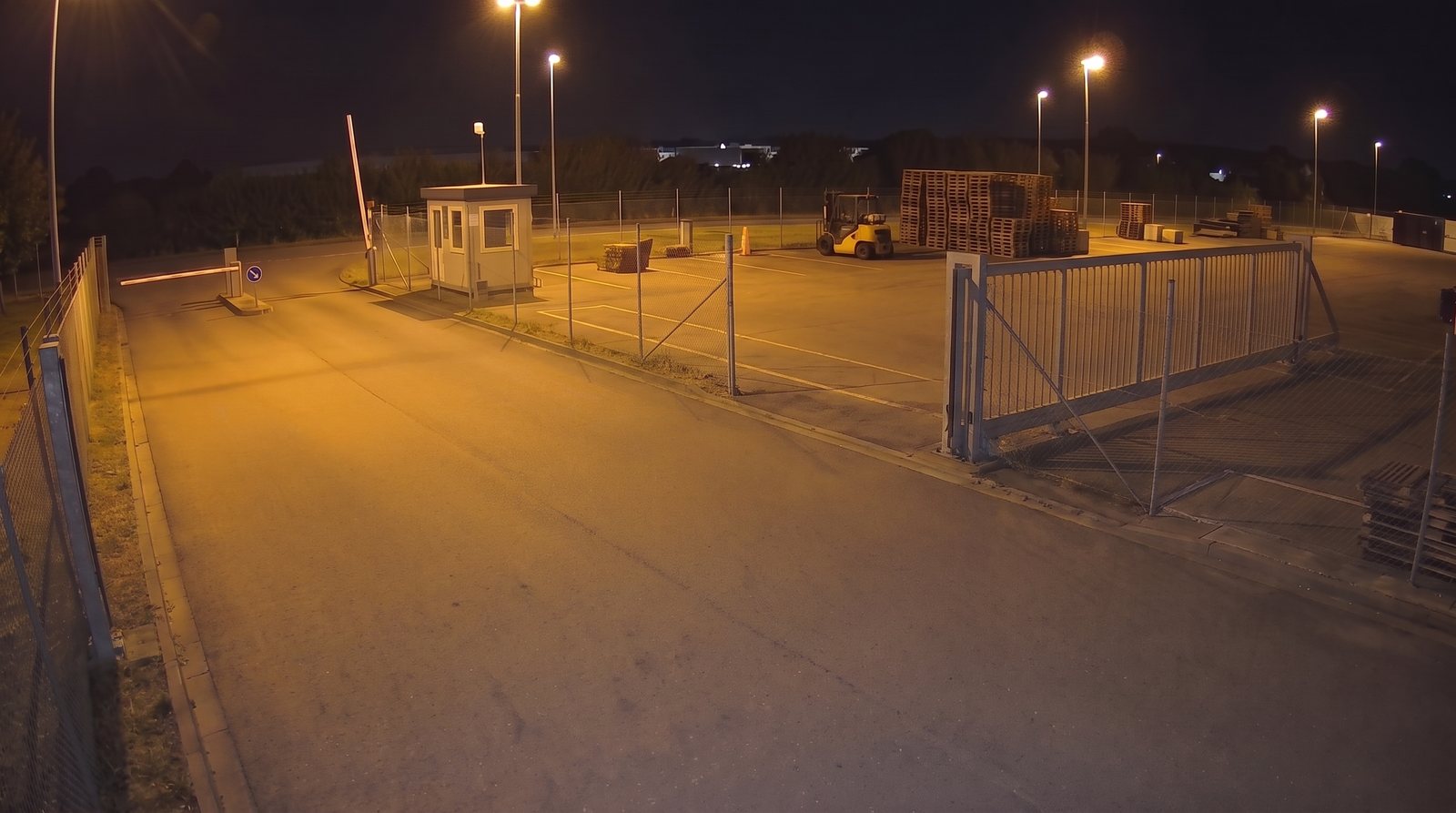
Yard gate at night, open: the road is clear and the panel is parked behind the fence
Yard gate
19:00
error
Open.
Posted in #site-team. I’ll look again at 20:00.
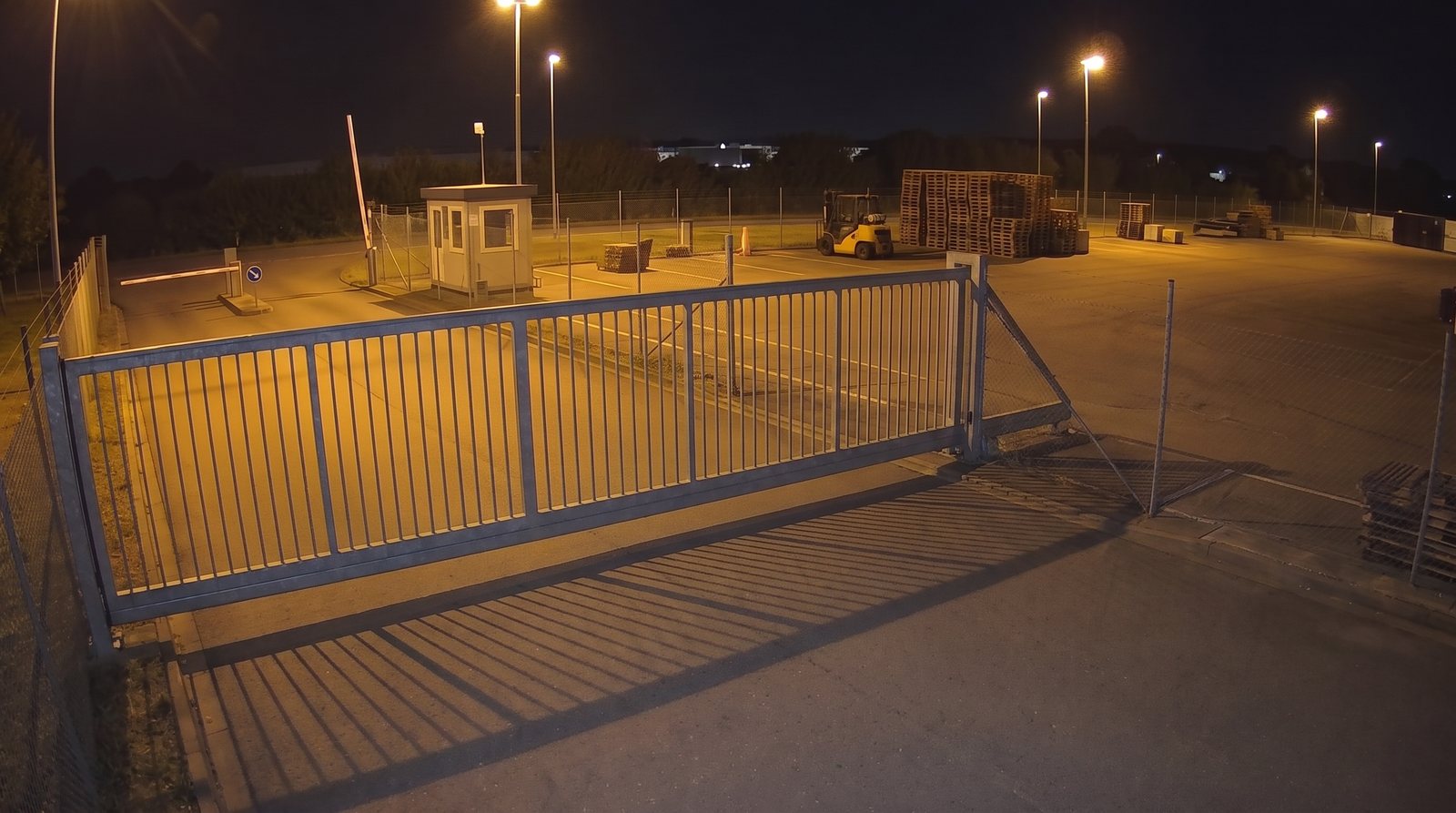
Yard gate at night, closed: the panel runs across the road
Yard gate
20:00
check_circle
Closed.
Logged. Next check at 21:00.
AI-generated illustrative scenes.
How it works

From a camera picture to an answer you can act on.

Camera → Angelcam snapshot → AI check → notification. You get a history of checks, alerts for open gates and a report of the last 30 nights.
  1. videocam
    Your camera

    The camera on the gate

    Any of 200+ camera brands. The one already on your gate is usually enough.
  2. cloud
    Angelcam

    A snapshot, on request

    Angelcam supplies a live snapshot or a snapshot from an earlier recording through the MCP Connector: your sign-in, only your cameras.
  3. visibility
    Your assistant

    Open, closed or unclear

    It checks the selected snapshot, decides open, closed or unclear, and records the original timestamp with the result.
  4. notifications
    You

    A message when it’s open

    Get alerts from current checks or review earlier open observations. Later snapshots show whether the gate appeared closed again.
table_rows
A log of every night
One line per check: time, state and a short note.
notifications_active
An alert when it’s open
In Slack, by email or as a push, depending on the assistant.
insert_chart
A 30-night report
Nights closed, nights left open and anything unusual.
Choose your snapshot source

Check now. Or look back.

Every use case works with live snapshots and snapshots from recordings. Choose the source that fits the period you want to check.
Check from now on

Live snapshots

Check the gate as each scheduled run happens. Keep a history of open, closed and unclear observations.
No Cloud Recording required.
Use live snapshots with your assistant
Prompt
Use live snapshots for the gate check. On each scheduled run between 19:00 and 06:00 Europe/Prague, request a fresh Angelcam snapshot of “Yard gate”. Classify it as open, closed or unclear using our description of the closed gate. Save the camera, timestamp, state and note in the log configured for this assistant. Use the alert rules we tested for current checks. If the camera is unavailable, log unclear; never reuse an old image as a live check.
Copy
Look back at earlier times

Recording snapshots

Review gate snapshots from earlier times, reconstruct the night and report which sampled checks showed it open.
Requires Cloud Recording and footage for the selected period.
Use recording snapshots with your assistant
Prompt
Use recording snapshots for the gate check. Review “Yard gate” over the night I specify, from 19:00 through 06:00 Europe/Prague, sampling each hour. Classify each timestamp as open, closed or unclear using our description of the closed gate. Save the camera, original image timestamp, state and note in the configured log. Mark missing footage as unavailable. Summarize the sampled open checks and gaps. These are historical observations: do not send a current “gate is open” alert from an old image.
Copy
Live checks build a log from the time they start. They cannot recover missed checks. Recording snapshots can review earlier footage within your retention period. Check the scheduling intervals and storage available in your assistant.
Before you start

Describe your closed gate in one sentence.

Your assistant has never seen your gate. One plain sentence about what “closed” looks like on your camera makes its answer reliable at night, in rain and in odd light. You’ll paste it into the hourly check.
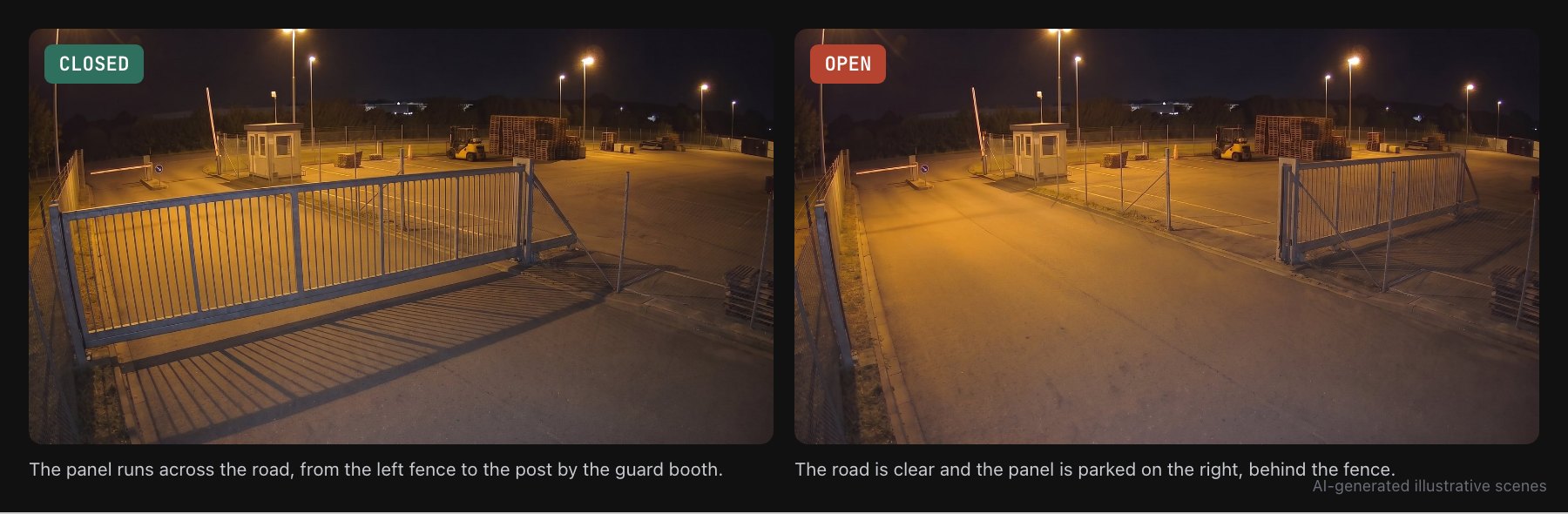
The same gate camera at night, closed on the left and open on the right, each with a one-line description
format_quote
For this gate
Closed means the panel runs across the road from the left fence to the post by the guard booth.
Pick your assistant

Same check, three ways to run it.

Use the assistant you already pay for. Each one gets you to a working hourly check. They differ in where the alert and the report end up.
C
Anthropic

Claude

Best if your team lives in Slack and Google Sheets and wants a live dashboard.
You need
Claude Pro, Max, Team or Enterprise
Log
A Google Sheet
Alert
A Slack post in your team channel
Report
A live dashboard that rereads the log every time you open it
Set it up in Claude
arrow_forward
G
OpenAI

ChatGPT

Best if you already use ChatGPT and an email or a push is enough.
You need
A paid ChatGPT plan that can add custom MCP servers, on chatgpt.com
Log
One line per check in the task’s chat
Alert
A ChatGPT push or email to you
Report
A 30-night report and spreadsheet when you ask for it
Set it up in ChatGPT
arrow_forward
B
xAI

Grok Bot

Best if you use Grok Bot and want a Bot that runs the job on its own computer.
You need
The Grok Bot desktop app, with a paid Cursor plan or SuperGrok
Log
A CSV file on the Bot’s computer
Alert
A Slack post in your team channel
Report
A page that updates itself every morning
Set it up in Grok Bot
arrow_forward
Step by step

From connector to a working check.

Both snapshot sources work. This walkthrough uses live snapshots. Use the recording-snapshot prompt above to review an earlier night; Cloud Recording is required for that option.
What you need
  • check_circle
    An Angelcam account with the gate camera connected. Use live or recording snapshots; only the recording option requires Cloud Recording.
  • check_circle
    A paid Claude plan (Pro, Max, Team or Enterprise). Scheduled tasks need one.
  • check_circle
    Google Sheets and Slack connected to Claude under
    Customize → Connectors
    .
1

Connect Angelcam to Claude

  1. In Claude, open
    Customize → Connectors
    and choose
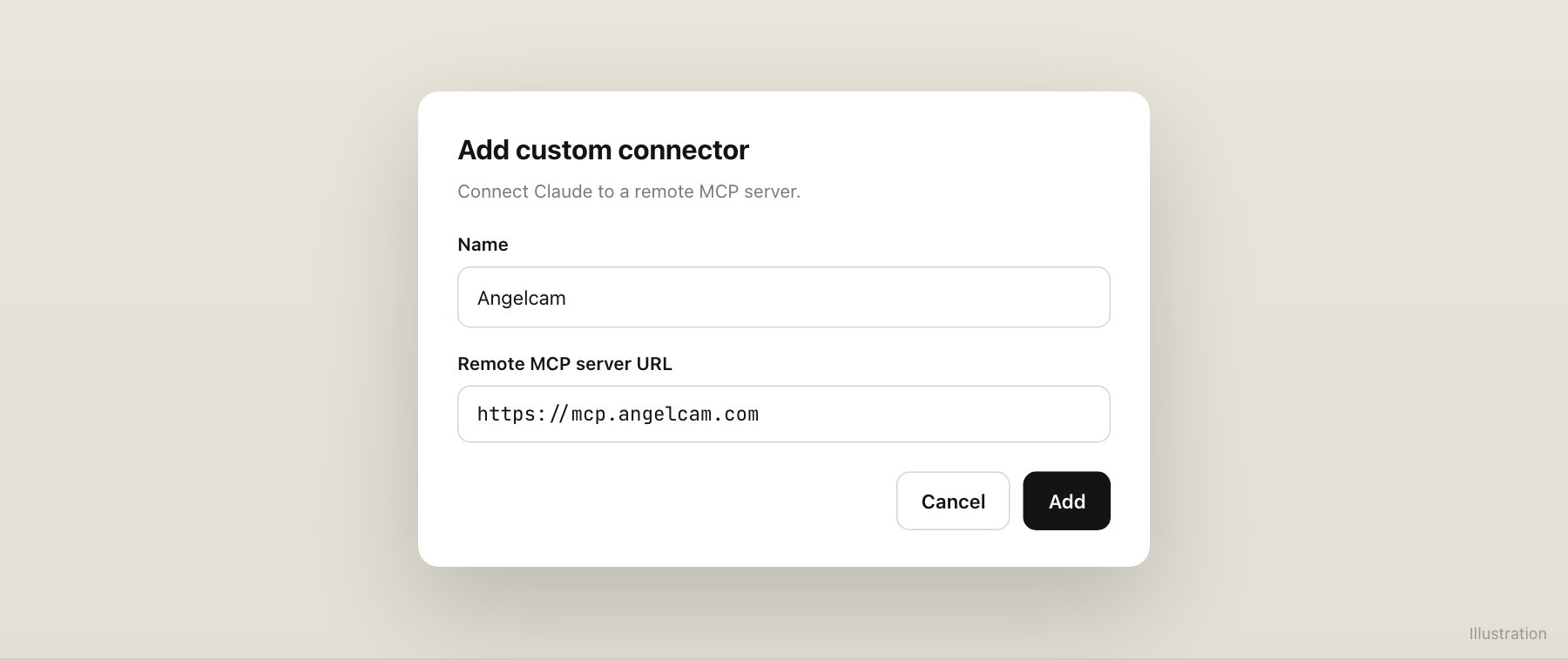
    Add custom connector
    .
  2. Name it Angelcam, paste
    https://mcp.angelcam.com/readonly
    as the URL and click
    Add
    .
  3. Click
    Connect
    , sign in with your Angelcam account and approve. Leave
    Pictures from your cameras
    ticked: Claude needs the pictures to see the gate.
On Team and Enterprise, an Owner adds the connector once under Organization settings, and each member then clicks Connect.
Adding the Angelcam custom connector in Claude
Illustration.
2

Ask about the gate once

Start a new chat and ask:
Prompt
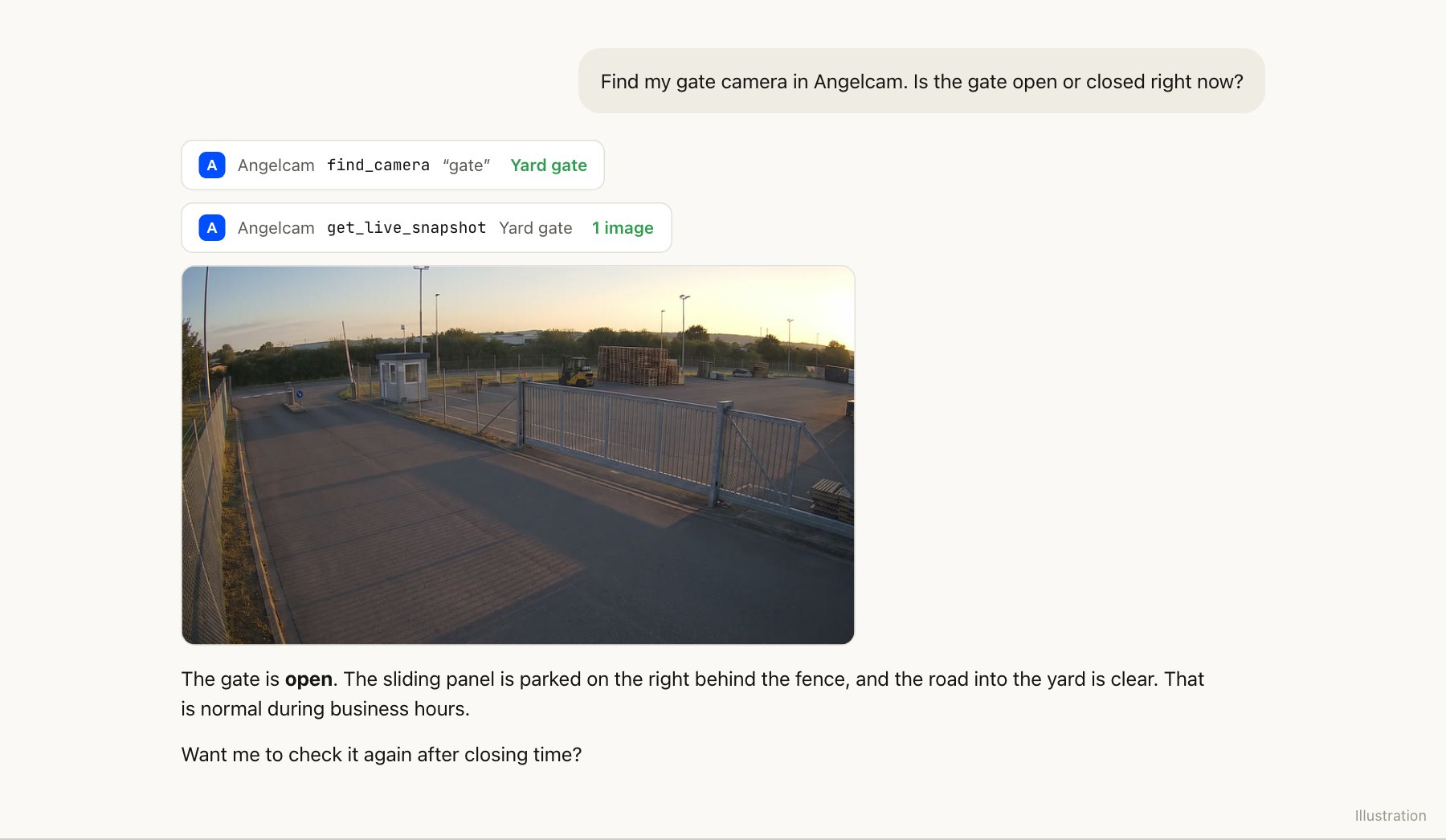
Find my gate camera in Angelcam. Is the gate open or closed right now?
Copy
Try it once with the gate open and once closed. If Claude hesitates, add your one-sentence description of the closed gate.
Claude finds the gate camera and describes the live snapshot
One Angelcam tool finds the camera, another delivers the snapshot. Illustration.
3

Make a log sheet

Create a Google Sheet called
Gate log
with three columns: Time, State and Note. Every check adds one row, and the dashboard reads it back.
4

Schedule the hourly check

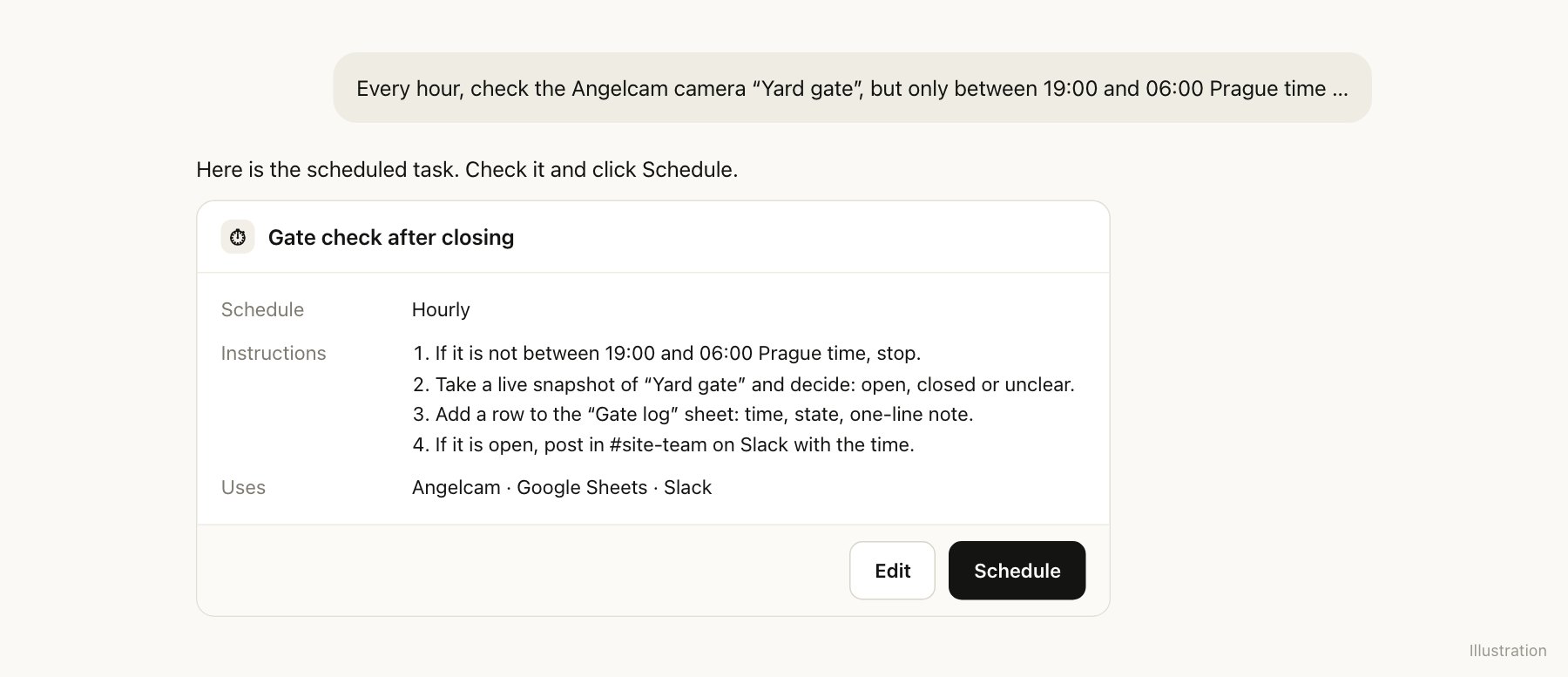
In the same chat, describe the job. Claude turns it into a scheduled task:
Prompt
Every hour, check the Angelcam camera “Yard gate”, but only between 19:00 and 06:00 Prague time. Outside those hours, stop without doing anything. Take a live snapshot and decide whether the gate is open, closed or unclear. Closed means the panel runs across the road from the left fence to the post by the guard booth. Add a row to the Gate log sheet with the time, the state and a one-line note. If the gate is open, post in #site-team on Slack with the time. If you can’t reach the camera or can’t tell, log “unclear” and say why.
Copy
Check what Claude proposes and click
Schedule
. The task runs in the cloud, so it keeps going when your computer is off.
schedule
Name your time zone.
Angelcam reports times in UTC. Hourly is the shortest schedule Claude offers.
The scheduled task in Claude, ready to save
Illustration.
5

Get the dashboard

After a few nights in the log, ask for a dashboard. If your closing shifts are in a sheet called Rota, Claude puts the right name next to every night the gate was left open:
Prompt
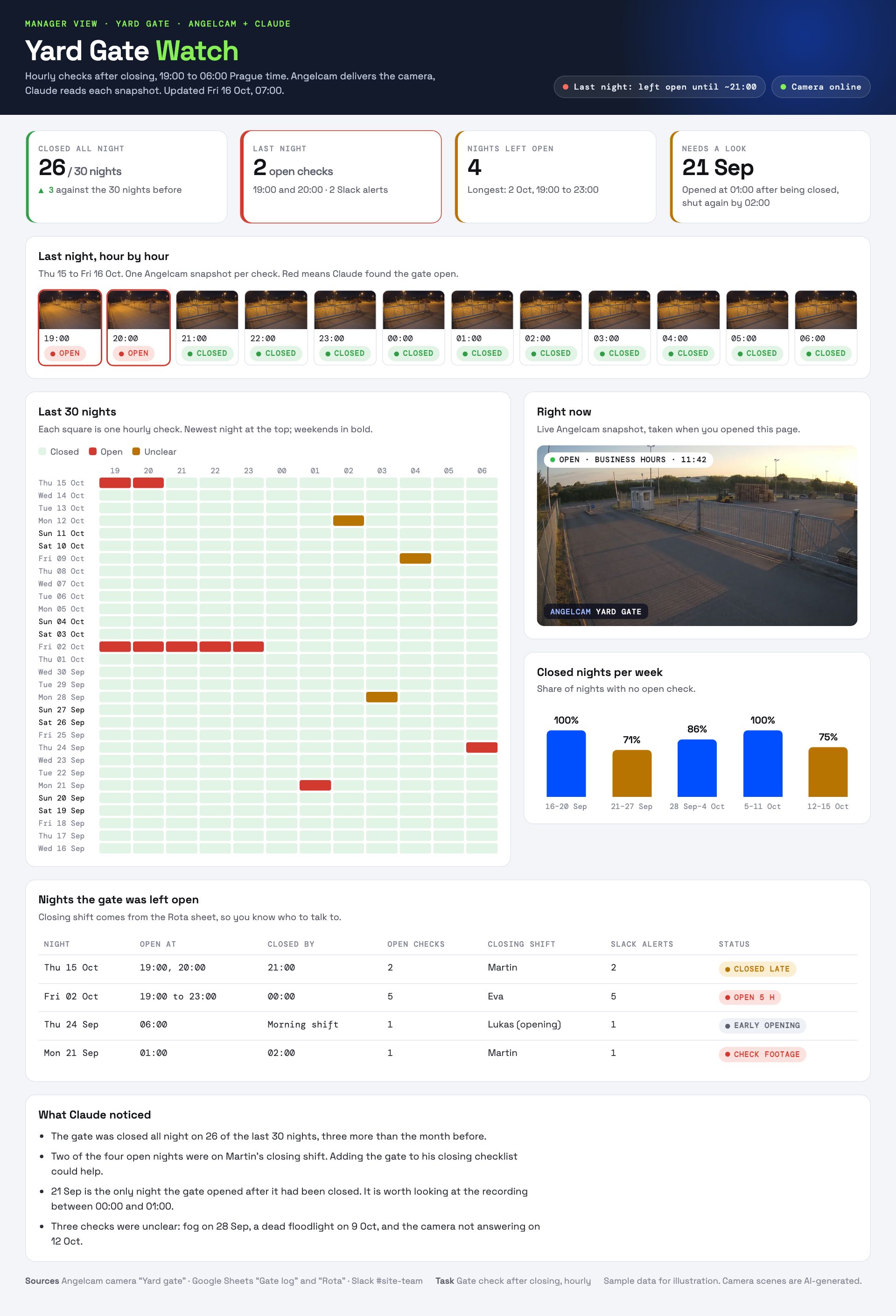
Build an artifact called Yard Gate Watch. Each time I open it, read the Gate log and Rota sheets and show: cards for nights closed out of the last 30, last night’s open checks, nights left open and anything unusual; last night hour by hour, with the recorded frame for each check if the camera has Cloud Recording; the last 30 nights as a grid; a live Angelcam snapshot of Yard gate; closed nights per week; and a table of nights left open with the closing shift. End with what stands out.
Copy
The Yard Gate Watch dashboard with sample data
With sample data. Open the live example
check_circle
Done. Tonight at 19:00 the first check runs. When the gate is open, #site-team sees it in Slack.
What you need
  • check_circle
    An Angelcam account with the gate camera connected. Use live or recording snapshots; only the recording option requires Cloud Recording.
  • check_circle
    A paid ChatGPT plan that can add custom MCP servers, on chatgpt.com. They can be added only on the web for now.
  • check_circle
    One free slot for a scheduled task. Plus has 5, Business 10, and Pro and Enterprise 15.
1

Connect Angelcam to ChatGPT

  1. On chatgpt.com, open
    Plugins
    , click + and choose
    Add custom MCP server
    .
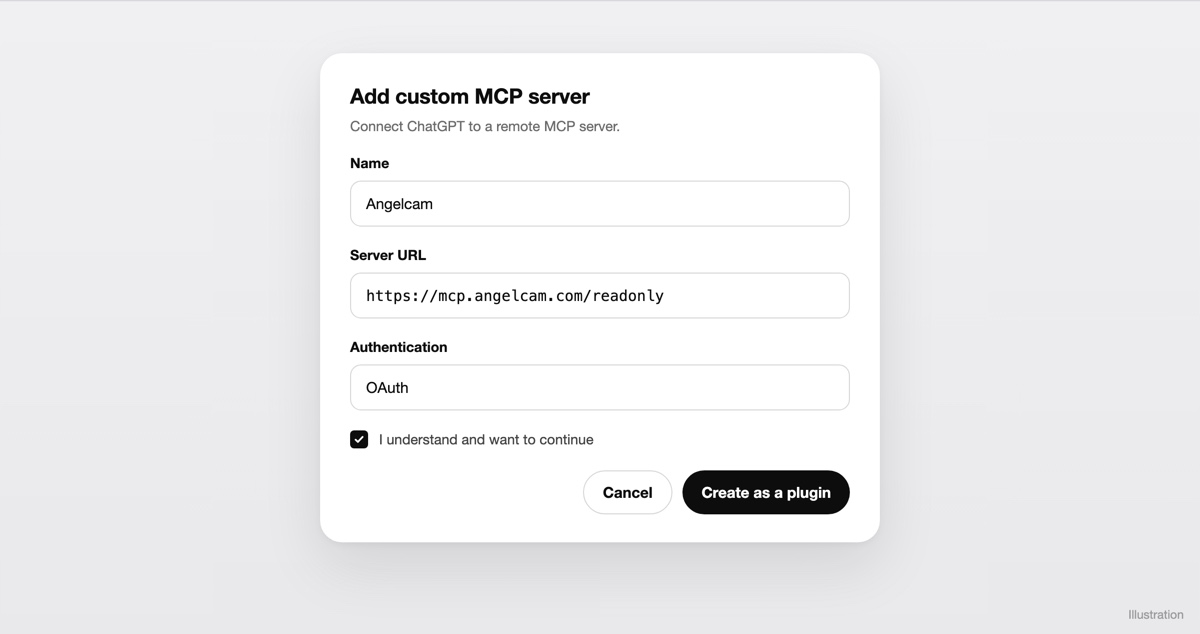
  2. Name it Angelcam, paste
    https://mcp.angelcam.com/readonly
    as the server URL and choose
    OAuth
    for authentication.
  3. Tick “I understand and want to continue”, click
    Create as a plugin
    and install it. Sign in with your Angelcam account and approve. Leave
    Pictures from your cameras
    ticked.
ChatGPT calls this a plugin, but it’s a private connection in your own account. Angelcam doesn’t publish an official ChatGPT plugin. The read-only address can never start or stop a recording. On Business, Enterprise and Edu, an admin usually adds the server for the workspace, and members install it.
An Add custom MCP server dialog in ChatGPT with the name Angelcam, the server URL https://mcp.angelcam.com/readonly, OAuth authentication and an “I understand and want to continue” checkbox.
Illustration: the labels in ChatGPT may differ slightly.
2

Ask about the gate once

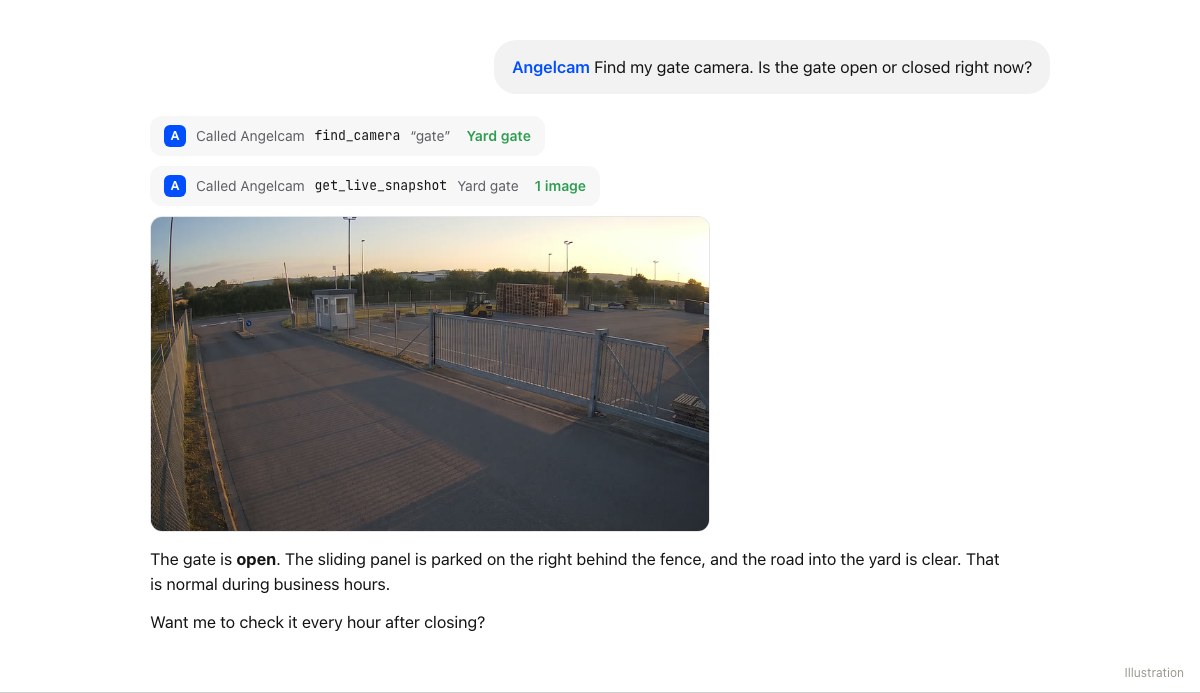
Start a new chat, type @Angelcam and ask:
Prompt
Use Angelcam to find my gate camera. Is the gate open or closed right now?
Copy
Try it once with the gate open and once closed. If ChatGPT hesitates, add your one-sentence description of the closed gate.
ChatGPT finds the gate camera and describes the live snapshot
Illustration.
3

Schedule the hourly check

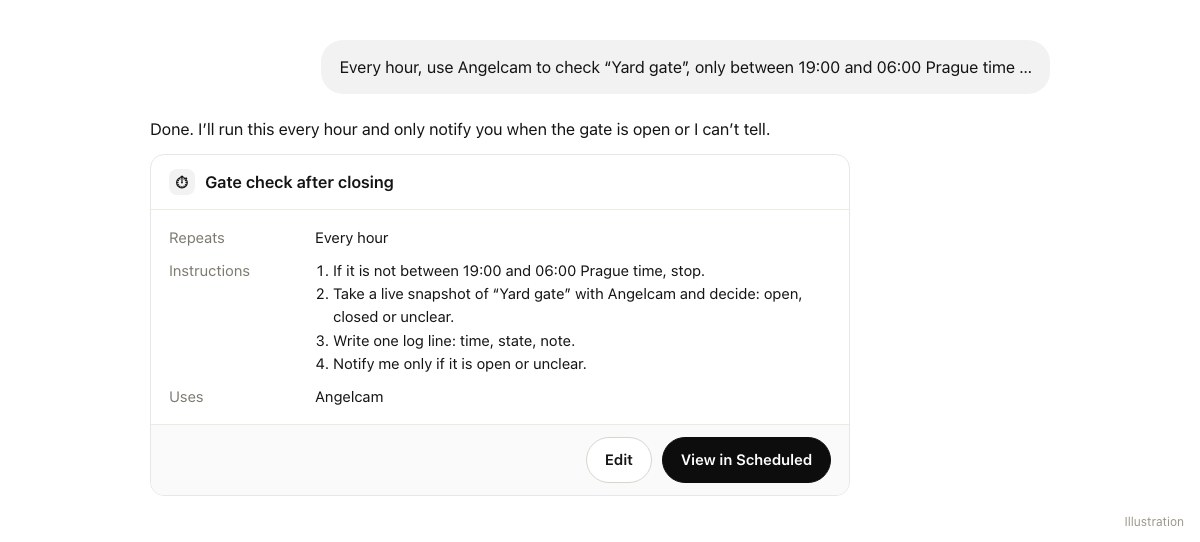
In the same chat, describe the job. ChatGPT turns it into a scheduled task:
Prompt
Every hour, use Angelcam to check the camera “Yard gate”, but only between 19:00 and 06:00 Prague time. Outside those hours, stop without doing anything. Take a live snapshot and decide whether the gate is open, closed or unclear. Closed means the panel runs across the road from the left fence to the post by the guard booth. Every time, write one log line: date, time, state and a short note. Notify me only if the gate is open, or if you can’t reach the camera or can’t tell. Then say why.
Copy
Open
Scheduled
in the sidebar: the task is there with its next run. It runs on OpenAI’s side, so it keeps going when your computer is off.
schedule
Name Angelcam and your time zone in the prompt.
In ChatGPT, picking an app applies to one message only, and Angelcam reports times in UTC.
The scheduled task in ChatGPT
Illustration.
4

Turn on notifications

Under
Settings → Notifications
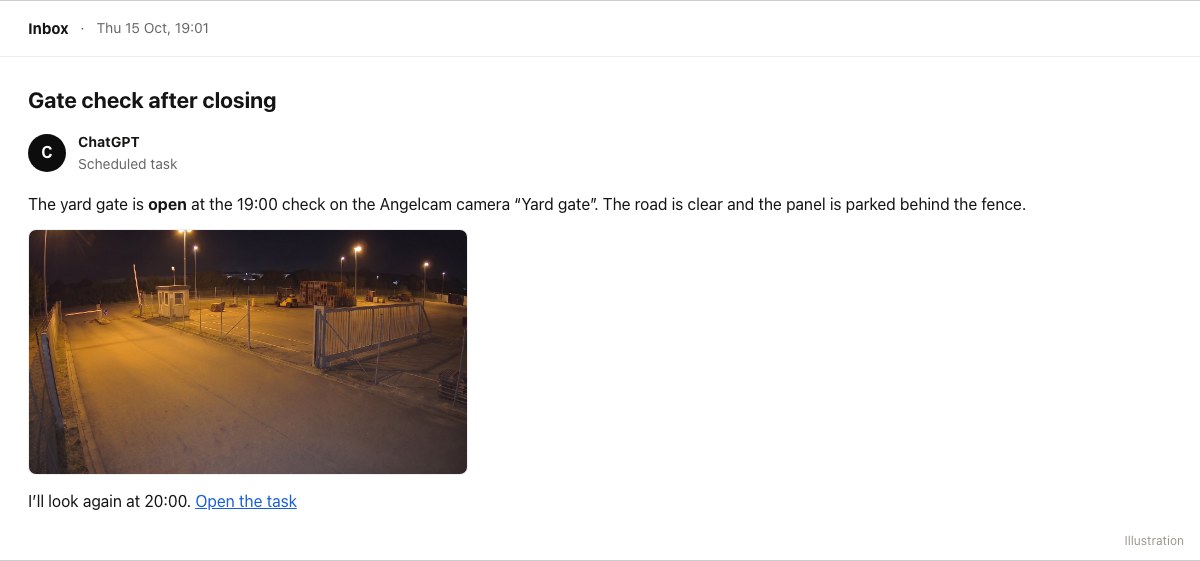
, choose Push, Email or both for tasks. When a check finds the gate open, ChatGPT tells you the time and what it saw. To keep the team posted, forward the email or set a rule in your mailbox.
The ChatGPT email when the gate is open
Illustration.
5

Get the 30-night report

Every run leaves its log line in the task’s chat. After a month, open that chat and ask:
Prompt
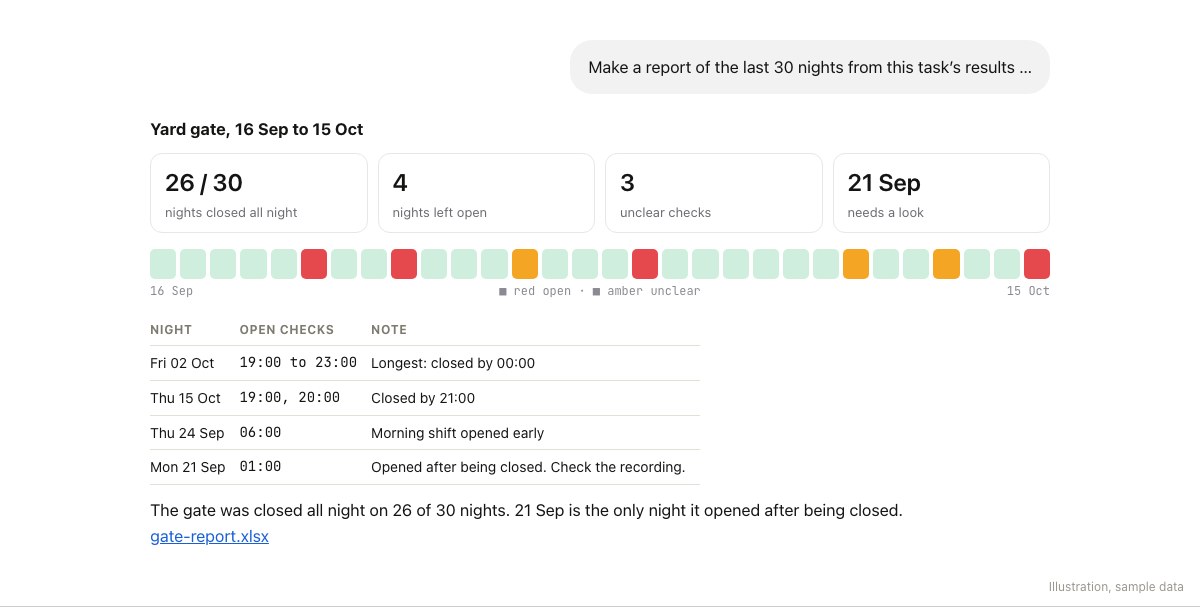
Make a report of the last 30 nights from this task’s results: nights closed all night out of 30, nights left open with their open checks, unclear checks, and any night the gate opened after it had been closed. Show the nights as a grid, add a table of the open nights, end with what stands out, and give me the table as a spreadsheet.
Copy
info
Keep the task’s chat.
If you delete or archive it, the task pauses.
The 30-night report in ChatGPT with sample data
With sample data. Illustration.
check_circle
Done. Tonight at 19:00 the first check runs. When the gate is open, ChatGPT sends you a push or an email.
What you need
  • check_circle
    An Angelcam account with the gate camera connected. Use live or recording snapshots; only the recording option requires Cloud Recording.
  • check_circle
    Grok Bot in the desktop app for macOS, Windows or Linux. It’s included with paid Cursor plans and Cursor Teams, or you can link a SuperGrok subscription.
  • check_circle
    Slack, added under
    Connect apps
    in the sidebar.
  • check_circle
    One Bot to own the job. Here we call it Site Bot.
1

Connect Angelcam to Grok Bot

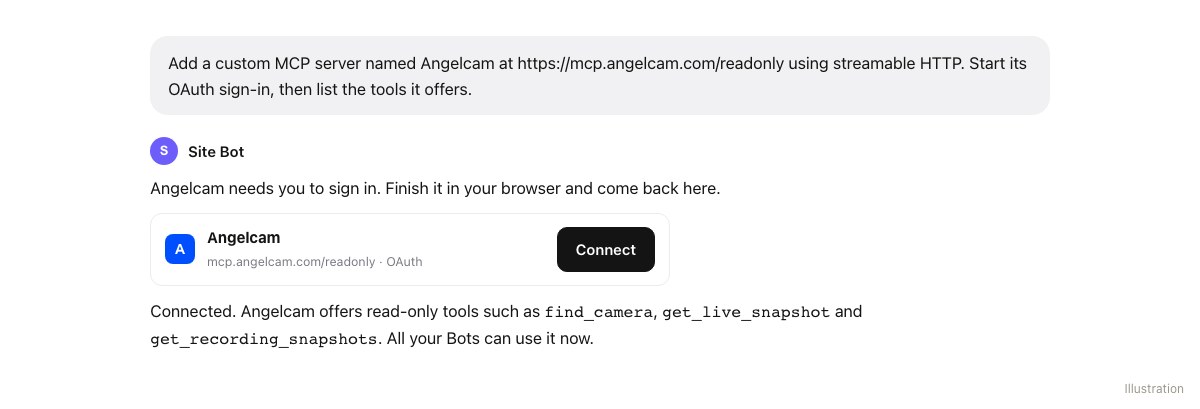
Grok Bot has no settings form for custom connectors. Ask your Bot in chat:
Prompt
Add a custom MCP server named Angelcam at https://mcp.angelcam.com/readonly using streamable HTTP. Start its OAuth sign-in, then list the tools it offers.
Copy
Click
Connect
on the card the Bot shows, sign in with your Angelcam account in your browser and approve. Leave
Pictures from your cameras
ticked.
lock
Never paste a password or key into the chat.
The sign-in happens in your browser.
Adding Angelcam by asking the Bot
Illustration.
2

Ask about the gate once

Type
@
in the composer, choose Angelcam and ask:
Prompt
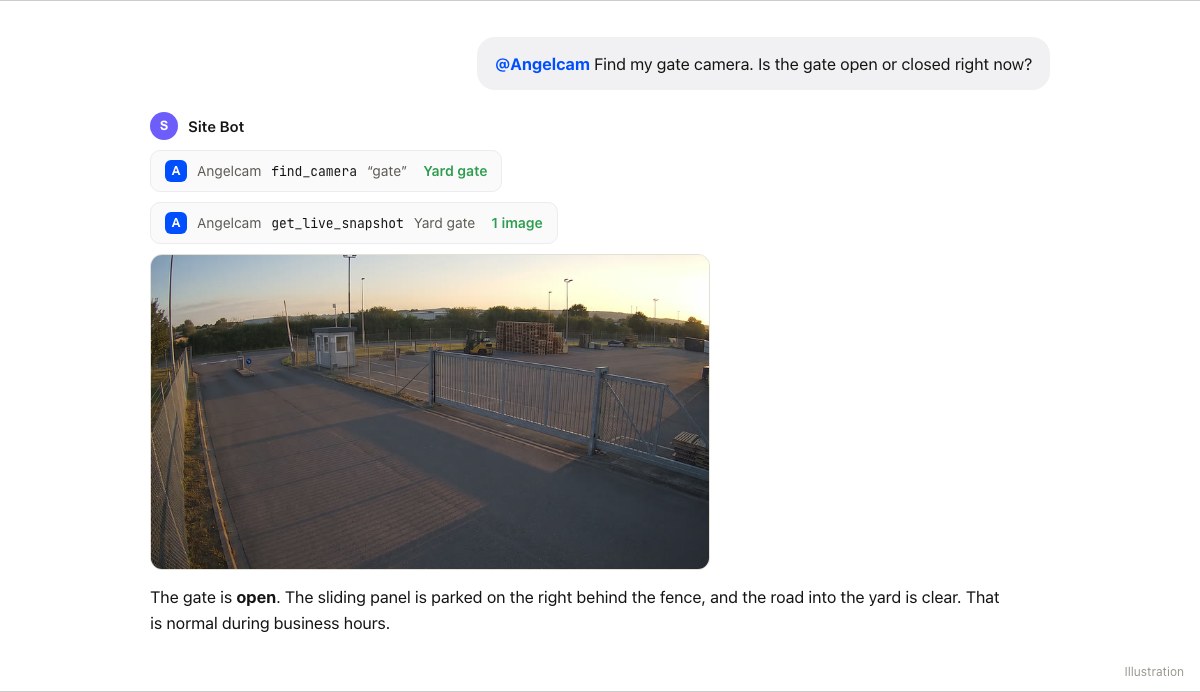
Find my gate camera. Is the gate open or closed right now?
Copy
Try it once with the gate open and once closed. If the Bot hesitates, add your one-sentence description of the closed gate.
Grok Bot finds the gate camera and describes the live snapshot
Illustration.
3

Let the Bot post in Slack

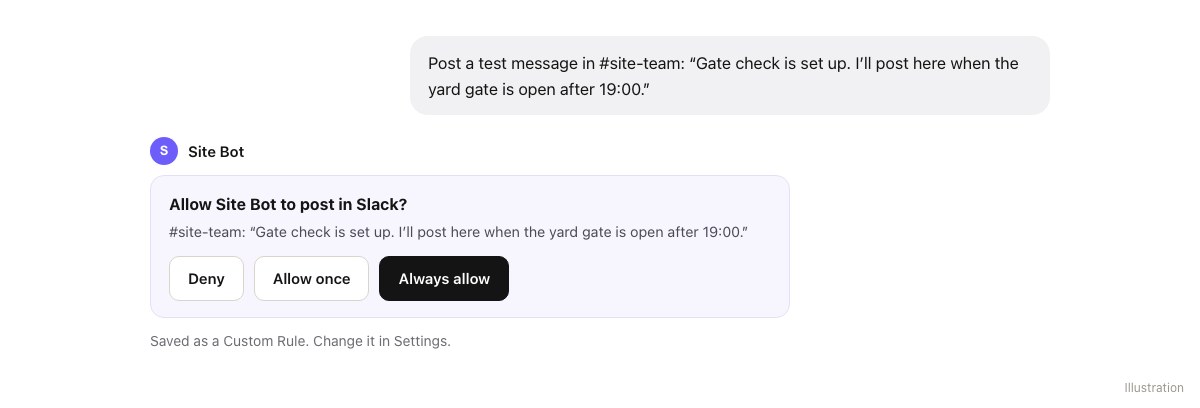
Grok Bot asks for approval before it posts anything. At 19:00 nobody is there to click, so approve once now:
Prompt
Post a test message in #site-team: “Gate check is set up. I’ll post here when the yard gate is open after 19:00.”
Copy
On the approval card, choose
Always allow
. You can review or remove that rule in Settings.
The Grok Bot approval card with Always allow
Illustration.
4

Create the hourly routine

Prompt
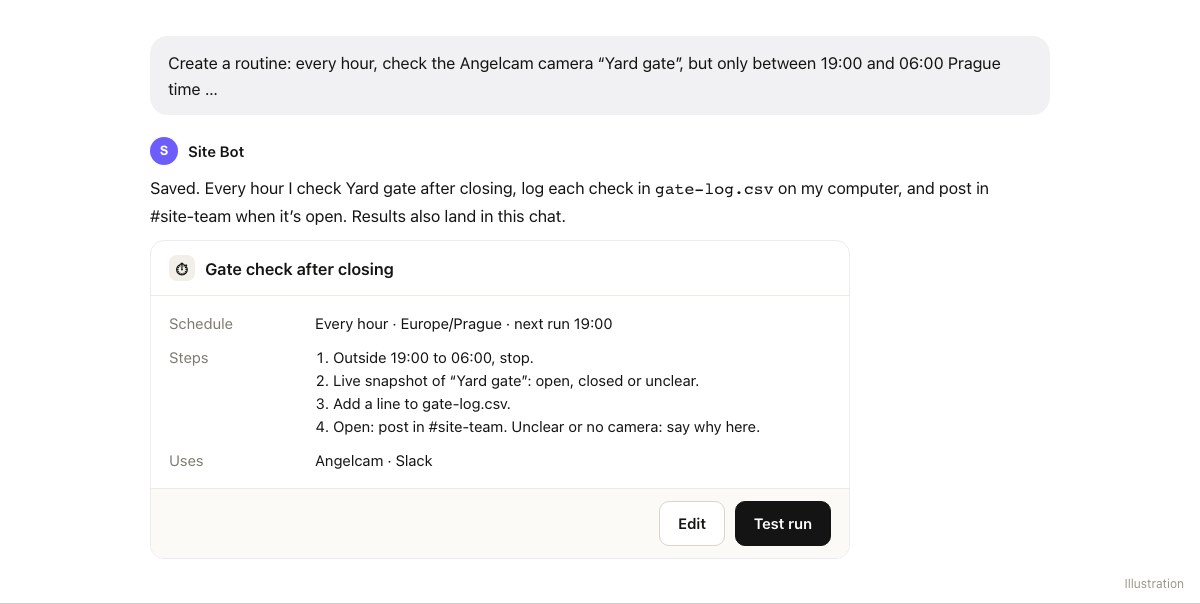
Create a routine: every hour, check the Angelcam camera “Yard gate”, but only between 19:00 and 06:00 Prague time. Outside those hours, stop without doing anything. Take a live snapshot and decide whether the gate is open, closed or unclear. Closed means the panel runs across the road from the left fence to the post by the guard booth. Add a line to gate-log.csv on your computer with the time, the state and a one-line note. If the gate is open, post in #site-team on Slack with the time. If you can’t reach the camera or can’t tell, log “unclear” and say why in this chat. Never use an old snapshot.
Copy
Routines run on the Bot’s cloud computer, so they keep going when your laptop is closed. Find them under
View conversation details → Routines
.
play_circle
Use Test run once after 19:00.
A test run does real work, so it really posts in #site-team.
The saved routine in Grok Bot with its schedule and steps
Illustration.
5

Get a report that updates itself

Prompt
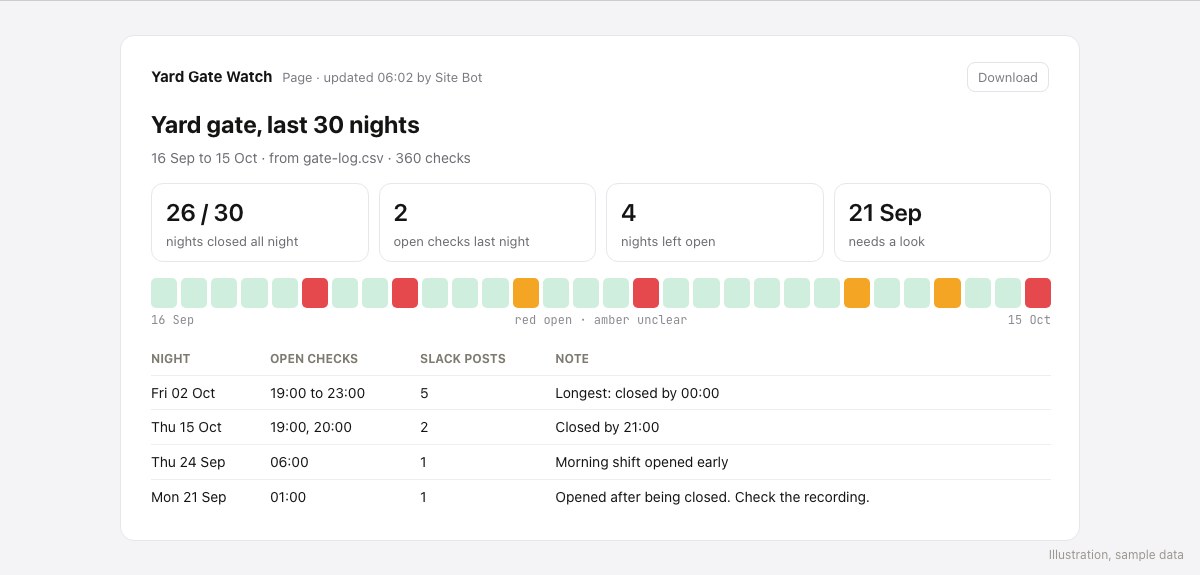
Make a page called Yard Gate Watch from gate-log.csv: cards for nights closed out of the last 30, last night’s open checks, nights left open and anything unusual; the last 30 nights as a grid; and a table of nights left open with the Slack posts. Add to the routine: after the 06:00 check, update this page.
Copy
Share the page with whoever runs the site. Shared pages have a Download button that saves a PDF.
The Yard Gate Watch page in Grok Bot with sample data
With sample data. Illustration.
check_circle
Done. Tonight at 19:00 the first check runs. When the gate is open, #site-team sees it in Slack.
Good to know

What to expect.

visibility

A second look, not an alarm

Between two checks nobody is looking. To know the moment the gate opens, use a sensor or a monitoring service.
help

“Unclear” is on purpose

Fog and bad light can fool any AI. When a check says unclear, look at the camera yourself.
lock

It can’t change anything

The connector sees only what your Angelcam account sees. All three editions use the read-only address, which never records, arms, configures or deletes.
image

Pictures go to your AI provider

Snapshots are sent to Anthropic, OpenAI or your Bot’s model as images. Without pictures, the assistant gets links only and can’t judge the gate.
new_releases

Free while in beta

The Angelcam MCP Connector costs nothing during the beta. You may hit a rough edge.
chat

Tell us what’s missing

Write to us in the chat in MyAngelcam, or, with the full address, ask your assistant to send feedback to Angelcam.
Angelcam MCP Connector · Beta

Give your assistant
eyes
on the gate tonight.

Both connector addresses, setup for every other assistant and all 30 tools are on mcp.angelcam.com.
Camera scenes are AI-generated illustrations. Screens are illustrations.