ALREADY HAVE A CAMERA?
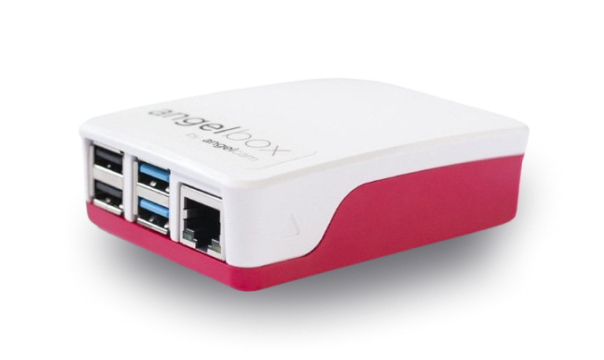
AngelBox
Connect compatible IP cameras on your local network to Angelcam. Keep the cameras you already use and bring their views online without port forwarding.
Explore AngelBox



SHARE YOUR IP CAMERA ON WINDY
Connect your IP camera to Windy with Angelcam. Put the same view on your website, create a time-lapse, or keep the footage for later.
Windy users get 50% off annual Essentials
HOW IT WORKS
Connect once through Angelcam. Choose where to share the view and which services to add to the camera.
Use AngelBox or Angelcam Connector on compatible hardware.
Assign Broadcasting to the camera and enable Other promotion in your camera settings.
Set the camera’s GPS location so Windy can review it for publication.
Embed the live player on your website, create a time-lapse, or record footage in the cloud.
CHOOSE YOUR CAMERA SETUP
Bring your existing camera online with AngelBox, or start with an AngelCamera Two that connects directly to Angelcam.
ALREADY HAVE A CAMERA?
Connect compatible IP cameras on your local network to Angelcam. Keep the cameras you already use and bring their views online without port forwarding.
Explore AngelBox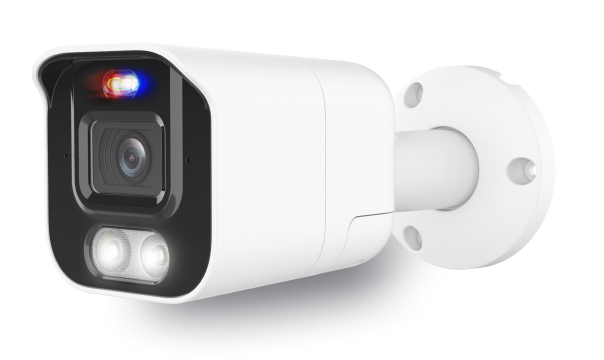
NEED A CAMERA?
Start with a preconfigured camera with built-in Angelcam connectivity. See what the camera does and find purchase options on the product page.
Explore AngelCamera TwoSTART WITH A VIEW. GO FURTHER.
Help visitors see the conditions before they arrive. Then give them a reason to return to your website.
A view on the mapLocal guide
Start at the fish market, then follow the quay to the breakwater. Check the webcam below to see what conditions are like before you head out.
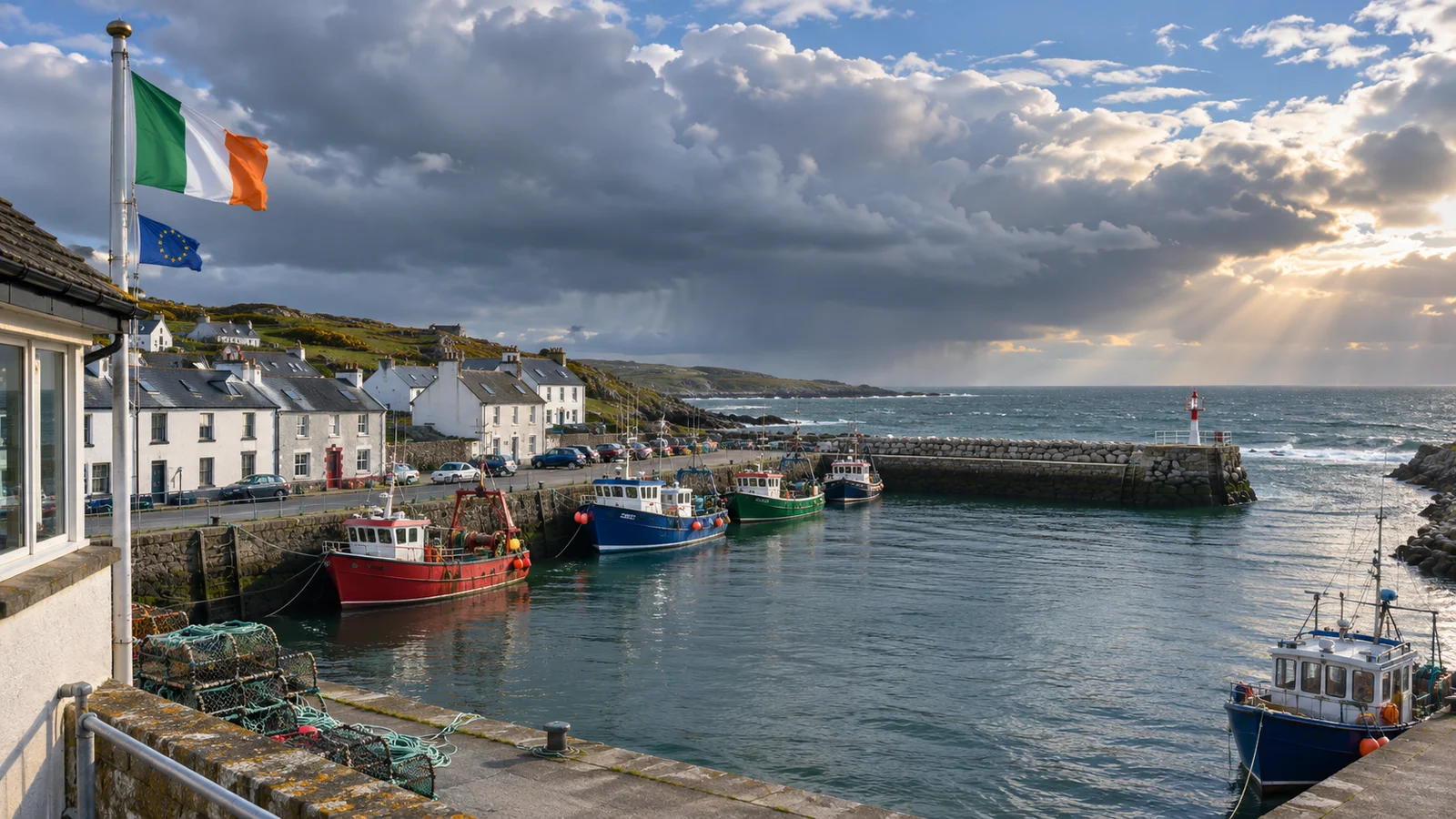
The Harbor House webcam looks out over the fishing boats and the harbor entrance.


Illustrative time-lapse sequence
SHARE YOUR LOCATION
Bring your local view to people exploring the weather and webcams on Windy. Share a useful perspective on the place you know best.
See how to connectWindy reviews camera submissions before publishing.
BEYOND THE MAP
Add the services that fit your camera. Share the present, capture the changes, and keep a history.
Give your visitors a window into your destination. Embed your camera stream on your hotel, resort, marina, or local tourism website with Angelcam Broadcasting Premium or Pro.
Website embedding is included in Premium and Pro. Keep Other promotion enabled to continue sharing on Windy.
##INLINE5####INLINE6## Lakeside camera ##INLINE7##Website and player illustration
Bring changing skies, seasons, or a project’s progress into a short video. Angelcam Time-lapse captures images over time so you can tell a longer story.
Discover Time-lapseAdd Cloud Recording to revisit earlier footage, find a moment on the timeline, and save or download a clip. Choose the retention period that fits your needs.
Explore Cloud RecordingChoose what each camera needs. Broadcasting, Time-lapse, and Cloud Recording are separate per-camera add-ons to your Angelcam account plan.
See current account plansChoose the Windy option during signup and activate your account plan. Check the guide for current Windy offers.
Use AngelBox for compatible cameras you already own, or start with AngelCamera Two. Confirm your camera is online before continuing.
Compare hardware optionsFind your connection optionAdd the Free Broadcasting add-on in MyAngelcam and associate it with your camera.
In Broadcasting, open Camera promotion and enable Other promotion. Set your camera’s GPS location, then allow time for Windy’s approval.
The Free Broadcasting add-on sits on top of an active Angelcam account plan. Windy approval typically takes two business days.
FOR DEVELOPERS & INTEGRATORS
Building a destination portal, a branded camera app, or a service for your customers? Use Angelcam’s API to bring connected cameras into your own product.
Explore the documentation for available endpoints and access requirements.
BEFORE YOU SHARE YOUR VIEW
Need help with your camera?
Talk to Angelcam support
You can use the Free Broadcasting add-on to share your camera on Windy. An active Angelcam account plan is also required. Check the connection guide for current offers and the plans page for current account pricing.
Start with the camera connection guide. Your setup may use AngelBox or an Angelcam Connector running on compatible hardware. Check compatibility and confirm that your camera is online in Angelcam.
After you enable Other promotion and set the GPS location, Windy reviews the camera. The guide says approval typically takes two business days; publication is subject to Windy’s review.
Choose Broadcasting Premium or Pro for website embedding. Standard removes ads and adds other broadcasting features, but does not include embedding. See the Broadcasting page for the current plan details.
Time-lapse and Cloud Recording are optional Angelcam add-ons. Activate them for the cameras that need them. Review each service’s subscription details before enabling it.
You can turn Other promotion off in your camera’s Broadcasting settings. Use the setting to control sharing with Windy, and only publish views you are comfortable making public.
A VIEW WORTH SHARING