Bring camera images to your models. Bring useful detections to your sites. Angelcam connects your cameras; Roboflow analyzes their snapshots to help you build counts, activity checks, and alerts.
FROM CAMERA IMAGE TO STRUCTURED RESULTILLUSTRATIVE EXAMPLE
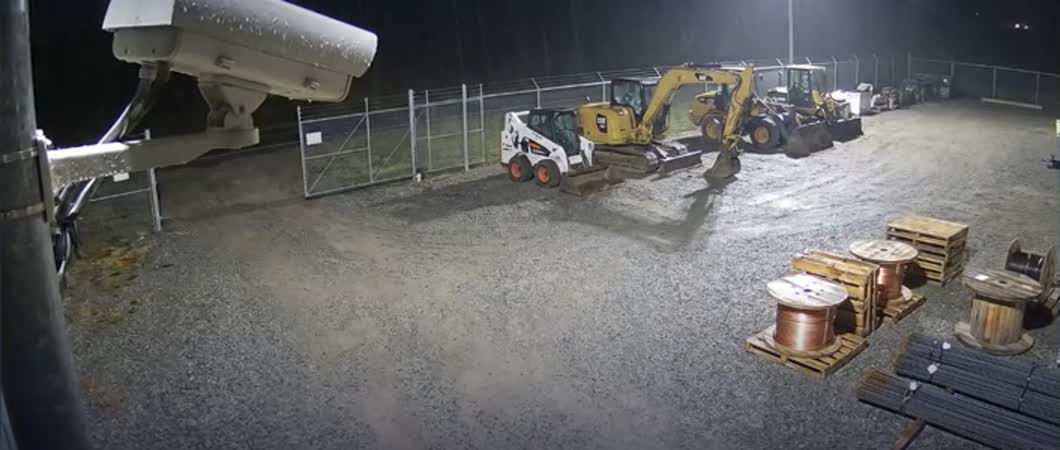
Site camera · snapshot input
● EXAMPLE WORKFLOW OUTPUT
Something you can build on.
Object classesperson, helmet
Detection detailsbox + confidence
Next stepreview · log · notify
Output depends on your trained model and configured Workflow.
TWO STARTING POINTS. ONE CONNECTION.
Your models meet your cameras.
FOR ROBOFLOW BUILDERS
Bring your models to connected cameras.
Use Angelcam’s API to retrieve images from connected cameras and pass them to your Roboflow model or Workflow. Build around the detections your application needs.
Start with a fresh image and a working Roboflow Workflow.
FOR CAMERA OWNERS
Get useful signals from the cameras you have.
Choose what matters at your site: vehicles in a parking area, a person after hours, or a truck at the loading bay. Use a suitable Roboflow model to turn camera snapshots into results your team can act on.
Work with your developer or technical partner to set up the API integration.
A SIMPLE DIVISION OF LABOR
The camera sees. The model detects. Your workflow acts.
Angelcam gives your application access to camera images. Roboflow analyzes them with your chosen model. Use the results to build counts, checks, and alerts around your operation.
01 / ANGELCAM
Your camera connection
Connect your camera to Angelcam. Retrieve a fresh image through its API and keep the camera ID and capture time.
02 / YOUR APPLICATION
Your image delivery
A small service fetches the image and sends it to Roboflow. Start manually, then add a schedule that fits your use case.
03 / ROBOFLOW
Your vision model
Run an object detector or a multi-step Workflow. Return classes, locations, confidence scores, and the outputs you configured.
04 / YOUR WORKFLOW
Your next action
Save a count, update a dashboard, or notify your team when a tested rule is met. Keep the source image with the event.
TEACH YOUR CAMERAS WHAT MATTERS
One camera connection. Many things to detect.
Camera owners: start with the result you want your team to receive. Builders: use the model and rule below as a starting point, then test them on images from the site.
PARKING
Count vehicles in view.
Detect cars in a defined area and record occupancy at each capture.
Build withVehicle detection + a region filter.
Use marked-space geometry for occupancy. A car count alone does not give the number of free spaces.
LOADING BAYS
Know when a truck is there.
Check a loading area for a truck and send its image to your operations team.
Build withTruck detection + an area rule.
A truck in view does not confirm unloading or delivery completion.
AFTER HOURS
Flag a person in the yard.
Run person detection during selected hours and create an event for review.
Build withPerson detection + a time rule.
Review the image before acting. Detection does not establish identity or authorization.
CONSTRUCTION
Make PPE checks more focused.
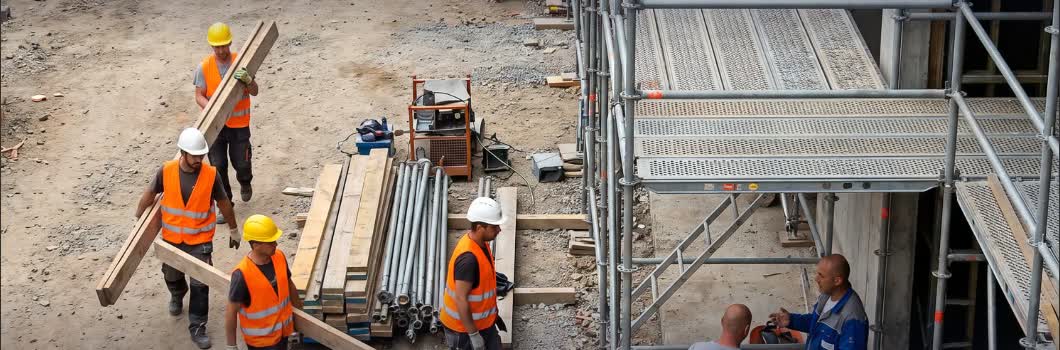
Use a model trained for visible helmets or vests to highlight detections for a site supervisor.
Build withA PPE model tested on your site.
Missing detections can reflect occlusion or image quality. Validate on representative site images.
RETAIL
Give shelf checks a signal.
Train for visible empty shelf areas and route results to the team responsible for that aisle.
Build withA custom shelf-gap model.
Shelf gaps require suitable training data and a clear view; a general object detector will not measure stock.
OPERATIONS
Build a history of counts.
Save the detections from each dated image to a dashboard for your site or facility.
Build withObject detection + stored results.
Snapshot counts describe individual frames. Visitor totals and movement need tracking across video.
Connect your camera to Angelcam
Add your camera in MyAngelcam and check that its live view works. For a prototype using your own cameras, create a Personal Access Token. Applications accessing customers’ cameras should use OAuth2.
Keep credentials in your service’s environment or secret store.
Use Angelcam’s documented camera endpoints to retrieve an image. Check the snapshot’s created_at value: a regular preview can be up to 24 hours old. For a current check, use a live snapshot and record its capture time.
For your first test, save the JPEG as snapshot.jpg. Open it and confirm the objects you want to detect are visible.
In your workspace, open Workflows → Create Workflow. Add an image input named image and an Object Detection Model block. Select a pretrained model for supported classes, or use your own trained model.
Add a count or visualization if useful, then expose the predictions you need as outputs. Save and test with your camera image. Publish the Workflow version you intend to call.
Open Deploy in the Workflow editor and use its Python example. Copy the workspace and Workflow identifiers. The example below sends a local image to Roboflow’s hosted service.
pip install inference-sdk
Set ROBOFLOW_API_KEY, ROBOFLOW_WORKSPACE, and ROBOFLOW_WORKFLOW_ID in your service’s environment. This example expects an input named image; match your own Workflow’s input name.
View the Python example
analyze_snapshot.py
import json
import os
from pathlib import Path
from inference_sdk import InferenceHTTPClient, InferenceConfiguration

# Supply a fresh Angelcam image saved by your camera-fetching service.
image = Path(os.getenv("SNAPSHOT_PATH", "snapshot.jpg"))
if not image.is_file():
    raise SystemExit(f"Snapshot file not found: {image}")

client = InferenceHTTPClient(
    api_url="https://serverless.roboflow.com",
    api_key=os.environ["ROBOFLOW_API_KEY"],
).configure(InferenceConfiguration(api_key_transport="header"))

result = client.run_workflow(
    workspace_name=os.environ["ROBOFLOW_WORKSPACE"],
    workflow_id=os.environ["ROBOFLOW_WORKFLOW_ID"],
    images={"image": str(image)},
)
print(json.dumps(result, indent=2))
The example analyzes an image you supply. Your camera-fetching service completes the connection to Angelcam.
Check the results on your own scene
Compare predictions with the image. Test different lighting, empty scenes, overlapping objects, and the smallest objects you need to detect. Tune the confidence threshold against missed detections and false positives.
Define the output your application needs: a per-image count, objects inside a region, or a flagged image for review. A confidence score is a model score, not a guarantee of accuracy.
Add a schedule and a useful action
Schedule your service to fetch a fresh image and call the Workflow. Store the camera ID, capture time, analysis time, Workflow version, and predictions. Then add a dashboard update or notification rule.
Handle offline cameras, stale images, failed requests, and repeated detections. Use a notification cooldown so the same object does not generate an alert on every run.
96 analyses per camera per day · 2,880 per 30 days.
Illustrative workload for continuous 24-hour scheduling. Configure the real schedule in your service. This page does not activate camera access or run inference.
FROM A DETECTION TO A DECISION
Make the result useful to your team.
Send an image with the signal. Give someone enough context to decide what to do next.
Limit the rule to the relevant camera, area, and hours.
Filter detections using thresholds you have tested.
Attach the image, capture time, and camera name.
Link to the camera view for a closer check.
ILLUSTRATIVE NOTIFICATION
Person detected in the yard.
Yard camera · after-hours rule
Evidence
Source image + capture time
Rule
Person in the selected area
Next step
Review the camera view
Example layout only. This image has not been analyzed by Roboflow.
BEFORE YOUR FIRST WORKFLOW
A few useful answers.
Is there a ready-made Angelcam–Roboflow connector?
This guide uses the two services’ APIs. You will need an application or automation service to retrieve the image, run inference, and handle the result. The Roboflow editor helps you build the vision pipeline.
Do I need to train my own model?
For common supported classes, start with a pretrained detector. For your own products, specific equipment, or shelf conditions, use a model trained on representative images. Test it on the camera angle and lighting you will use.
Can I analyze continuous video instead?
Yes, Roboflow supports video and stream processing. Continuous tracking and line-crossing counts need a video pipeline rather than spaced snapshots. Check the formats supported by your Roboflow deployment against Angelcam’s available streams; adapting or decoding the stream may be necessary.
Roboflow supports self-hosted Inference as well as cloud deployments. Your deployment choice determines where the image is processed. The example in this guide sends images to Roboflow’s hosted service.
Can I send an Angelcam image URL directly?
Only if your inference service can access it. For a protected camera image, fetch the bytes in your own service and send a local file or supported image payload. Keep the Angelcam credential in your application.
Does a snapshot count show how many people visited?
A snapshot count describes one frame. The same person may appear in several captures, and someone passing between captures may be missed. Unique visitor or entry counts require an appropriate video tracking pipeline.
What does it cost?
Check the current Angelcam and Roboflow plans for your use. Budget for the camera services you need, inference workload, your connecting service, and any stored images. The interval explorer estimates requests, not price.