Your eyes
Connect your camera to Angelcam and give the snapshot Actor access to the cameras you choose.


Your cameras see it. ChatGPT helps you understand it.
Connect Angelcam to Apify, capture snapshots on a schedule, and check what matters from your phone.
A SIMPLE DIVISION OF LABOR
Turn a camera feed into a conversation about your site, your store, or your property.
Connect your camera to Angelcam and give the snapshot Actor access to the cameras you choose.
Run a saved snapshot task at your chosen interval. Images and capture times become a history you can review.
Let ChatGPT retrieve runs and snapshot results through Apify’s MCP server on ChatGPT web.
Ask a question. ChatGPT examines the image, explains visible details, and highlights what deserves a closer look.
SEE THE QUESTION BEHIND THE SNAPSHOT
Choose an example to see what to capture, what to ask, and what to verify.
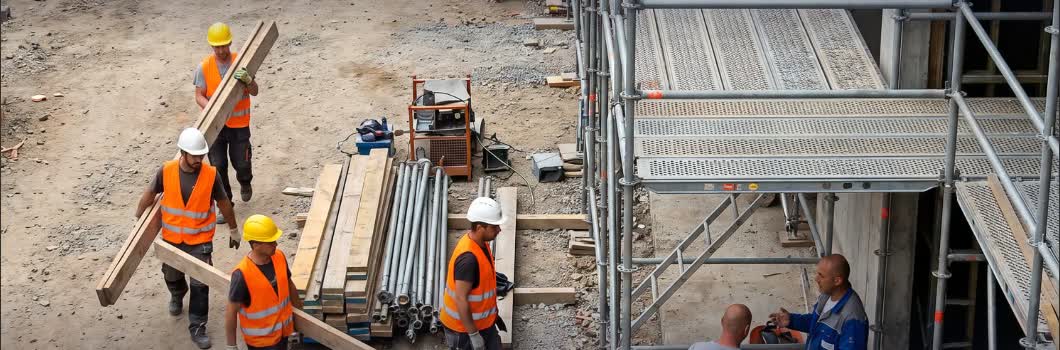
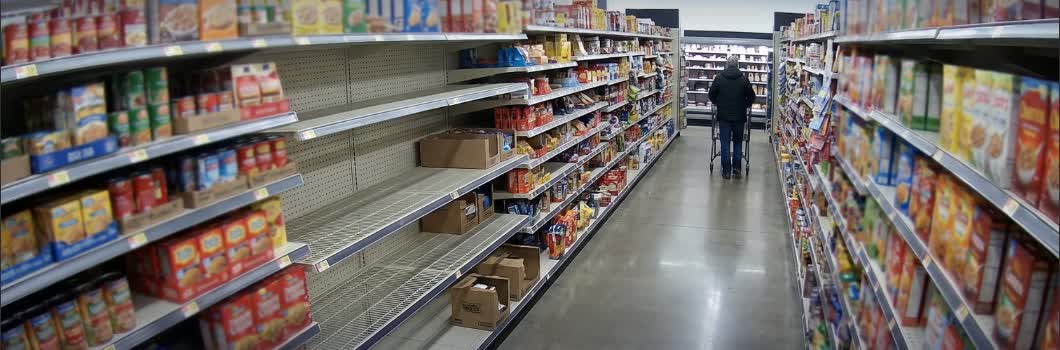
Illustrative scenes from the supplied video. These examples show how to frame a question; they are not live camera results.
WHAT HAPPENS WHILE YOU’RE AWAY
Example timing. ChatGPT analysis starts when you ask; capture continues on your Apify schedule.
In Apify Store, find Angelcam Live Camera Snapshot, the Actor shown in the video. Open its input form and choose Connect with Angelcam. Sign in, approve access, then copy the returned credential into the Actor’s designated input field.
Use the Actor’s own instructions for the exact fields. Keep credentials inside the Actor configuration; don’t paste them into a ChatGPT conversation.
Find the Angelcam snapshot ActorSelect a camera and start the Actor. Wait for a successful run, then open its output and the actual image. Check the camera name and image timestamp before continuing.
Save the working input as an Apify task, with a recognizable name such as “Construction site snapshots.” Use a live-frame capture option when the Actor offers one and you need a fresh view.
In Apify Console, open Schedules, create a schedule, and add your saved task. Set the frequency, choose your local time zone, and enable it. Check that its first scheduled run succeeds.
This example only previews the timing. Set the real schedule in Apify. Actor usage and storage depend on your plan.
On an account with developer mode and custom MCP access, create an Apify connection in ChatGPT’s app or plugin settings. Use OAuth to authorize your Apify account. Include run, storage, task, and schedule tools:
https://mcp.apify.com?tools=actors,docs,runs,storage,tasks,schedulesAdd the Apify connection to a chat and ask it to find your saved task and latest successful run. Review permissions for tool calls, particularly schedule changes.
Apify’s connection instructionsAsk ChatGPT to read the run output, retrieve the snapshot, and evaluate the visible scene. If it cannot load the image through MCP, download the JPEG from Apify and attach it to the chat. A dataset row or image URL alone is not visual evidence.
Use Apify to find my latest successful snapshot task run. Check the camera and capture time, then load the actual image. If you cannot see it, ask me to attach it. Describe what is visible and what needs my attention. Separate observations from uncertainty.MADE FOR THE WAY YOU CHECK IN
A snapshot, a question, and a useful answer—even when you’re away from your desk.
Mobile app compatibility: OpenAI currently lists custom MCP apps as web-only. Use ChatGPT web for the Apify connection; use image attachments in the native mobile app. Availability depends on your account and workspace. Check current availability.
Here’s the latest scaffold snapshot. What should I take a closer look at?People are working around the scaffold. Some protective equipment is unclear at this resolution.
This frame can’t confirm conditions outside the camera’s view.
ASK ABOUT WHAT MATTERS TO YOU
From the loading bay to the last check before closing. Pick a use case, copy its prompt, and attach your snapshot.
Showing all 16 use cases
Spot visible issues that deserve a human check.
Review this construction-site snapshot. Note visible protective equipment, scaffold access, and possible obstructions. Identify only what the image supports. Give me three things to check, including any unclear details. Do not certify site safety.
Look for gaps in the shelves before your next walk-through.
Review this store snapshot. Identify visible shelf gaps and their approximate locations. Don’t guess product names or stock quantities when labels aren’t readable. List what a team member should verify in person.
Compare two views and focus on the differences.
Compare these two property snapshots using their capture times. Describe visible changes in vehicles, objects, and access routes. Separate changes from differences in lighting or camera angle. Say if the images are too unclear to compare.
Review visible deliveries and access around your loading area.
Start with hourly capture during delivery hours.Review this loading-bay snapshot. Describe visible vehicles, pallets, and obstructions. Tell me which access areas need a closer check. Do not infer delivery completion, inventory quantities, or vehicle ownership from the image.
Estimate visible occupancy in a clearly framed parking area.
Start with capture every 30 minutes.Review this parking-area snapshot. Count only clearly visible occupied and empty marked spaces. Identify obstructed spaces and unclear areas. Do not identify people, read license plates, or infer how long a vehicle has been parked.
Check for objects that may obstruct a doorway or walkway.
Start with a capture before opening and closing.Review this entrance snapshot. Describe visible objects around the door and walkway. Flag possible obstructions for a person to check. Do not claim the door is locked, accessible, or compliant based on a single image.
Look at visible fill levels and objects around the collection point.
Start with a daily capture before collection.Review this waste-collection snapshot. Describe visible bin fill levels, overflow, and items around the bins. Say when the viewing angle prevents a useful assessment. Do not infer contents, hazards, or collection status beyond what is visible.
Look for visible water, snow, fallen objects, or blocked routes.
Capture a fresh frame when you want to check.Compare these outdoor-area snapshots using their capture times. Describe visible water, snow, debris, and changes to access routes. Separate apparent changes from lighting and shadows. Do not infer weather history or declare the area safe.
Compare a current view with your usual ready-to-open scene.
Start with captures around opening and closing.Compare this current snapshot with my reference image for opening or closing. List visible differences in objects, counters, and aisles. Give me a short checklist to verify in person. Do not infer whether appliances are off or doors are locked.
Find visible clutter and areas that deserve a closer inspection.
Start with one capture before a routine walk-through.Review this shared-area snapshot. Describe visible clutter, objects left in walkways, and surfaces that appear to need inspection. Do not judge individual people or infer invisible contamination. Prioritize up to three areas for a human walk-through.
Use a reference view to spot tables or service areas that need attention.
Capture 30 minutes before service.Compare this dining-room snapshot with my ready-for-service reference. Describe visible differences in table settings, chairs, and service areas. List up to three things the team should check. Do not infer cleanliness, food safety, or reservation status from appearances.
Compare a workstation with an agreed reference layout.
Capture at the end of each shift.Compare this workstation snapshot with my reference layout. Identify visible tools, materials, or objects that have moved or are missing from view, and possible obstructions around the bench. Give me a short handover checklist. Do not infer machine status or judge anyone’s performance.
Estimate visible occupancy before deciding whether to check in.
Capture every 15 minutes during opening hours.Review this reception-area snapshot. Estimate the number of clearly visible people and occupied seats, using a range when the image is unclear. Describe any visible queue or congestion. Do not identify people or infer waiting times, health, intent, or service quality.
Compare plants and their surroundings across dated images.
Capture daily from the same angle.Compare these greenhouse or garden snapshots using their capture times. Describe visible changes in foliage, plant shape, fallen pots, and the surrounding area. Separate changes from lighting, framing, or image quality. Do not diagnose disease or infer watering needs from the images alone.
Turn consistent views into a visible record of your project.
Capture once daily at a consistent time.Compare these construction snapshots in capture-time order. Describe visible changes in structures, materials, equipment, and cleared areas. Separate observed progress from camera or lighting differences. Do not estimate completion percentage, deadlines, structural quality, or compliance from the images.
Review the visible position and condition of a gate or fence.
Capture at opening and closing, or when checking remotely.Review this gate or fence snapshot against my reference image. Describe visible changes in position, panels, and nearby objects. Flag possible gaps or obstructions for someone to inspect. Do not infer whether it is locked, secure, or whether any person is authorized to enter.
Capture timings are starting points, not active schedules. Adjust them to your operation and check image freshness before relying on the result.
BEFORE YOUR FIRST CHECK-IN
You can attach and evaluate snapshots in the mobile app. Custom MCP apps currently have web-only support, so connecting Apify and invoking its tools uses ChatGPT web. Use the attachment route on your phone until your account explicitly supports mobile MCP. OpenAI’s current compatibility guidance.
No. An Apify schedule starts the Actor or task you configure. This guide schedules image capture and uses ChatGPT for analysis when you ask. Automatic analysis and notifications require an additional service, such as an Actor that calls an AI API and delivers the result.
On ChatGPT web, an Apify MCP connection with task and schedule tools can help create the schedule. Ask it to identify your saved task, propose the interval and time zone, and show you the settings before creating it. Review the enabled schedule in Apify Console.
Check the actual image capture time, not just the Actor run time. Angelcam’s periodic snapshots can be up to 24 hours old. Prefer a fresh live frame when supported by the Actor, and ask ChatGPT to flag missing or stale timestamps. Angelcam’s snapshot documentation.
Download the snapshot from the successful run and attach it directly. Ask ChatGPT to confirm it can see the image before evaluating it. An inaccessible link or metadata-only output should trigger a request for the image.
Search Apify Store for “Angelcam Live Camera Snapshot.” The listing address shown in the video could not be verified when this guide was created. If it isn’t listed, ask Angelcam for its current Actor link or access before proceeding. Search the Store.
START WITH ONE CAMERA
Capture a snapshot. Open ChatGPT. See what needs your attention.
Follow the setup guide